
There is a line down your iPhone screen and you have probably already priced up a replacement. Wait a moment, because it might not be in the screen at all. Sometimes it is on it.
Wipe the glass with a dry lint-free cloth and look again against a plain white background.
That takes ten seconds, it is Apple's own first move, and I would not let anybody look at the phone until you have done it.
Why the white background matters
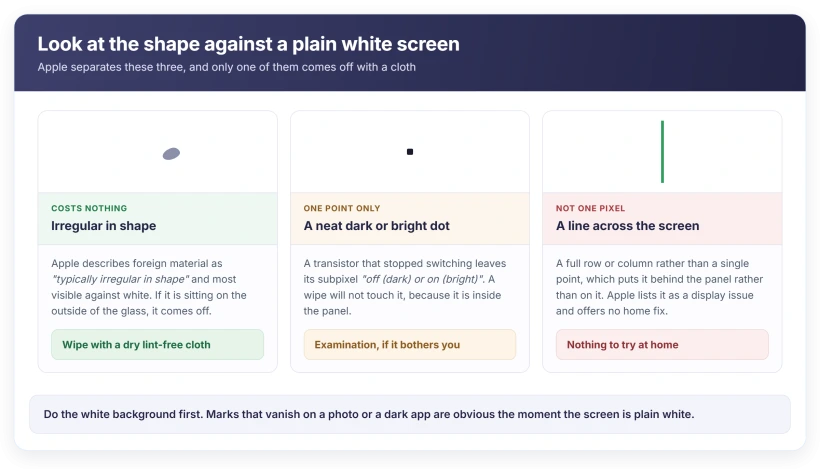
Apple's page on display pixel anomalies explains what you are looking for: foreign material "is typically irregular in shape and is usually most noticeable when viewed against a white background."
So open a blank note, or anything plain and white, and fill the screen with it. Marks that hide on a photo or a dark app jump out immediately.
Then look at the shape. Apple's distinction is simple. Debris is irregular. A failed pixel is a neat dot. A line is a line.
Wipe it, and know what a wipe can reach
Apple splits this cleanly. Material "on the front surface of the glass panel can be easily removed using a lint free cloth."
Then the other half. Material "trapped within the screen must be removed by an Apple Authorized Service Provider or Apple Retail Store."
That is the whole decision. If a wipe clears it, you are done. If it does not, the thing you can see is under the glass and there is nothing further you can do at home.
Do not press hard. Do not chase it with anything wet. A vertical line is not going to be rubbed away, and pressing an OLED panel is a good way to make a small problem larger.
If the mark survives a proper wipe on a white screen, I would stop cleaning and move to the screenshot test, because more rubbing will not help.
What a line usually is, and what it is not
A single dark or bright dot is a pixel that has stopped switching. Apple describes a transistor that fails to work perfectly, leaving its subpixel "off (dark) or on (bright)".
A line running the height or width of the screen is different. That is not one pixel. It is a whole row or column, which points at the connection behind the panel rather than at the panel's surface.
Apple lists horizontal and vertical lines as a display issue in its own repair guidance. Apple does not offer an owner-level fix for them anywhere.
That is worth accepting early. There is no setting, no reset and no app that brings a dead row back.
The advice you will find is written for a different screen
This changes how much weight to give the wording you will read.
Apple's article is titled "About LCD display pixel anomalies for Apple products released in 2010 and later". Its worked example is an iMac. The word OLED does not appear on it anywhere.
Every current iPhone is OLED. Apple's own spec sheets for the iPhone Air and the iPhone 16e both list a Super Retina XDR OLED display.
The cleaning advice still holds, because that part is about the glass in front of the panel. The acceptable-number framing does not, because it describes a display technology your iPhone does not use.
Good advice about debris. No guidance at all about what is normal on an iPhone.
Status: iOS 26.6, checked 16 August 2026. Apple's only page on marks and dots in a display is written for LCD and does not mention OLED. Every current iPhone uses OLED.
Before you book anything, rule out a picture
Two things fake this convincingly and cost nothing to check.
Take a screenshot and look at it on another device. If the line is in the screenshot, it is in the image, not the display. That means an app, a photo or a recording problem.
Then restart the phone and look again on a plain white screen. A line that vanishes was being drawn, not displayed.
If the mark survives a screenshot test, a wipe and a restart, it is physically in the panel.
What happens if you take it in
Apple does not diagnose this remotely. Its instruction is to take the device "for closer examination at an Apple Store, Apple Authorized Service Provider, or an Independent Repair Provider."
And the sentence people miss: "There may be a charge for the evaluation."
So expect to pay to be told what it is, separately from paying to fix it. Knowing that in advance is worth more than another hour of searching.
Apple states that genuine parts are available for out-of-warranty repairs through Self Service Repair.
That matters mostly because it tells you a display is a supported repair rather than a write-off, and our page on what Parts and Service History records covers the label your phone keeps afterwards.
If the screen is flickering rather than marked, that is a different list with cheaper answers, and our page on an iPhone screen that flickers starts with the charger.
Will a green or pink line on my iPhone go away?
Nothing in Apple's guidance suggests it will. A line is a row or column rather than a single pixel, and Apple offers no owner-level step for it. What is worth ruling out first is debris on the glass, a line that appears in screenshots, and one that disappears after a restart.
Is one dead pixel worth repairing?
Apple's own framing is that a small number of pixel anomalies can occur, and its advice is to have the display examined if you are concerned. Note that the page setting those expectations is written for LCD panels, so it is not a statement about what is normal on an iPhone.
Can I clean a line off my screen?
Only if it is sitting on the outside of the glass. Apple says foreign material on the front surface comes off with a lint-free cloth, and that anything trapped inside must be removed by a service provider. A wipe is free, so try it, but do not scrub.
Does a screenshot show the line?
That is the test worth doing. If the mark appears in the screenshot, the display is fine and something is drawing it. If the screenshot is clean and the screen is not, the fault is in the panel.
The Short Version
- Wipe the glass with a dry lint-free cloth and check against a plain white background.
- Debris is irregular in shape. A failed pixel is a neat dot. A line is a row or column.
- Material on the glass wipes off. Material inside needs a service provider.
- Take a screenshot. If the line is in the image, the display is not the problem.
- Restart and look again. A line that vanishes was being drawn, not displayed.
- Apple's pixel page is written for LCD and never mentions OLED, which is what iPhones use.
- Apple's next step is a paid examination, not a remote diagnosis.
- No setting, reset or app brings back a dead row.
Where to Next
Do the white background first, then the wipe. Ten seconds, no tools, and it separates the version of this that costs nothing from the version that does not.
Then the screenshot, because a line that shows up in the screenshot is being drawn rather than displayed, which is a completely different conversation.
If all four tests point inside the panel, come back and tell me what your phone is and how old it is, and I will tell you what your options usually look like.

Isaac Smith is the founder and editor of PC Glance, a website that covers computers, laptops, and technology. He is a tech enthusiast and a computer geek who loves to share his insights and help his readers make smart choices when buying tech gadgets or laptops. He is always curious and updated about the latest tech trends.