
A little red badge turns up on your Settings icon, you tap in, and your iPhone tells you it has found an issue with cellular. No calls, no texts, no data, while Wi-Fi carries on as if nothing happened.
I know exactly how that reads, and I know your first thought was the carrier.
It is not the carrier, and there is nothing in Settings to switch. Your phone checked itself after an update and found a piece of its own software missing.
Putting that piece back is a job for a computer, and the whole thing turns on holding one key down while you click. It does not erase anything.
Find the message before you do anything else
It arrives quietly. A small red badge with a number turns up on the Settings icon. The message itself sits inside Settings, not on the Lock Screen.
Open Settings and tap the message at the top to read which one you have. Apple names three, and they are not interchangeable.
Getting the exact wording matters, because the three describe completely different losses and only one of them stops your phone working as a phone.
What each of the three actually costs you
Apple, on its page for these messages: "When one of these messages appears, iOS or iPadOS diagnostics detected an issue on your iPhone or iPad that might require repair."
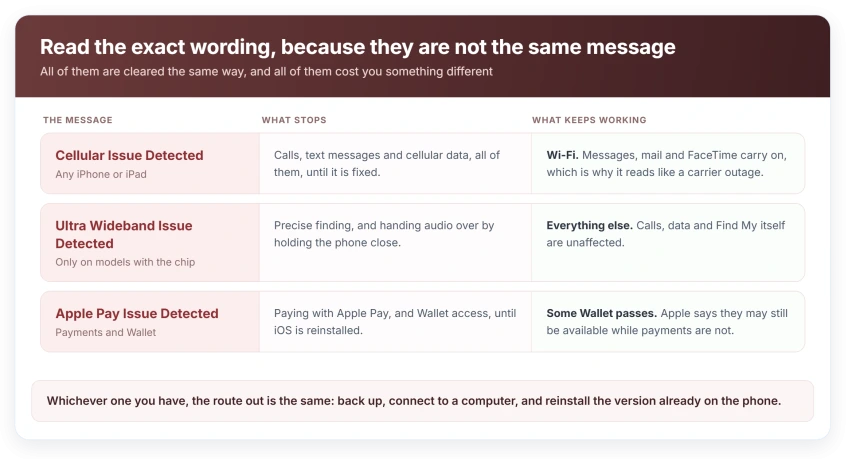
For Cellular Issue Detected, Apple is blunt about the damage: "there was an issue updating the cellular communication features of your iPhone or iPad. Your device can't make or receive calls or text messages or access cellular data."
That is the whole cellular side, not one feature. Wi-Fi keeps working. Which is exactly why people spend a day blaming the carrier.
Ultra Wideband Issue Detected is narrower. Apple describes an issue "updating the Ultra Wideband feature of your iPhone", and it appears only on models that have the chip.
That chip drives precise AirTag finding and handing audio to a HomePod by proximity. Everything else carries on as normal.
Apple Pay Issue Detected has a detail worth knowing before you panic at a checkout.
Apple says you cannot use Apple Pay or Wallet for payments "until you reinstall iOS or iPadOS on your device", then adds: "Some Wallet passes might still be available while payments are unavailable."
So your boarding pass may still open while your cards will not tap.
Whichever one you have, the way out is the same, so I would read the wording once, write it down, and then go and find a computer.
Before you plug anything in
Back up the phone. Apple puts that first in its own list, and it will run over Wi-Fi while you go and find a cable.
You need a computer with a current version of macOS, iTunes or the Apple Devices app. A Mac uses Finder, a Windows PC uses iTunes or Apple Devices.
Use a cable you trust. This step pulls down a full iOS build, and a connection that drops midway is the one way to turn an annoying message into a real problem.
If the phone asks you to trust the computer, unlock it and tap Trust. Nothing happens until you do.
The click that reinstalls without erasing
One keystroke separates the step that works from the step that looks like it does nothing.
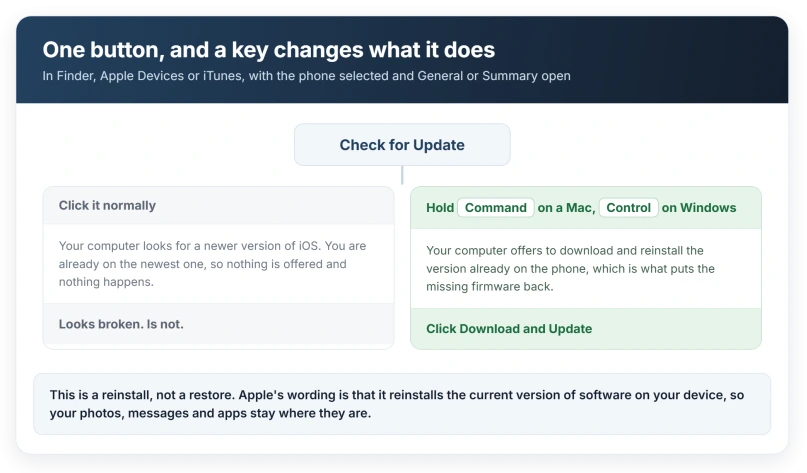
Select your phone in the sidebar, then open General in Finder or Apple Devices, or Summary in iTunes. You will see a button that says Check for Update.
Do not click it normally. Apple: "On a Mac: Command-click Check for Update." On Windows, Apple's wording is "On a Windows computer: Control-click Check for Update."
Holding the key changes what the button does. A plain click looks for a newer version and finds none, because you are already current. The modifier click offers to lay the build you have back down on top.
Then click Download and Update. Apple: "Your computer will download and reinstall the current version of software on your device."
Reinstall, current version, your device. Your photos, messages and apps stay exactly where they are.
Apple: "Don't disconnect your device from your computer until the download completes." The download is several gigabytes, so give it time and leave it alone.
If the message is still there afterwards
Apple's page ends in one sentence: "If the message still appears, you might need service."
That is an honest ending rather than a lazy one. The check that raised the message runs again after the reinstall. A message that survives it has been told twice.
Take the exact wording with you. Cellular, Ultra Wideband and Apple Pay point at different components, and the wording is the only clue anyone at a counter gets from you.
One free thing to try first: Apple points iPhone owners on iOS 18 and later at its own Support app, which runs further diagnostics on the phone and can narrow down where the fault sits.
Status: iOS 26.6, checked 16 August 2026. Apple's page for these messages, doc 101582, was last published on 30 January 2026 and the modifier-click step is unchanged.
What does not work
- Reset Network Settings. It rewrites Wi-Fi passwords, VPN and APN entries and leaves the missing firmware exactly as missing. Apple does not list it on this page at all.
- Removing and reseating the SIM. The message is about software the phone failed to write during an update. A perfectly good SIM will not change it, and neither will a new one from your carrier.
- Software Update on the phone. You are already on the current build, which is why the update check comes back empty. That is the entire reason the modifier click exists.
- Erase All Content and Settings. This is the dangerous one. It wipes the phone and it is not what Apple asks for, because reinstalling and erasing are two different operations reached from two different buttons.
If your problem is a Cellular row that is greyed out rather than a diagnostic message, that is something else, and our page on Cellular greyed out covers what puts it there.
Is Cellular Issue Detected the same as No Service?
No, and the difference decides what you do. No Service is about reception and can change when you walk outside. Cellular Issue Detected is raised by a self check and does not move, because the phone has concluded that part of its own cellular software is not there. Our page on an iPhone stuck on SOS or No Service handles the first one.
Will reinstalling iOS delete my photos?
Not with this procedure. Apple's wording is that the computer will download and reinstall the current version of software on your device, which leaves your data in place. The step that erases everything is Restore, a separate button, and Apple never asks for it here. Back up first anyway.
Why did this appear straight after an update?
Because the check that produces it runs after an update or a restart. An update writes several pieces of firmware, and a piece that did not land cleanly is exactly what this message reports, which is why it turns up the morning after an install rather than out of nowhere.
The Short Version
- The signal is a red badge on the Settings icon. The message itself is inside Settings.
- Cellular Issue Detected takes out calls, texts and cellular data. Wi-Fi keeps working.
- Ultra Wideband Issue Detected affects only precise finding on models with the chip.
- Apple Pay Issue Detected stops payments, and Apple notes some Wallet passes may still open.
- The fix is a reinstall from a computer, started by Command-clicking or Control-clicking Check for Update.
- Reinstall is not restore. Apple's own words are that it reinstalls the current version on your device.
- If the message survives the reinstall, Apple says you might need service, and the exact wording is what a technician needs.
Where to Next
What makes this one maddening is that it looks like a settings problem and behaves like a hardware one, and it is neither.
Nothing you can reach on the phone will help. Once you accept that, it is a twenty minute job with a cable and a computer, and the only part people get wrong is clicking the button without holding the key down.
And if Wi-Fi is joined but carrying nothing, that has its own diagnosis by symptom.
If the message survives the reinstall, that is Apple's own signal to get it looked at. Come back and tell me, because that outcome is worth recording.

Isaac Smith is the founder and editor of PC Glance, a website that covers computers, laptops, and technology. He is a tech enthusiast and a computer geek who loves to share his insights and help his readers make smart choices when buying tech gadgets or laptops. He is always curious and updated about the latest tech trends.