
A red box has just told you your iPhone is infected, or hacked, or that some exact number of viruses were found. Your heart rate went up.
And the real question underneath it is not what a virus is, it is whether you already tapped something you should not have.
I know that jolt, and that panic is exactly what the box was built for. Nothing scanned your iPhone, because nothing on a web page can.
What you saw was a picture of a warning, drawn by a page you landed on. Work down these seven in order and stop at the one that matches yours.
What Apple says about boxes like that
Start here, because it settles the question the box is trying to stop you asking.
Apple, on scams and phishing: "While browsing the web, if you see a pop-up or alert that offers you a free prize or warns you about security problems or viruses on your device, don't believe it."
Apple then names what they actually are. Apple: "These types of pop-ups are usually fraudulent advertisements, designed to trick you into downloading damaging software or giving the scammer personal information or money."
And the instruction, which is deliberately dull. Apple: "Don't call the number or follow the links to claim the prize or fix the problem. Ignore the message and simply navigate away from the page or close the entire window or tab."
Fix 1: Close the whole tab, and touch nothing inside the box
This is the ordinary case, and for you it probably ends right here.
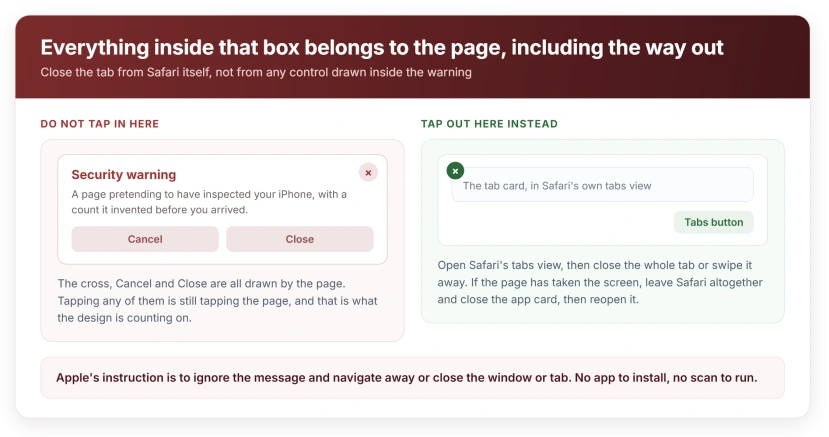
I would not tap anything inside that box. Not the X in its corner. Not Close, not Cancel. Those are pictures drawn by the page, and tapping any of them is still tapping the page.
Close the whole tab instead. Tap the tabs button at the bottom right of Safari, find the tab, then tap the small x on its card or swipe it away.
If the page has taken over the screen and you cannot reach the tabs button, swipe up from the bottom edge to leave Safari, then swipe up again on the Safari card to close the app. Reopen it and the tab will usually be gone.
Never typed anything, never called anything? Then you are done. There is nothing to clean up.
Fix 2: Turn off Safari notifications, if it returns when you are not browsing
A box that reappears while you are nowhere near a browser is a different animal. Something now has permission to reach you.
The commonest cause is a website you allowed to send notifications, probably months ago. Those alerts look like system warnings and they arrive on the Lock Screen.
Go to Settings, tap Notifications, and scroll the app list. If Safari is listed, open it and turn its notifications off, which stops every website that was ever granted permission in one move.
Fix 3: Clear History and Website Data
This removes the ground the page was standing on, and it is fix 2's natural partner.
In Settings, tap Apps, tap Safari, then Clear History and Website Data.
That clears the redirect chain landing you back on the same page, and the permission records with it.
You will be signed out of sites, so expect to log in again. Our page on Safari tabs vanishing covers what else that clear-out takes with it, because people are often surprised.
Fix 4: Switch on the two Safari protections
Neither is a cure. Both make these pages harder for you to land on in the first place.
Open Settings, tap Apps, tap Safari, and check that Block Pop-ups is on. Then in the same screen, confirm Fraudulent Website Warning is on as well.
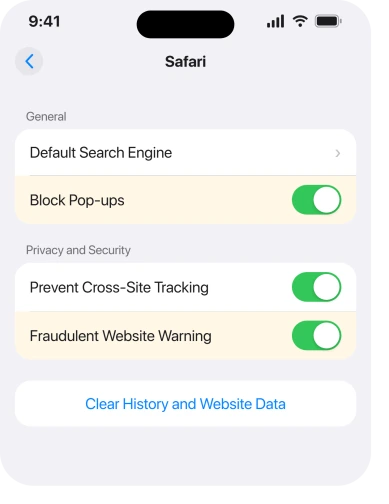
Ours: the second one is the one I would set first. It puts Safari's own full-screen warning in front of known scam sites before the page you tapped ever loads.
Fix 5: If it arrived in Calendar, do not tap Decline
If yours turned up in Calendar rather than in Safari, that is a separate scam with a separate fix, and deleting the individual events makes it worse.
Apple names it in the same list of tactics: "Unwanted Calendar invitations and subscriptions." I have seen these arrive weeks after somebody tapped one link.
Our page on iPhone calendar spam explains why that single tap tells the sender your address is live, and what to remove instead.
Fix 6: If it asked you to install something, check for a profile
This is the one that can actually put something on your phone, which is why it gets its own rung.
Apple: "This includes apps that ask to install configuration profiles that can then control your device."
Check for one at Settings, General, VPN & Device Management. On a personal phone that section should either be missing entirely or hold only things you recognize from work or school.
Anything there you do not recognize, remove it. A profile can change your search engine, route your traffic and add accounts, and it survives closing tabs and clearing data.
Fix 7: If you already tapped, called or typed, work down this list today
The last rung, and the only one with any urgency in it.
If you gave out a password or a verification code, act now rather than later.
Apple: "if you might have entered your password or other personal information on a scam website, change your Apple Account password immediately and ensure that two-factor authentication is enabled".
If you paid anything, or handed over card details, ring your bank before you do anything else on the phone.
And if a caller claimed to be Apple, the test is simple. Apple: "Apple never asks for this information to provide support." Apple's own advice for an unsolicited call claiming to be from them is to hang up.
If somebody talked you into installing a remote-access or support app, delete it, then do fixes 3 and 6 as well. That combination is how a scam call turns into a lasting problem.
And if what you actually want to know is whether the phone was ever compromised, that is a different question with its own answer.
Our page on how to check whether your iPhone was really hacked runs through those checks.
What does not work
- Installing a security or antivirus app. There is nothing for it to find, and several of them are the same advertising business that showed you the box.
- Erasing the phone. Nothing was installed. A restore costs you a day and changes nothing.
- Deleting Safari. The pages arrive through the browser, not from it, and any other browser behaves the same way.
- Calling the number to tell them off. Answering at all confirms the number reached a real person.
- Tapping the X inside the box. Every control in there belongs to the page, including the one that looks like a way out.
Status: iOS 26.6, checked 17 August 2026. Apple names misleading pop-ups about security problems as a scam tactic on doc 102568, and its instruction is to close the tab, not to run anything.
Is the iPhone virus warning real?
No. Apple's own guidance is not to believe a pop-up that warns you about viruses on your device, and it describes them as fraudulent advertisements. A web page cannot scan an iPhone, so the numbers and countdowns in the box are decoration.
Can an iPhone actually get a virus from a pop-up?
Not from seeing one. The risk is in what it persuades you to do next: install a configuration profile, hand over a password, or ring the number. Closing the tab without touching anything inside it leaves nothing behind.
Why does the security alert keep appearing on my iPhone?
Because a website has permission to send you notifications, which you probably granted months ago on a different page. Turn Safari's notifications off at Settings, Notifications, Safari, then clear History and Website Data.
The Short Version
- Nothing scanned your phone. A web page cannot do that, and Apple says not to believe the box.
- Close the whole tab. Never tap anything inside the box, including its X.
- If it returns when you are not browsing, a website has notification permission. Turn Safari's off.
- Then clear History and Website Data, which removes the permissions and the redirect chain.
- Turn on Block Pop-ups and Fraudulent Website Warning while you are in there.
- Check Settings, General, VPN and Device Management for any profile you do not recognize.
- If you typed a password or paid anything, change the password and ring the bank today.
Where to Next
The whole design of that box is to make the next ten seconds feel urgent, because urgency is what stops people noticing that a web page cannot possibly know what is on their phone.
Close the tab. Sit down. Then work down this list only as far as your situation actually goes.
Where the scare has a name attached to it, the so-called Moo virus works the same way and is not one either.
If yours keeps coming back after fixes 2 and 3, tell me whether it appears inside Safari or on the Lock Screen, because those two have completely different causes.
On a Mac, a strange website name in Notifications settings is a related trick, and denying it in Safari clears it.

Isaac Smith is the founder and editor of PC Glance, a website that covers computers, laptops, and technology. He is a tech enthusiast and a computer geek who loves to share his insights and help his readers make smart choices when buying tech gadgets or laptops. He is always curious and updated about the latest tech trends.