
Your screen is zoomed so far in that you cannot read it, the colours have gone inverted, and every so often the phone moos at you.
Being unable to see well enough to fix your own phone is a horrible feeling, and the word going round for this is virus, which makes it worse. It is not a virus, and I can get you out of it in six steps.
Work through them in order. The first move gets your screen back so you can see the rest.
Step 1: Three fingers, double tap
Before anything else, undo the zoom. You cannot navigate to Settings while the screen is magnified this far, so nothing else on this page works until you do this.
Double-tap the screen with three fingers.
Apple's Zoom page documents it as the way in and out: "Double-tap the screen with three fingers or use Accessibility Shortcut to turn on Zoom."
Owners report that this is the only route available, because the magnification is deliberate.
One person on the Apple Community thread behind this page put it exactly: "The moo virus turns on zoom to 'extra extra extra large' so you cannot simply navigate your phone to disable it".
The same gesture turns it off. Use three fingers, tap twice, reasonably quickly, anywhere on the screen.
If it is still magnified but you can see a little, Apple offers a way to move around while you work: "Pan to another area: (Full Screen Zoom) Drag the screen with three fingers."
Step 2: Fix the colours from the Zoom menu
Now the inverted colours. Almost every other page sends you to the wrong screen for these.
Triple-tap with three fingers. That opens the Zoom menu.
Apple lists what is in it: "Choose Filter: Choose Inverted, Grayscale, Grayscale Inverted, or Low Light."
Set that to None.
The colours were inverted by a Zoom filter, not by Smart Invert in Display & Text Size. That is why turning off Smart Invert so often changes nothing at all.
The setting lives at Settings, Accessibility, Zoom, where Apple names it "Zoom Filter: Choose None, Inverted, Grayscale, Grayscale Inverted, or Low Light."
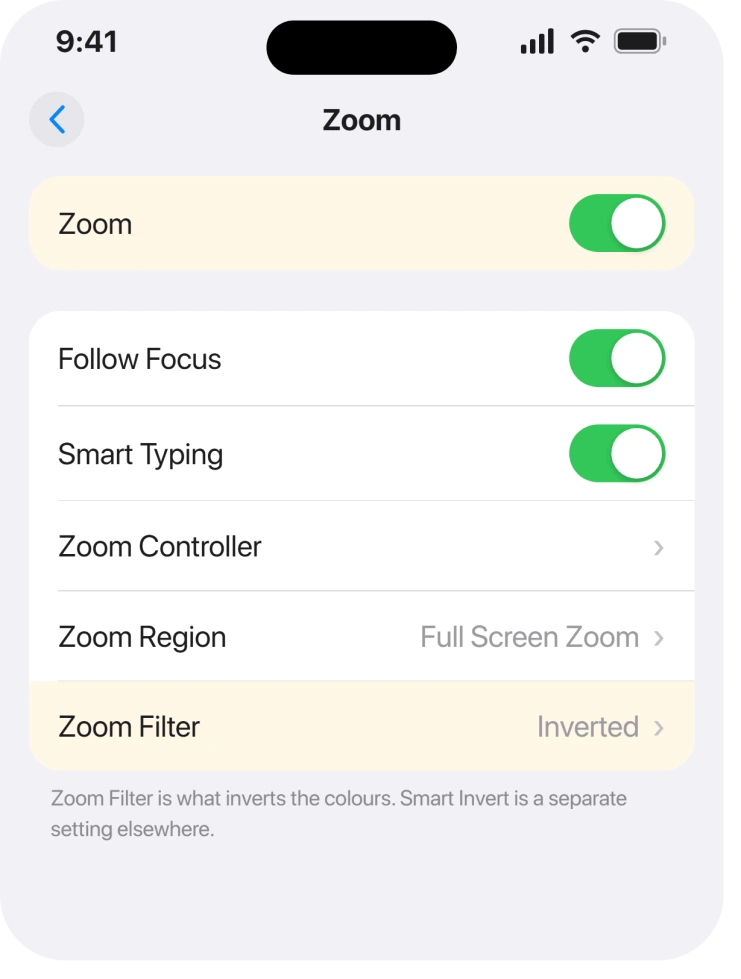
Check the other one too while you are there, because both can be on at once. Settings, Accessibility, Display & Text Size, then Smart Invert and Classic Invert.
Step 3: Turn Zoom off properly
With the screen usable again, close the door behind you.
Go to Settings, Accessibility, then Zoom, and turn Zoom off.
While that screen is open, look at Maximum Zoom Level. Apple describes it as a slider: "Maximum Zoom Level: Drag the slider to adjust the level." Dragged to the top, it is what made the screen unusable rather than merely large.
Turning Zoom off leaves the setting there for next time, which is fine. What matters is the switch.
Step 4: Delete the shortcut, because that is the actual cause
This is the part the name gets wrong.
This is a Shortcuts automation somebody ran on your phone, not malware. It sets Zoom to maximum, applies the inverted filter, and plays a mooing sound. Everything above is undoing its effects; this step stops it happening again.
Open the Shortcuts app, tap Edit, select the shortcut you do not recognise, and delete it.
Check the Automations tab as well. A shortcut that runs on a schedule or on a trigger lives there rather than in the main list, and deleting the visible one leaves the automation running.
Ours, and marked as ours: we would look at anything unfamiliar rather than only something obviously named. Whoever set this up had physical access to your unlocked phone for a minute, and there is no reason they would name it helpfully.
Step 5: Put the Accessibility Shortcut back the way you want it
Quick, and it closes off the one triple-click that undoes your work.
Apple notes that Zoom can be attached to the side button: "To add Zoom to Accessibility Shortcut, go to Settings > Accessibility > Accessibility Shortcut, then tap Zoom."
If Zoom is ticked there, a triple-click of the side button switches it straight back on. Untick it unless you use it deliberately.
That is also worth knowing in reverse. Leaving Zoom ticked gives you a one-click escape next time, which is why some people keep it on purpose.
Step 6: If it comes back, somebody still has access
Last, and it matters more than the zoom did.
This needs your phone, unlocked, in somebody else's hands. If it returns after you have deleted the shortcut and its automation, then access is your problem, not settings.
Change your passcode. Look under Settings, General, then VPN & Device Management for a profile you never installed.
Apple never publishes anything about this, because from iOS's point of view nothing has gone wrong. Every one of those settings was changed the ordinary way by somebody holding the phone.
If a page is telling you an iPhone has a virus, the fake virus detected popup explains why that claim is nearly always a scam.
And if apps are opening on their own as well, an iPhone that randomly opens apps covers the other things a shortcut can drive.
What does not help
- Restarting the iPhone. These are saved settings. They survive a restart exactly as your wallpaper does.
- Running an antivirus app. There is no virus. Anything sold to you on that basis is not addressing the cause.
- Erasing the iPhone. It works, and it is enormously out of proportion to deleting one shortcut.
- Only turning off Smart Invert. If the inversion came from the Zoom filter, that screen was never the cause. Check both.
Status: iOS 26.6.1, checked 19 August 2026. This is a prank shortcut rather than malware, and every symptom is a documented Accessibility setting that reverses in a few taps.
Is the Moo virus a real iPhone virus?
No. It is a Shortcuts automation that turns Zoom up to maximum, applies an inverted Zoom filter and plays a mooing sound. Every part of it is an ordinary setting, which is why deleting the shortcut and reversing three settings clears it completely.
How do I unzoom my iPhone screen when I cannot see it?
Double-tap the screen with three fingers. Apple documents that gesture as turning Zoom on and off, and it works no matter how far in the screen is magnified, which is what makes it the first step.
Why are my iPhone colours inverted after the Moo virus?
Usually a Zoom filter rather than Smart Invert. Triple-tap with three fingers to open the Zoom menu and set Choose Filter to None. Should that fail, check Smart Invert and Classic Invert under Display & Text Size too.
How did the Moo virus get on my iPhone?
Somebody set it up on your unlocked phone. It needs no exploit and no download, only a minute of physical access, which is why changing your passcode matters more than any of the settings fixes.
The Short Version
- Three fingers, double tap, and the zoom comes off.
- Three fingers, triple tap, opens the Zoom menu where the filter lives.
- The inverted colours are usually a Zoom filter, not Smart Invert.
- Turn Zoom off in Settings, Accessibility, Zoom.
- Delete the shortcut, and check the Automations tab too.
- It needed physical access to your unlocked phone, so change your passcode.
Where to Next
The thing I would want you to leave with is that nothing infected your phone. Somebody borrowed it and changed four settings, and calling that a virus makes it sound unfixable when it takes about two minutes.
If yours came back after you deleted the shortcut, tell me below where you looked. Most people never open the Automations tab, and I want to know whether it hides anywhere else too.

Isaac Smith is the founder and editor of PC Glance, a website that covers computers, laptops, and technology. He is a tech enthusiast and a computer geek who loves to share his insights and help his readers make smart choices when buying tech gadgets or laptops. He is always curious and updated about the latest tech trends.