
Your phone buzzes to tell you that you have left your iPad behind, and you are standing in your own hallway with the iPad on the sofa where it lives. Or the opposite: you genuinely left something in a taxi and the alert never came.
Both are maddening in a way that makes you want to switch the whole feature off, and I would rather you kept it and tuned it.
There are six things to check, and the first one solves the alerts-at-home version on its own.
1. Trusted Locations are the point of the feature
Do this before you turn anything off. Apple built the answer in and then buried it in the setup flow.
Apple, on separation alerts: "You can also set Trusted Locations, which are locations where you can leave your device without receiving an alert."
Home, work, the gym. Add those and the buzzing stops where you want it stopped. It carries on everywhere that matters.
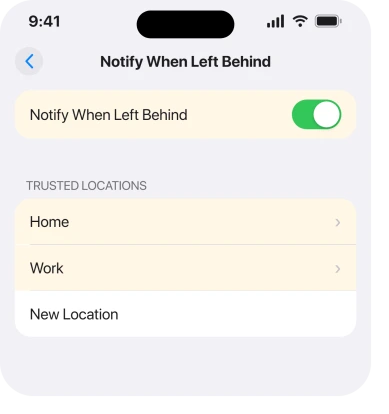
Open Find My, tap Devices, tap the device, then Notify When Left Behind.
Apple's instruction from there: "If you want to add a Trusted Location, you can choose a suggested location, or tap New Location, select a location on the map, then tap Done."
The suggested locations are usually right. Take them.
2. It is set per device, so you have to do it several times
This is why people think they turned it off and it carried on.
There is no master switch. Every device carries its own separation alert. Turn one off and the rest are exactly as they were.
So walk the list. Find My, then Devices, then into each entry that alerts you. Your iPad. Your Mac. Your AirPods, your Apple Watch, and an iPhone Wallet with MagSafe if you have one.
Do the same for Trusted Locations. Apple does not offer a way to apply one to every device at once, so adding home to your iPad does nothing for your Mac.
3. If the alerts never come, check the Find My notification permission
The likeliest reason the feature seems dead. Apple flags it as an Important note rather than burying it.
Apple: "In order to receive separation alerts, make sure you allow notifications for the Find My app."
Go to Settings, Notifications, Find My. Confirm Allow Notifications is on.
Check the whole screen while you are there. An app can have notifications allowed and still be silent, either because its alerts are off individually or because it is sitting in your Scheduled Summary.
Our page on notifications arriving late covers that, and our page on Find My location sharing covers the other half of this app.
4. You can only set the alert from the device you are carrying
A rule rather than a fault. It explains the setting you cannot find.
Apple: "You can only set up a separation alert from the device sharing your location. You receive an alert every time the device sharing your location separates from the device you set an alert for."
So the alert belongs to whichever device shares your location, normally the iPhone in your pocket. Went looking for the setting on the iPad and could not find it? That is why.
Set it from the phone, about the iPad. Not the other way round.
5. Not every device supports it
Quick. It saves you hunting for a switch that was never going to appear.
Apple names the requirements: "iPhone, iPad, or iPod touch with iOS 15, iPadOS 15, or later; Mac with Apple silicon and macOS 12 or later; or AirPods with the Find My network turned on."
Mac with Apple silicon. So an Intel Mac is out, whatever its macOS version. AirPods need the Find My network switched on first.
An owner on a community thread about this ran into a version of the same limit with a GPS-only Apple Watch.
A senior member's reading was that without cellular or Wi-Fi the watch cannot work out where it is, so the disconnect icon is all you get.
The owner disputed that, saying an older cellular watch with no active service had worked, and the thread ended unresolved. I am printing it as an open question, not a rule.
6. The alert exists for a reason, so tune it before you kill it
Last, because switching it off entirely is what most people do first.
If you want it gone, it is the same switch. Find My, Devices, the device, then turn Notify When Left Behind off.
Before you do, consider what you are giving up.
On the same community thread one owner described the practical range in ordinary use: "I need to be about a 1/4 mile (0.4KM) away before my Apple Watch will notify me that I left my iPhone behind."
A quarter of a mile. Far enough to be out of the shop and halfway down the street. Which is exactly when you would want to know.
Trusted Locations gets you the same silence at home without losing that. Recommending the tune over the switch-off is ours, and it is why rung 1 comes first.
What does not help
- Turning off Find My entirely. It takes your ability to locate a lost device with it, which is an enormous price for a notification.
- Restarting. Every cause here is a setting or a hardware requirement.
- Reset All Settings. It clears Wi-Fi passwords and permissions, and your separation alerts survive it.
- Turning off Bluetooth. It breaks the detection the feature depends on rather than tuning it.
- Setting the alert on the wrong device. Apple says it can only be set from the device sharing your location.
Status: iOS 26.6, checked 17 August 2026. Apple documents Trusted Locations, the notification requirement, the per-device design and the model list. The range figure is one owner's report.
How do I stop iPhone left behind alerts at home?
Add a Trusted Location rather than turning the feature off. Open Find My, tap Devices, tap the device, then Notify When Left Behind, and add your home from the suggested locations.
Apple describes Trusted Locations as places you can leave a device without an alert.
Why am I not getting left behind notifications?
Check that Find My is allowed to send notifications, which Apple lists as a requirement. Then check you set the alert from the device that shares your location, since Apple says that is the only device it can be set from.
Do I have to set it for every device separately?
Yes. There is no master switch. Each device in Find My carries its own Notify When Left Behind setting and its own Trusted Locations, so turning one off or adding home to one leaves the others untouched.
The Short Version
- Trusted Locations is the fix for alerts at home, not turning the feature off.
- Every device has its own setting, so you have to repeat it for each one.
- Find My needs permission to send notifications or you get nothing.
- The alert can only be set from the device that shares your location, normally your iPhone.
- Mac needs Apple silicon, and AirPods need the Find My network on.
- One owner reported needing to be about a quarter of a mile away before the alert fired.
Where to Next
The thing worth understanding is that this feature is per device and per location by design. It is not one switch behaving unpredictably, it is six or seven small switches you have only set one of.
Add your home as a Trusted Location on the device that keeps buzzing, and you get the useful half of the feature without the noise.
If you are getting alerts at a place you have already added as trusted, tell me whether it fires as you arrive or as you leave, because those two point at completely different things.

Isaac Smith is the founder and editor of PC Glance, a website that covers computers, laptops, and technology. He is a tech enthusiast and a computer geek who loves to share his insights and help his readers make smart choices when buying tech gadgets or laptops. He is always curious and updated about the latest tech trends.