
Two days on, and your download bar has not moved a pixel. Settings still says Downloading, or Preparing. You have restarted twice for nothing, and I get how pointless that starts to feel.
One thing to know before you touch anything.
This is not like an app download. Apple attaches conditions to it, publishes them in one place, and the phone tells you none of them. Miss a condition and the download does not fail. It waits.
So this page runs Apple's own conditions first, cheapest to satisfy at the top.
1. Put it on the charger, on Wi-Fi, and leave it
Start here, because Apple says it in plain words and it takes one cable. From Apple's how to get Apple Intelligence page:
"After you update your software, on-device Apple Intelligence models will start downloading; time to download varies. For the fastest model download experience, keep your device connected to Wi-Fi and power while models are downloading."
Wi-Fi and power, both. Plug it in, put it on Wi-Fi rather than cellular, then leave it alone for a few hours rather than checking it every ten minutes.
Turn Low Power Mode off while you do this too. Apple documents that power saving limits background activity, and a model download is background activity.
Apple never names this download specifically, so the connection is mine rather than documented, but sitting in that mode is the opposite of the state Apple asks for.
Turn it off at Settings, Battery, Power Mode. If your phone keeps switching it back on by itself, our battery page explains what does that.
2. Make room, because Apple publishes the number
Second, and it has a figure attached that you can check in a minute. Apple's system requirements list 7 GB of storage on device.
Not the download size, the space the models occupy once they land. A phone sitting at 3 GB free will start this and never finish it.
Check at Settings, General, iPhone Storage, and clear well past 7 GB. iOS wants working room on top.
If your storage screen is dominated by System Data, that is its own problem, and our page on System Data covers what actually shrinks it.
3. Your device language and Siri language have to match
Now the one that catches people whose phone is plugged in with 60 GB free.
Apple's requirement, listed alongside the storage figure: "Device language and Siri language set to the same supported language". Same, not both supported. The same one.
That is easy to fail without noticing. A phone set to English (United Kingdom) with Siri left on English (United States) counts as two different languages here.
Apple adds a second sentence, and it explains a download that seemed to go backwards: "If you change Siri language, Apple Intelligence might become unavailable until the new Siri language fully downloads and matches the device language."
If you changed Siri's language recently to fix something else, you started this.
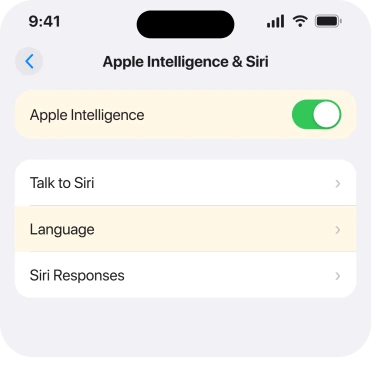
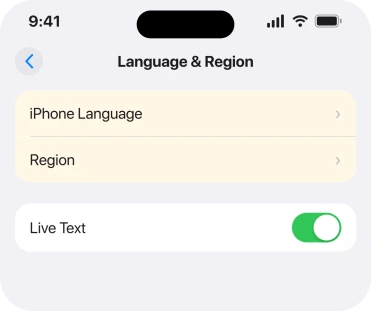
Check the device language at Settings, General, Language & Region. Check Siri's at Settings, Apple Intelligence & Siri, then Language.
4. Confirm the phone can run it at all
Quick, and better checked now than after another two days of waiting. Apple's device list for iPhone is short: iPhone 15 Pro models, and iPhone 16 models or later.
An iPhone 15, an iPhone 15 Plus, an iPhone 14 Pro, anything older. No amount of storage or patience will produce these models. The feature is not coming to that phone.
Apple's supported languages are also a fixed list: English, Danish, Dutch, French, German, Italian, Norwegian, Portuguese, Spanish, Swedish, Turkish, Chinese in both scripts, Japanese, Korean and Vietnamese.
If your phone is set to something outside that, rung 3 cannot be satisfied.
5. Turn Apple Intelligence off, restart, and turn it back on
Now the deliberate one, and it rests on a sentence Apple prints without explaining what it is good for. Apple: "If you turn off Apple Intelligence, the on-device models will be removed from your device." Removed, not paused, not cached.
That makes the off switch a way of throwing away a half-finished download and starting a clean one, a thing no other setting on the phone offers you.
Go to Settings, Apple Intelligence & Siri and turn Apple Intelligence off. Restart the phone. Plug it in, get on Wi-Fi, then turn it back on.
Expect it to take a while, because you have genuinely started from nothing. Do this one after rungs 1 to 4, not before, or you will re-download into the same blocked condition.
6. If the models are there but features still ask for them
Last, and this one has no fix I can give you. A separate report describes the opposite problem.
Storage shows several gigabytes of models present, and the features keep saying they need downloading anyway. It surfaced on iPhone 17 in autumn 2025, and Apple Support acknowledged it at the time.
I could not establish whether it is still live, and I am not going to imply it was fixed. The workarounds people passed around were toggling airplane mode, changing region, changing language back and forth, resetting network settings and restoring from a backup, and none was reported as reliable. If that is your symptom rather than a stalled bar, rungs 1 to 5 are still the right first move. After that it is a report to Apple through the Feedback Assistant.
One thing to be straight with you about across this whole page. Unlike most of what we write here, I could not find a single owner posting a confirmed fix for a stalled Apple Intelligence download.
No community thread, no named person, no before and after.
Every rung above is Apple's own published requirement instead, which is solid ground, but it is not the same as somebody telling you it worked for them. We could not fill that tier and I am not going to invent it.
What does not help
Restarting repeatedly does nothing on its own. If a condition is unmet, the phone waits again after every restart.
Signing out of your Apple Account does not touch it either. The models are not tied to it, and Apple lists no account requirement.
Deleting apps to free 500 MB will not clear it. The requirement is 7 GB, and iOS wants headroom past that. Nor will waiting on cellular. Apple asks for Wi-Fi, and a large model download over cellular is not the same job.
And assuming both languages being supported is enough is the trap rung 3 covers: Apple's wording is that they must be the same language.
Status: iOS 26.6.1, checked 18 August 2026. Every requirement listed is Apple's own published wording. The Low Power Mode link is mine. The models-present-but-unavailable report is unresolved.
Why is Apple Intelligence stuck on downloading?
Usually an unmet condition rather than a fault. Apple asks for Wi-Fi and power during the download, 7 GB of free storage, and the device language and Siri language set to the same supported language. The phone does not tell you which one is missing.
How long does Apple Intelligence take to download?
Apple says only that the time varies, and publishes no figure. What it does say is that keeping the device on Wi-Fi and power gives the fastest download, which suggests hours rather than minutes on a slow connection.
How much storage does Apple Intelligence need?
Seven gigabytes on the device, as listed in Apple's system requirements. That is the space the models take up once installed, so free considerably more than that before starting.
Which iPhones support Apple Intelligence?
iPhone 15 Pro and iPhone 15 Pro Max, and every iPhone 16 model or later. A standard iPhone 15 or anything older will never download the models.
The Short Version
- Apple asks for Wi-Fi and power during the download, and almost nobody quotes that sentence.
- The published storage requirement is 7 GB, and it is the installed size rather than the download.
- Device language and Siri language must be the same supported language, not merely both supported.
- Changing Siri's language makes Apple Intelligence unavailable until the new one finishes downloading.
- Turning Apple Intelligence off removes the models, which is how you force a genuinely clean retry.
- iPhone 15 Pro or iPhone 16 and later only, so a standard iPhone 15 will never get it.
Where to Next
What makes this one maddening is that a blocked download and a broken download look identical on screen. The same word, the same still bar, and no indication that the phone is simply waiting for a condition you did not know about.
Which is why the order here runs from Apple's conditions to Apple's own reset, rather than starting with a reset the way most advice does. Satisfy the conditions first and the reset in rung 5 usually is not needed at all.
Work through it, and should the bar still be sitting there by morning, there are two things I would want from you. Which iPhone, and what those two language settings actually say.
Once it finishes, Clean Up is one of the tools it unlocks. If Clean Up then blurs a face rather than erasing it, the Safety Filter has no off switch, but it has workarounds.
Between them they explain most of the downloads that never finish.

Isaac Smith is the founder and editor of PC Glance, a website that covers computers, laptops, and technology. He is a tech enthusiast and a computer geek who loves to share his insights and help his readers make smart choices when buying tech gadgets or laptops. He is always curious and updated about the latest tech trends.