
That little leaf that used to tell you what a plant was has stopped turning up. The Info button is a plain circle now, on every photo, and it worked fine a month ago.
I know how irritating a feature that quietly leaves is, so let me take you to the switch first.
The switch moved. That is the short answer to most of these. It moved somewhere the instructions in circulation never send you.
1. Look at the Info button before anything else
Start here, at the Info button itself. It tells you which problem you have. Open the photo full screen and look at the Info button at the bottom. When your iPhone has spotted something, that button gains a small symbol with stars on it.
Apple's instruction from there, on its Visual Look Up guide page, is exact:
"Tap the starred Info button, then tap Look Up at the top of the photo information to view the Visual Look Up results."
A note on Apple's own wording. The sentence describing which symbols appear names them as pictures rather than words, so quoting it here would print a gap where an icon used to be.
What Apple means in plain text: a starred Info button means Visual Look Up has something for that photo.
So two very different situations:
- No star on any photo. Something is switched off, or unavailable to you. Rungs 2 to 5.
- A star appears but tapping Look Up gives nothing. That is the connection, and it is rung 4.

2. The setting is under Photos now, not under Search
This is the rung that fixes most of them, and almost every set of instructions still gets it wrong.
Older guides tell you to go to Settings, then Search, then turn on Show Related Content. Go and try it. It is not there.
An owner on an Apple Community thread hit exactly this wall after an update and said so plainly: "Tried looking for Show Related Content but it doesn't come up in Settings search."
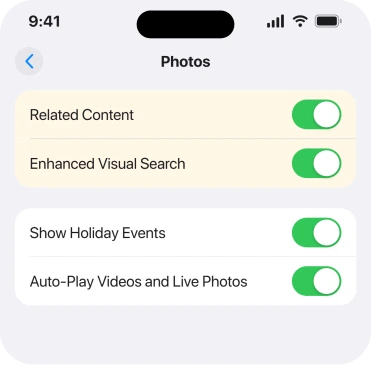
A Level 10 member gave them the current route, and it is the one to use: Settings, Apps, Photos, then Related Content.
App settings were gathered into a single Apps list, which is why a setting people have found for years appears to have vanished.
Our page on where app settings went covers the move itself.
Turn Related Content on. Then restart the phone, because the change does not always take effect until you do.
3. Enhanced Visual Search, the second switch
Narrower, and it sits on the same screen as rung 2, so check it while you are there.
The same Level 10 member pointed at Settings, Apps, Photos, then Enhanced Visual Search alongside Related Content.
Two separate things. Related Content puts the star on the Info button. Enhanced Visual Search is the wider lookup, reaching past what your phone can identify alone.
Both on. That is the state you want.
Being straight with you, this did not fix it for the person who asked. Their reply was "enhanced visual search is on and even turning it off and on again hasn't helped", and the thread ended there with no answer.
So check the switch, but do not expect it to be the whole story if rung 2 already failed.
4. It needs a connection, and it needs the right subject
Two conditions in one rung, because they produce the same empty result.
Your iPhone can spot the category of a thing with no signal at all. Naming it is a lookup. A lookup needs the internet.
So a star that appears and then produces nothing is usually a connection that dropped between the two.
The other half is what is actually in the frame.
Apple's categories:
"you can identify and learn about architectural landmarks, popular statues, famous art, plants, pets, books, and more that appear in photos and images. Visual Look Up can also identify food and suggest related recipes."
Landmarks, statues, art, plants, pets, books, food. A photo of your car, your sofa or a stranger sits outside that list, and I have not found a setting that adds one.
Try one clear subject filling the frame. A busy photo with six things in it gives the phone nothing to settle on.
Test with a photo you know should work, such as a well-known building or a houseplant.
If your library itself is behaving oddly, that is a separate problem and our page on photos not showing covers it.
5. Check your region and language
Short, and it is the answer for a small group of people who will otherwise try everything above forever.
Apple states it directly: "Visual Look Up isn't available in all regions or languages."
There is no way to force it. If your region and language combination is outside Apple's list, the star will not appear no matter what you switch on, and the phone will never say why.
This is also why it can work on your iPad and not your iPhone, or on a friend's phone and not yours. Different settings, different answer.
6. Make sure you are not chasing Visual Intelligence instead
Last, and it is the one that wastes whole evenings.
iOS now has two features with confusingly similar names, and they are unrelated.
Visual Look Up is the starred Info button on a photo you already have. It works in Photos, Safari and Quick Look. It runs on essentially any modern iPhone.
Visual Intelligence is the newer one.
You click and hold the Camera Control or the Action button to point the camera at something in front of you, and it needs an Apple Intelligence iPhone, which means iPhone 15 Pro or iPhone 16 and later.
So if what you lost was the camera-pointing one, nothing in Photos settings brings it back. The question becomes whether your phone supports Apple Intelligence at all, and whether its models ever finished arriving.
Our page on Apple Intelligence stuck downloading covers that side.
And if the starred button is the one you want on an older iPhone, take some comfort. It does not need Apple Intelligence at all.
What does not help
- Settings, Search, Show Related Content. That route no longer exists, which is why searching Settings for it returns nothing.
- Reinstalling Photos. It is not removable, and the setting is not held inside the app.
- Turning Enhanced Visual Search off and on. One owner did exactly that and reported no change.
- Waiting for your photo library to reindex. No thread reports the star returning on its own.
- Turning on Apple Intelligence. Visual Look Up predates it and does not use it.
Status: iOS 26.6.1, checked 18 August 2026. Apple documents the starred button, categories and the region limit. The Settings route is from a Level 10 reply. The owner who asked never got it back.
Why is Visual Look Up not working on my iPhone?
Most often because Related Content is off, and because the setting moved from Settings, Search to Settings, Apps, Photos. Turn it on there and restart. If no star appears on any photo after that, check your region and language.
Where is Show Related Content in iOS 26?
It is Related Content now, at Settings, Apps, Photos. The old Settings, Search location is gone, which is why searching Settings for the old name finds nothing.
Why is there no Look Up option on my photo?
The Info button only offers Look Up when your iPhone has picked something out of the frame. No star means either the setting is off, the subject sits outside Apple's categories, or the feature is unavailable in your region.
Is Visual Look Up the same as Visual Intelligence?
No. Visual Look Up identifies things in photos you already have and works on ordinary iPhones. Visual Intelligence points the camera at what is in front of you and needs an Apple Intelligence iPhone.
The Short Version
- The star on the Info button is the diagnostic, so check it before changing anything.
- Related Content moved to Settings, Apps, Photos, and the old Settings, Search route is gone.
- Enhanced Visual Search is a separate switch on the same screen, and both should be on.
- Naming the object needs an internet connection, even though spotting it does not.
- Apple names landmarks, statues, art, plants, pets, books and food, and says there is more besides, so test with one of those.
- Visual Look Up and Visual Intelligence are different features with different requirements.
Where to Next
The reason this one is so slippery is that a switched-off feature and an unsupported one look identical. Plain Info button, no explanation, no error message anywhere on the phone.
That is why rung 1 matters more than it sounds. Find one photo of a plant or a well-known building, look at the button, and you have separated the two before you change a single setting.
Related Content already on, and still no star on anything? Then leave me your region and your phone language. That combination is the one part Apple will not spell out, and I am trying to build a picture of which pairings quietly miss out.

Isaac Smith is the founder and editor of PC Glance, a website that covers computers, laptops, and technology. He is a tech enthusiast and a computer geek who loves to share his insights and help his readers make smart choices when buying tech gadgets or laptops. He is always curious and updated about the latest tech trends.