
You handed the phone to a child, triple-clicked to lock them into one app, and got Guided Access unavailable instead. It worked ten minutes ago.
That is a rotten moment, and the good news is that I can hand you what owners have already worked out about both the cause and the way round it.
The pattern is oddly specific. It fails on the second attempt, not the first.
So before you change any setting, read rung 1, because it may already be fixing itself while you read.
1. Wait three to five minutes and try again
Start here. It takes no settings changes at all, and two owners confirmed it.
The owner who documented this described the exact sequence:
"This bug happens when you enter guided access in an app then triple tap to exit guided access, then try to enter guided access again and it doesn't let you, it says 'Guided access unavailable.'"
They also reported it clears on its own after a few minutes.
A second owner, five weeks later, confirmed the timing: waiting three to five minutes lets the feature work again.
So if you need it right now, put the phone down and count. If you need it to stop happening, keep reading.
2. Turn off Face ID for Guided Access and use the passcode
This is the fix that actually solves it, and it came from an owner rather than from Apple.
The person who raised the thread was told to disable Face ID and use a plain passcode instead. They came back the next day: "disabling the face id and just using a normal password fixes it."
A third owner confirmed the same mechanism from the other side. On 16 August, somebody hitting this with Touch ID rather than Face ID reported that disabling biometric authentication resolved it too.
Two different biometrics, two different people, same result. That points at the biometric unlock inside Guided Access as the thing that jams, not Guided Access itself.
Apple's own description of that setting, on its Guided Access page, confirms it is optional:
"Passcode Settings: Set a Guided Access passcode and choose whether to use Face ID or Touch ID as another way to allow a Guided Access session to be paused or ended."
Another way. Not the only way. So switching it off costs you nothing but a tap.
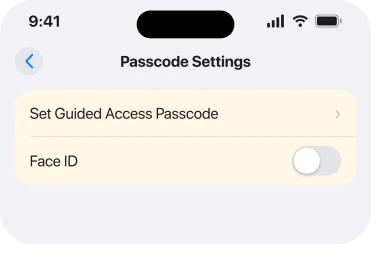
Go to Settings, Accessibility, Guided Access, tap Passcode Settings, and turn off Face ID. Set a Guided Access passcode there if you have not already.
3. Switch Guided Access off and back on
Ordinary, and it clears the state without costing you your setup.
Go to Settings, Accessibility, Guided Access, turn the top switch off, wait a few seconds, then turn it on again.
This is the software equivalent of rung 1, done deliberately rather than by waiting. It puts the feature back into a clean state, and your passcode and time limits survive.
4. Put Guided Access at the top of the Accessibility Shortcut list
Narrower, and it fixes a different failure that produces the same feeling.
If your triple-click has more than one feature assigned to it, iOS shows a menu rather than starting Guided Access. Miss the menu and nothing happens, which reads as unavailable even though nothing is broken.
Go to Settings, Accessibility, then Accessibility Shortcut at the very bottom.
Touch and hold the handle beside Guided Access and drag it to the top of the list. Better still, untick everything else so the triple-click has one job.
If you have ever been trapped by that same triple-click launching the screen reader instead, our page on stopping VoiceOver covers the other half of this.
5. Force restart, which clears it when waiting has not
Heavier, and it is the one to use when the phone has been sitting on the message for a while.
Press volume up and release. Press volume down and release. Then hold the side button until the Apple logo appears.
A force restart is not the same as switching the phone off and on. It clears state that a clean shutdown preserves, which is exactly the kind of stuck flag your phone looks to be holding here.
Expect it to come back. A restart clears today's instance, and rung 2 is what stops it recurring.
On an iPad with a Home button, iPadOS 27 has a different Guided Access fault: the triple-click stops working altogether. A force restart is the way out of that one.
6. Check it is really this and not a managed restriction
Last. This one matters most if somebody else set your phone up.
Guided Access can be switched off entirely by a configuration profile on a school, work or family-managed device.
When that is the case, no amount of waiting or restarting changes anything, because the feature was removed rather than jammed.
Look at Settings, General, VPN & Device Management. A profile listed there means the phone is managed, and the person who manages it is who to ask.
Also check Screen Time, then Content & Privacy Restrictions. If those are on and the passcode is not yours, the same applies.
That mechanism removes plenty of other things too, and our page on a missing App Store icon walks through how to tell a restriction from a fault.
What does not help
- Updating iOS. The reports run from June to August across several point releases, unchanged throughout.
- Deleting and reinstalling the app you were locking. The fault is in Guided Access, not the app.
- Setting a longer time limit. The message appears before any session starts.
- Resetting all settings. No owner reports it working, and it costs you every preference on the phone.
- Assuming a restart fixes it for good. It clears the instance. Only turning off the biometric stopped it recurring.
Status: iOS 26.6.1, checked 18 August 2026. Apple documents no such message. Every fix on this page is user-reported, and the Face ID one is confirmed by two owners on two different biometrics.
Why does my iPhone say Guided Access unavailable?
Owners report it after exiting a Guided Access session and immediately trying to start another. The likeliest cause is the biometric unlock jamming, since disabling Face ID or Touch ID stopped it for two separate people.
How do I fix Guided Access unavailable?
Wait three to five minutes and it usually clears on its own. To stop it recurring, turn off Face ID at Settings, Accessibility, Guided Access, Passcode Settings, and use a Guided Access passcode instead.
Does Guided Access unavailable fix itself?
Yes, according to two owners, in about three to five minutes. That is a workaround rather than a fix, because it comes back the next time you exit and re-enter a session.
Why is Guided Access missing on a school or work iPhone?
A configuration profile can remove it entirely. Check Settings, General, VPN & Device Management for a profile, and Screen Time for Content & Privacy Restrictions you did not set.
The Short Version
- It fails on the second attempt, straight after you exit a session, in every report found.
- Waiting three to five minutes clears it, confirmed by two owners.
- Turning off Face ID for Guided Access is the fix that stops it recurring.
- A third owner hit the same thing with Touch ID, which points at the biometric unlock.
- Putting Guided Access at the top of the Accessibility Shortcut list fixes a look-alike fault.
- On a managed phone the feature can be removed outright, which no restart will change.
Where to Next
The reason to understand this rather than just work around it is that the message misleads you. Nothing is unavailable. A part of the feature is briefly busy, and the phone reports that as though the whole thing has gone.
That is why waiting works, and it is why the fix is a setting inside Guided Access rather than anything to do with the app you were locking.
Turn the biometric off and still hit it? Then I would like to know which iPhone you have, and whether you use Face ID or Touch ID. Three owners is not many, and I want to see whether this reaches past the models they were on.

Isaac Smith is the founder and editor of PC Glance, a website that covers computers, laptops, and technology. He is a tech enthusiast and a computer geek who loves to share his insights and help his readers make smart choices when buying tech gadgets or laptops. He is always curious and updated about the latest tech trends.