
Your iPhone is announcing every single thing you touch, a black box has appeared around whatever your finger lands on, and now your taps have stopped working as well.
I know how alarming that is, especially when it lands in the middle of doing something else.
Your phone is fine. Something switched on VoiceOver, Apple's screen reader, and it is behaving exactly as designed.
The reason you cannot turn it off is that it changed how the screen responds to you. So fix 1 is not a fix at all, it is the gestures you need before any of the other five will work.
Fix 1: Learn three gestures, because nothing else works without them
This is the part every set of instructions skips, and it is why "just go to Settings" feels like a joke right now.
Apple, on turning VoiceOver on and off: "Important: VoiceOver changes the gestures you use to control iPhone. When VoiceOver is on, you must use VoiceOver gestures to operate iPhone."
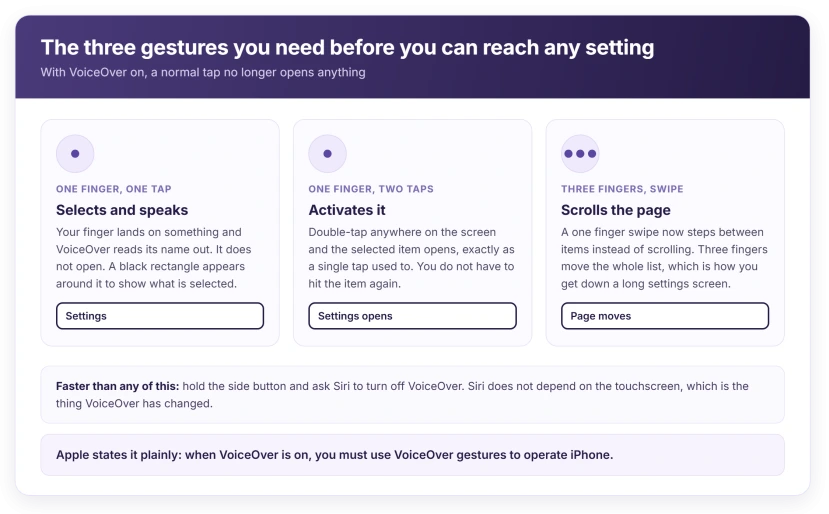
Two gestures matter, and they are both simple.
One tap selects. Apple: "When you touch the screen or drag your finger over it, VoiceOver speaks the name of the item your finger is on, including icons and text."
A single tap no longer opens anything; it picks the thing up and reads it to you.
Two taps activate. Apple's gestures page refers to it plainly, describing an alternative you can use "instead of selecting an item and double-tapping".
That is the whole trick: tap once on what you want, hear it read out, then double-tap anywhere to press it.
And three fingers scroll. That one is ours rather than a sentence Apple prints on this page, but a normal one-finger swipe now moves between items instead of scrolling the list, so a three-finger swipe is how you get down a long settings screen.
Fix 2: Ask Siri, which needs no gestures at all
Ask Siri. That is genuinely it.
Hold the side button, or use the wake phrase, and say turn off VoiceOver. Siri does it immediately, and you are back to normal.
Apple documents four ways to switch VoiceOver, and Siri is one of them, alongside Settings, Control Center and the Accessibility Shortcut. It is the only one that ignores the touchscreen entirely, which is exactly what you need right now.
One caveat comes from the people who use VoiceOver every day. On AppleVis, the community site for blind and low-vision Apple users, owners have reported Siri saying it has turned VoiceOver on or off while nothing actually changes.
Power cycling made no difference for the person who raised it.
So listen to the phone rather than to Siri. If the speech carries on after Siri says it is done, that is Siri failing, not you mishearing. Go to fix 3.
If Siri is disabled on your phone, the next two fixes are your routes.
Fix 3: Triple-click the side button, if the shortcut was ever set
If VoiceOver arrived via the Accessibility Shortcut, the same shortcut turns it back off.
Press the side button three times, quickly, or the Home button three times on a phone that has one. It has to be fast, faster than feels natural.
If VoiceOver was set as your shortcut, it toggles off there and then, and you will hear it announce that it has.
If a menu appears listing several accessibility features, that is the shortcut too, with more than one option assigned. Tap VoiceOver once to select it, then double-tap to choose it.
If nothing at all happens, the shortcut was probably never set up, and that is the commonest reason this rung fails. The triple-click only does something if VoiceOver was assigned to it in advance, which it is not by default.
If VoiceOver arrived through Siri or through Settings, there may be nothing there to trigger.
And if the triple-click brings up the power-off screen instead, AppleVis owners describe exactly that on some models.
The workaround reported there is to set the triple-click to Emergency SOS temporarily, which disables the accessibility shortcut, then turn that off again and re-enable VoiceOver in the shortcut list.
User-reported rather than documented, so try fix 4 first.
Fix 4: Turn it off in Settings, using those gestures
If Siri and the shortcut both failed, this is the reliable route. Go slowly and use the two gestures.
- Get to the Home Screen. On a Face ID phone, drag up from the bottom edge with one finger and hold until you hear a tone rather than flicking.
- Tap Settings once and hear it read out, then double-tap to open it.
- Swipe with three fingers to scroll down. Tap Accessibility once, then double-tap.
- Tap VoiceOver once, then double-tap to open it.
- Tap the VoiceOver switch at the top once, then double-tap to turn it off.
The speech stops instantly, and your taps go back to normal in the same moment.
Unlocking is the step people get stuck on before they even reach Settings.
Apple: "On an iPhone with Face ID: Wake iPhone and glance at it, then drag up from the bottom edge of the screen until you feel a vibration or hear two rising tones."
Fix 5: Change the Accessibility Shortcut so it stops happening
Four routes lead here, and knowing which is yours is the difference between fixing it once and fixing it every week.
- The Accessibility Shortcut. A triple-click of the side button, easily done by accident in a pocket or while gripping the phone in a car.
- Siri. A misheard phrase is enough, and Siri does not ask for confirmation.
- Control Center, if VoiceOver was added there as a control.
- A Shortcuts automation, if one was ever built with an accessibility action in it.
To stop the accidental triple-clicks, change what the shortcut does. Go to Settings, Accessibility, then Accessibility Shortcut at the very bottom, and either untick VoiceOver or pick something harmless like Magnifier.
Our page on an iPhone that opens apps by itself covers the same family of accidental triggers, including the ones on the back and the edges of the phone.
Fix 6: Check it is really VoiceOver and not one of three look-alikes
Read this before you go hunting, because the fix is different for each and they get confused constantly.
- Spoken Content. The phone reads a page aloud when you swipe down with two fingers from the top of the screen, but taps still work normally and there is no black selection box. That is Speak Screen, at Settings, Accessibility, Spoken Content.
- Voice Control. Numbers or names appear over things on screen and the phone listens for commands. It is a different feature entirely, and it is switched off in the same Accessibility list.
- Announce Notifications. Siri reads incoming messages aloud through AirPods or in the car, and nothing on the screen changes at all. Apple does not group these three with VoiceOver anywhere, which is part of why they get confused.
The tell for real VoiceOver is the black rectangle around whatever you touched, plus taps no longer doing what they used to. If your taps still work, it is not VoiceOver.
Our page on an iPhone that will not respond to a long press covers a different touch problem that gets confused with this one.
What does not work
- Tapping harder or faster. The screen is fine, and it is interpreting your taps differently on purpose.
- Restarting the phone. VoiceOver is a setting, so it survives a restart and greets you again on the Lock Screen.
- Turning the volume down. It silences the speech and leaves every gesture changed, which is the worse half of the problem.
- Erase All Content and Settings. A colossal price for a switch, and getting through that flow with VoiceOver on is harder than just turning it off.
- Waiting it out. Nothing about this times out or reverts on its own.
Status: iOS 26.6, checked 17 August 2026. Apple states plainly that VoiceOver changes the gestures used to control iPhone, and lists four ways to switch it off.
How do I turn off VoiceOver on my iPhone quickly?
Ask Siri to turn off VoiceOver. It is the only method that does not depend on the touchscreen, which is the thing VoiceOver has changed.
If Siri is unavailable, press the side button three times quickly, since the Accessibility Shortcut is the usual way it gets switched on.
Why has my iPhone started reading everything out loud?
Because VoiceOver was switched on, usually by a triple-click of the side button or by Siri mishearing a phrase. It is Apple's screen reader for people who cannot see the display, so it reads whatever you touch and it changes what taps do.
Why will my iPhone not let me tap anything now?
VoiceOver has taken over the gestures. One tap now selects and speaks an item rather than opening it, and you have to double-tap to activate what you selected.
Scrolling needs three fingers. Nothing is broken, and normal taps return the instant VoiceOver goes off.
The Short Version
- Tap once to select and hear it. Double-tap anywhere to activate. Three fingers to scroll.
- The quickest exit is Siri: hold the side button and say turn off VoiceOver. Listen, because it can claim success without doing it.
- Then the Accessibility Shortcut, three fast presses of the side button, if it was ever set up.
- In Settings the route is Accessibility, then VoiceOver, then the switch at the top, using those gestures.
- A triple-click in your pocket is the commonest cause, so change the shortcut afterwards.
- A black rectangle around whatever you touch is the tell that this is VoiceOver and not a look-alike.
- Restarting does not help, because VoiceOver is a setting rather than a glitch.
Where to Next
The cruel part of this one is that the feature which took over your screen is also standing between you and the switch that turns it off, and nobody explains the gestures first.
Ask Siri, which takes ten seconds and needs no gestures at all. Then spend two minutes on the Accessibility Shortcut, so a triple-click in your pocket cannot do it to you again.
If Siri is switched off on your phone and the triple-click does nothing either, tell me which iPhone you have and whether you can reach the Home Screen, and I will get you to the switch step by step.

Isaac Smith is the founder and editor of PC Glance, a website that covers computers, laptops, and technology. He is a tech enthusiast and a computer geek who loves to share his insights and help his readers make smart choices when buying tech gadgets or laptops. He is always curious and updated about the latest tech trends.