
Fifteen minutes into a call the laptop announces there is no internet, and your iPhone is sitting right beside it with Personal Hotspot still switched on. Losing a meeting that way is horrible, and I am sorry you are in it.
I will show you what actually breaks a hotspot that was working a moment ago.
Separate two things before you start. A hotspot that never connects is one fault. One that connects then dies is another. They do not share a fix list.
1. Turn off Auto-Join on every other network the laptop knows
The commonest cause. Thirty seconds to check.
Your laptop remembers dozens of networks. The moment a familiar one comes back into range, it leaves your hotspot for it. Even a useless one.
Apple states this outright as one of the two ways to disconnect from a hotspot on purpose: "Connect to a different Wi-Fi or cellular network on the device connected to the hotspot."
So the phone did not drop anything. The other device walked away.
On an iPhone or iPad doing the joining, go to Settings, then Wi-Fi. Tap the small i beside each remembered network. Turn Auto-Join off for anything you are not sitting on right now.
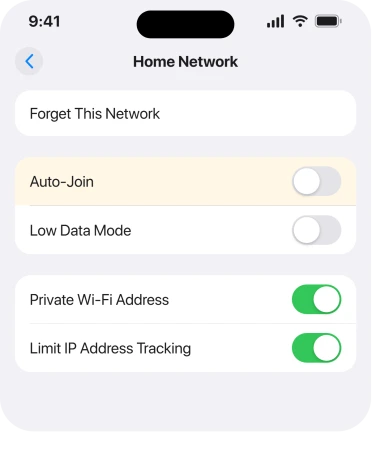
On a Mac, open System Settings, Wi-Fi, Advanced, and untick Auto-Join per network. On Windows, open the network's properties and turn off Connect automatically when in range.
Public Wi-Fi with a sign-in page is the worst offender. Your laptop joins it, decides it has internet, then sits there with no route out.
2. Stop the phone dozing while it is sharing
Second most common. You have probably misread it as a hotspot bug.
Low Power Mode throttles background activity. A locked screen makes it worse.
Apple's own instruction is to stay on the Personal Hotspot screen until the other device has joined: "Stay on this screen until the other device has connected to this hotspot."
That covers the join. For the hours you spend actually using it, the practical answer came out of the forum rather than a support page.
One owner on the long-running Apple Community thread found a routine that held. Plug the sharing device in, open the hotspot screen, and leave it alone.
Their result: "I have never had the connection drop at all since I've used this method and i have tested 12 hours of continuous connection time."
So before a long session, do three things. Turn Low Power Mode off in Settings, Battery. Plug the phone in. Set Settings, Display & Brightness, Auto-Lock to a longer interval.
3. Maximize Compatibility, and the direction nobody agrees on
This one gets its own rung. The vendor and the owners will send you opposite ways.
Apple documents turning it on. On the page for a hotspot that is not working, the instruction is to open Settings, Personal Hotspot, and turn on Maximize Compatibility, then try again. The switch drops the hotspot to the older 2.4GHz band.
More devices understand it.
It is not free, and Apple says so: "When you turn on Maximize Compatibility, internet performance and Wi-Fi security might be reduced for devices connected to the hotspot."
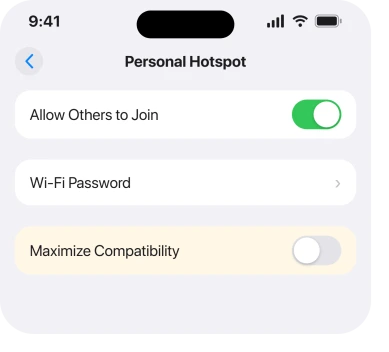
Now the other direction. Two owners on that thread stopped their drops by turning it off. One of them, on an iPhone 13 Pro Max, described turning the hotspot on and the setting off and finding it worked well afterwards.
Another put it more firmly: "Turn OFF 'Maximize Compatibility'. It works perfectly now and has not disconnected and I have even used it while being on the phone."
I would treat this as a coin, not a fix. Try it in whichever position it is not in, then use the hotspot for a full session before you judge.
A third owner paired the setting with a change on the PC side, forcing the wireless adapter to IEEE 802.11b/g/n and reporting a steadier, faster connection.
4. On a Windows PC, stop Windows switching the radio off
Now we move to the joining device. A surprising share of these drops never happen on the phone at all.
Windows powers down a Wi-Fi adapter to save battery. Your hotspot is the first casualty.
Open Device Manager and find your wireless adapter. Open Properties, then Power Management. Clear Allow the computer to turn off this device to save power.
Two more from owners who fixed theirs at this end. One updated the wireless driver by hand, from the manufacturer rather than through Windows Update, and said it helped.
Another reset the network card settings completely. That wiped years of accumulated configuration, and it worked.
Check Metered connection too, in the Windows Wi-Fi settings for that network. Windows treats a metered connection differently. Yours genuinely is one.
5. Tell the joining device to connect even when the name is hidden
The most specific thing I can give you. It is a checkbox on your computer, not a setting on your phone.
One owner watched the two events line up. Their words: "the iPhone SSID would become hidden about the same time my Windows 10 disconnected." So they told Windows to stop waiting for it.
Tick Connect even if the network is not broadcasting its name (SSID) in the Windows profile for that network.
You will find it under the Connection tab in that network's properties. It makes Windows keep asking for the network instead of waiting to be advertised.
Ours, and marked as ours: the phone appears to stop broadcasting the hotspot name once nothing has used it for a while. A device that only listens then has nothing to hold on to.
Apple describes no such behavior on any page read for this article. So treat my reasoning as reasoning, and the checkbox as the thing that helped somebody.
One more from the same thread, and it costs nothing. Switch the hotspot on from Control Center rather than from Settings. One person found that gave them a stable connection for a whole film.
6. Two lines? The hotspot follows the data line, not the phone
Narrower again. It only bites you if you run two SIMs. When it does, it looks exactly like a random drop.
Apple: "If you set up your iPhone to use two SIMs, Personal Hotspot uses the line you select for cellular data."
So your hotspot rides on whichever line carries data. A call can switch lines. So can Allow Cellular Data Switching, on its own. Either way the hotspot is following something that moved underneath it.
Check Settings, Cellular, then Cellular Data, and see which line is named. If it is the line without a tethering allowance, that alone explains everything.
One more sentence from the same page settles a question people waste hours on: "You can only use Personal Hotspot by sharing the cellular internet connection on your iPhone. You can't connect your iPhone to a Wi-Fi network, and then share that network with another device."
7. When it is the carrier cutting you off, not the phone
Last rung, narrowest, and the one to reach for when the other six changed nothing.
Apple says the feature belongs to your carrier as much as to your phone: "Personal Hotspot requires a wireless carrier that supports Personal Hotspot. Additional fees may apply. The number of devices that can join your Personal Hotspot at one time depends on your carrier and iPhone model."
Three carrier behaviors produce a clean-looking drop. A tethering allowance that runs out. A device limit you crossed by leaving a tablet joined. A plan that allows tethering on one line and not the other.
The tell is timing. Carrier cut-offs land at a consistent point, usually after a set amount of data. Meanwhile the phone itself browses perfectly and only the hotspot refuses.
Ring them and ask what your tethering allowance is, and how much of it is left this cycle.
Two neighboring faults, in case you are on the wrong page. If the switch itself is dimmed and will not turn on, our page on why Personal Hotspot is greyed out covers that.
And if the joining device holds the network but nothing loads, look at iOS 26 Wi-Fi problems instead.
When a Mac joins the hotspot but its connection details show a Self-assigned IP, an IPv6 menu or the carrier is usually behind it; the self-assigned IP page covers both.
What does not help
- Resetting network settings first. It is on Apple's list and it does clear genuine corruption, but it also wipes every saved Wi-Fi password, cellular setting and VPN profile. Work through the seven rungs before you pay that price.
- Turning the hotspot off and on repeatedly. If the joining device is leaving for a remembered network, this changes nothing.
- Buying a different cable. USB tethering is a fine workaround, but a dropping Wi-Fi hotspot is not a cable fault.
- Blaming a recent iOS update. Owners have reported this exact pattern since 2023, across several major versions and several iPhone models.
Status: iOS 26.6.1, checked 19 August 2026. Apple publishes a page for a hotspot that will not connect and none for one that drops, so five rungs rest on owner reports.
Why does my iPhone hotspot keep disconnecting?
Most often because the device you connected has rejoined a network it remembers. Apple lists connecting to a different network as one of the two ways a hotspot connection ends. Turn off Auto-Join for every other network on that device, then rule out Low Power Mode and a sleeping screen on the phone.
Does the iPhone hotspot turn itself off when nothing is using it?
Owners consistently report it going quiet after an idle spell. One traced it further, to the network name no longer being broadcast at the moment their PC dropped. Apple does not document an idle timer on any page checked for this article, so the behavior is well reported and not confirmed by the vendor.
Should Maximize Compatibility be on or off?
Apple's troubleshooting instruction is to turn it on, and it costs you speed and some Wi-Fi security while it is on. Several owners report the opposite, that turning it off stopped their drops. Try it in whichever position it is not in now, and give it a full session before deciding.
Why does my hotspot drop only on Windows?
Because Windows powers down the wireless adapter to save battery, and it treats a hidden network name as a reason to stop trying. Clear the power-saving box in Device Manager, then tick the option to connect even when the network is not broadcasting its name.
The Short Version
- The likeliest cause is the other device leaving for a remembered Wi-Fi network, not the phone dropping it.
- Turn off Auto-Join everywhere else on the joining device first.
- Keep the phone plugged in, off Low Power Mode, and with a long Auto-Lock while it shares.
- Maximize Compatibility helps some people on and some people off. Apple says on, and names the speed and security cost.
- On Windows, stop the adapter powering down and allow connection to a non-broadcasting network.
- With two SIMs, the hotspot rides on whichever line is set for cellular data.
- A cut-off at a consistent point in the session is your carrier, not your iPhone.
Where to Next
Working through this in order matters more than usual, because rung 1 and rung 4 fix the same symptom from opposite ends of the connection. Fix the phone side and you will never know the laptop was the problem.
If none of the seven holds for you, tell me which device keeps dropping and roughly how long it lasts before it goes. The timing is the most useful clue anyone can give me on this, and I read every comment.

Isaac Smith is the founder and editor of PC Glance, a website that covers computers, laptops, and technology. He is a tech enthusiast and a computer geek who loves to share his insights and help his readers make smart choices when buying tech gadgets or laptops. He is always curious and updated about the latest tech trends.