
The six-digit code never arrives, the sign-in page counts down, and you are locked out of your own bank or your own Apple Account with a working phone in your hand. That is a frightening place to be, and I know how helpless it feels.
I have gathered what Apple documents and what owners actually got working, in the order I would try them.
Two different things share this complaint, so read the first rung even if you think you know which one you have.
1. The code may already be on your phone, in the filtered list
Start here, because it costs ten seconds and it is the answer more often than anything else on this page.
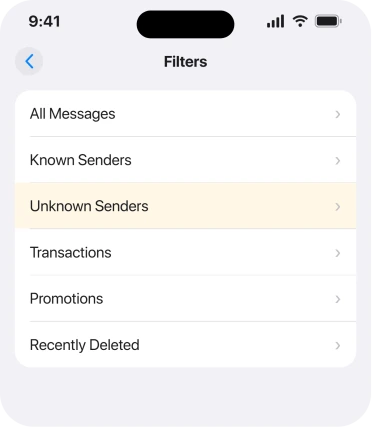
Is Messages filtering unknown senders? Then a code from a five or six digit short number never reaches your main inbox. It lands in a separate list, silently, with no banner and no sound.
Apple documents this in one short sentence on its verification code page: "If you use the Unknown Senders filtering in the Messages app, check there for your verification code."
Open Messages, tap Filters at the top left, then tap Unknown Senders. Look for a message from a short number in the last few minutes.
If it is sitting there, you are done. If it is not, the next rung stops it happening again without costing you the filter.
2. Turn on Time Sensitive alerts instead of killing the filter
You do not have to choose between spam protection and getting your codes. Apple publishes a route that gives you both, and it is buried at the foot of the same page.
Apple: "If you screen Unknown Senders, you can still receive time-sensitive messages like verification codes from Apple in your Messages inbox. Go to Settings and tap Apps. Tap Messages, then scroll to the Unknown Senders section and tap Allow Notifications. Then, turn on notifications for Time Sensitive messages."
So the route is Settings, Apps, Messages, Unknown Senders, Allow Notifications, then Time Sensitive.
Ours: owners report the filter far more often than they report this switch, which suggests most people turn the protection off when they never needed to.
Two things to be honest about. Apple describes this for its own codes. It makes no promise about your bank.
And a Focus can suppress Time Sensitive delivery too, so check any Focus you have running while you test.
3. Look through your blocked list for a number you never meant to block
Cheap and specific, and it is a real owner fix rather than a guess.
Codes arrive from short numbers. Short numbers get blocked by accident all the time, usually while clearing out marketing texts.
Once blocked, nothing arrives and nothing tells you.
One owner on the long Apple Community thread about missing code texts described the whole fix in a line: "Check all of your blocked numbers… I unblocked the numbers and I am now receiving text codes."
Go to Settings, Apps, Messages, then Blocked Contacts. Read it properly rather than scanning it.
The same list also sits at Settings, Apps, Phone, Blocked Contacts, which is easier to find.
If the list is enormous and slow to load, that is its own problem, and our page on the blocked contacts limit explains what the phone does when it fills up.
4. Check which number Apple is actually texting
Now we get specific to Apple Account codes rather than bank codes.
A stale trusted number sends your codes somewhere you are not looking. So does a second line on a dual-SIM phone.
The phone will not warn you. From Apple's side, the message was delivered.
Open Settings, Apps, Phone, then My Number, and confirm it is right. Then sign in at your Apple Account settings and read the list of trusted phone numbers.
On the newer threads, senior members ask this first. One owner answered it directly and it still did not help them: "I did. Both my phone and its phone number are listed as verified." A correct trusted number rules a cause out, it does not fix anything on its own.
Apple's own advice if you can add a second one, and it is good advice, is to do it before you need it: after you get back in, "you can also add additional trusted phone numbers to your account for the future."
5. When the sign-in prompt appears and then nothing happens
Different symptom, different cause, and it catches people with only one Apple device.
Some owners get the Apple Account sign-in request, tap Allow, and then no code appears at all. That is not a text that failed to arrive. The code screen was never reached.
Apple documents a route past it. "Select 'Didn't Get a Code?' or 'Can't get to your devices?' on the verification code screen", then choose to have the code sent to your trusted phone number as a text message or a phone call.
Take the phone call option if the text keeps failing. It uses a completely different path, which makes it a test as well as a way in.
There is also a quiet piece of Apple's own documentation worth knowing, because it explains why some sign-ins never ask you for anything: "You might not need to enter a verification code. In some cases, your trusted phone number can be automatically verified in the background on your iPhone."
6. Ask your carrier to re-sync your line, in those words
This is the rung with the most independent confirmations behind it, and it is the one that moves the problem off your phone entirely.
Codes travel by short code messaging. Your carrier routes that separately from ordinary texts.
A line whose provisioning has gone stale keeps sending normal messages. It just drops the codes.
Three separate owners on the same thread reported the same fix. The first described what they asked for: calling the carrier "and having them 'refresh,' and 're-sync' my 'phone on the network'", then testing it by signing in to a website.
A second read that reply out to their own carrier and said the representative agreed it was exactly the right request, and it worked. A third added simply that having the carrier sync the phone to the network again worked for them too.
A fourth reported the same class of cause from a different angle: a carrier-side spam feature blocking short codes, which the carrier turned off in about fifteen minutes.
So the script is short. Ring your carrier, say you are not receiving short code text messages, and ask them to refresh and re-sync your line on the network, and to check for spam blocking on your number.
Before you call, try the free version. Turn Airplane Mode on for ten seconds and off again. That forces the phone to re-register on the network. One owner reported codes arriving straight afterwards.
7. When it is the SIM or the account itself
Last rung, and the one to reach for when six things have changed nothing.
One owner worked through everything and got nowhere. Then a carrier agent "deleted my old eSIM and installed a new one. It worked instantly."
That is a reissue of the line, not a setting. It is the strongest argument on this page for suspecting the carrier rather than the phone.
Very old Apple Accounts are their own case. On a 2025 thread where nothing worked, a Level 10 member pointed at the account rather than the device.
Long-standing me.com addresses are a recurring source of sign-in trouble, and only Apple can look inside one.
If you end up locked out with no route in, Apple is blunt about the timescale: "If you temporarily don't have access to your trusted devices or trusted phone number, the fastest way to get access to your account is to wait until you have access in the next few days." And on the recovery process, "Contacting Apple can't help speed up the process."
If your problem is that codes do arrive but the keyboard never offers to fill them in, that is a separate fault and verification codes not autofilling is the page for it.
What does not help
- Resetting network settings as step one. Apple's own list never suggests it for this, and it costs you every saved Wi-Fi password. Try the Airplane Mode toggle in rung 6 first, which tests the same idea for free.
- Turning the Unknown Senders filter off permanently. It works, and rung 2 gets you the same result while keeping the filter.
- Waiting for a carrier signal bar to change. One owner in a Mac Observer comment thread found their codes never arrived because their house had no cellular reception and everything was going over Wi-Fi calling. Codes are SMS, and SMS needs the cellular network.
- Repeating the request over and over. Some services rate-limit after a few attempts, so hammering the button can lock you out for longer.
Status: iOS 26.6.1, checked 19 August 2026. The strongest owner fix is a carrier line re-sync, confirmed by three separate people. Apple documents the filtered-list check itself.
Why am I not receiving verification code texts on my iPhone?
The commonest reason is that the code is arriving but sitting in the Unknown Senders list with no notification. Apple tells you to look there. If it is genuinely not arriving, the next likeliest causes are a blocked short number and a line that needs re-registering with your carrier.
Do I have to turn off Filter Unknown Senders to get codes?
No. Apple publishes a way to keep the filter and still be alerted: Settings, Apps, Messages, Unknown Senders, Allow Notifications, then turn on Time Sensitive. Apple describes this for its own codes, so a third-party service may still land silently in the filtered list.
Why do codes stop arriving on one iPhone but work on another?
Because the fault usually sits with the line rather than the handset. Short code messages are routed by your carrier, and a line whose network registration has gone stale keeps delivering normal texts while dropping codes. Owners report a carrier re-sync fixing exactly this.
Can Wi-Fi calling stop verification codes arriving?
Your ordinary texts travel over Wi-Fi Calling, but many carriers will not pass a short code that way. One owner with no reception at home found every code arrived the moment they walked outside and picked up a single bar, after months of assuming the phone was faulty.
The Short Version
- Check the Unknown Senders list in Messages before anything else. The code is often already there.
- Keep the filter and turn on Time Sensitive alerts at Settings, Apps, Messages, Unknown Senders.
- Read your blocked list properly. A blocked short number is silent and permanent.
- Confirm My Number and your trusted phone numbers, especially on a dual-SIM phone.
- If the sign-in prompt leads nowhere, use Didn't Get a Code and pick the phone call.
- Ask your carrier to refresh and re-sync your line, and to check for short code spam blocking.
- A reissued eSIM fixed it for one owner after everything else failed.
Where to Next
The order on this page is deliberate. Four of the seven rungs cost you nothing and take under a minute, and the two that involve a phone call sit at the bottom for that reason.
If you get this solved by a route not on this page, especially one where a specific carrier did something specific, tell me what they did and which network you are on.
Carrier fixes are the hardest part of this to research and reader reports are the only way anyone finds out.

Isaac Smith is the founder and editor of PC Glance, a website that covers computers, laptops, and technology. He is a tech enthusiast and a computer geek who loves to share his insights and help his readers make smart choices when buying tech gadgets or laptops. He is always curious and updated about the latest tech trends.