
You press a key and it comes back up slowly. Or not at all. Maybe it repeats a letter until you prise it up with a fingernail. And you know exactly which drink did it, which somehow makes it worse.
There is a real time limit here, and most advice ignores it entirely. That is a shame, because acting fast is most of what saves a keyboard. So let me start with the clock.
Before anything: which kind of sticky do you have?
Two different things share this name. Rule one out in five seconds.
Windows has a feature called Sticky Keys that holds Shift and Ctrl down for you, and if your modifier keys are behaving oddly but nothing feels physically wrong, that is a setting rather than a spill.
A keyboard that is not typing right covers it, along with Filter Keys.
This page is about keys that physically stick, because something sugary is under them.
The first thirty minutes matter, and here is why
Microsoft documents this in its Surface care guidance: "If you spill something, try to clean it within 30 minutes to help prevent stains from setting."
That window is not arbitrary, and it applies far beyond a Surface.
The thing making your keys sticky is almost never the water. Water evaporates and leaves nothing behind, but sugar does not: as the liquid dries, dissolved sugar crystallizes around the key stem and sets into something closer to glue.
Reported by an owner nowhere I could find, because nobody posts a timed spill experiment.
Ours, and marked as ours: that is why sugary coffee wrecks a keyboard and plain water usually does not, and why acting fast matters. You are racing the drying, not the wetting.
Right now, in this order
Unplug it, or power the laptop down completely. Not sleep. Off. Then turn it upside down so whatever is still liquid comes out rather than soaking further in, over a towel, at an angle, for a few minutes.
Do not switch it back on to test it. Liquid and power together is how a survivable spill becomes a dead board.
Wipe the residue off now, inside the thirty minutes. A barely damp cloth is enough. Then leave it upside down for as long as you can stand, overnight ideally, and only power it up once it is completely dry.
On a laptop, a real spill is more than a keyboard problem: the keyboard sits directly above the board on most designs. Tipped a full cup in? Then stop, leave it inverted, and get it opened by somebody rather than hoping.
Cleaning the keys themselves
Logitech documents its own keyboard cleaning guidance: a dry soft cloth and compressed air for regular cleaning, a lightly dampened microfiber cloth for sticky residue, making sure no liquid enters the device.
For a deeper clean, it names what is safe: a fragrance-free disinfecting wipe, an anti-bacterial wet wipe, or an alcohol swab containing less than 25% alcohol.
That percentage is worth noticing. Most household alcohol wipes and rubbing alcohol are far stronger, and stronger is not better here: it lifts the printed legends off keycaps and attacks some plastics.
What Logitech says you must never use is bleach, acetone, nail polish remover, strong solvents, or abrasives.
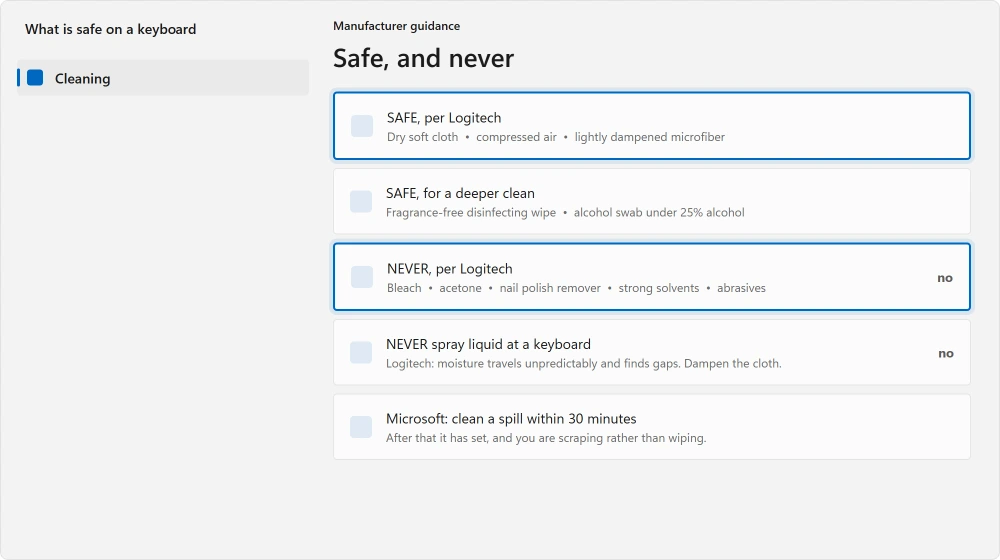
One instruction matters more than the rest. Logitech's warning is never to spray liquid directly onto the keyboard. Moisture travels unpredictably and finds gaps. Dampen the cloth, never the keyboard.
Getting under the key
Surface clean and the key still sticks? Then the residue is on the stem underneath.
On a mechanical or desktop keyboard, keycaps come off: Logitech's instruction is to use a proper keycap puller and pull straight up, to avoid damaging the switch stems or stabilizers.
With the cap off, Logitech suggests compressed air or the cool setting on a hairdryer to clear what is left.
Cool setting, and it is not a detail: warm air softens the plastic the key rides in and can leave you with a key that never sits straight again.
Wash the caps separately in warm soapy water. Let them dry completely first, hours not minutes, and nowhere near a radiator.
On a laptop, do not pull the keycaps. They sit on scissor clips made of very thin plastic that break rather than flex, and a broken clip is a keyboard replacement rather than a repair.
Clean around and under the edge with a barely damp cloth and compressed air instead. That is as far as you should go.
If it is one key, and it never met a drink
Then it may not be dirt at all, and there is a documented example of exactly that.
Documented by Lenovo, which published a support note for the ThinkPad T431s, E431 and E531. Keys stick there because of the inter-key cover, a part of your keyboard assembly rather than anything spilled.
Ours, and marked as ours: that is worth knowing as a category, not just for those models. A single key that has always been slightly wrong, on a machine nothing was ever spilled on, is a mechanical fault in the keyboard assembly.
Cleaning will not touch it, and your maker's support pages are the place to look for your own model.
What to expect afterwards
Honestly, mixed results, and I would rather say so.
A quick spill caught inside the half hour usually cleans up completely.
A sugary drink left to dry overnight often leaves a key that works but feels different forever, because residue remains in places you cannot reach without dismantling it.
If keys are slow rather than sticky, a keyboard lagging behind your typing has a completely different cause.
Ours, and marked as ours: on a desktop, a replacement keyboard costs less than an hour of your time and a bad afternoon. If the cleaning takes you two attempts and the key still drags, that is the answer rather than a failure.
Status: written 22 August 2026. Microsoft names a thirty minute window before a spill sets, and Logitech specifies alcohol below 25% and warns against spraying a keyboard at all.
Why are my keyboard keys sticky after a spill?
Because of what was dissolved in the liquid rather than the liquid itself. Water evaporates and leaves nothing.
Sugar crystallizes around the key stem as it dries and sets hard, which is why sweetened drinks cause this and plain water usually does not.
How soon do I need to clean a keyboard spill?
Microsoft's guidance is within thirty minutes, to stop it setting. After that you are cleaning something that has already hardened, which takes far more work and often leaves a key that never feels quite right again.
Can I use rubbing alcohol on my keyboard?
Only weak. Logitech specifies an alcohol swab containing less than 25% alcohol, which is much weaker than typical rubbing alcohol.
It also says never to use bleach, acetone, nail polish remover, strong solvents or abrasives, and never to spray any liquid onto the keyboard.
Can I take the keys off my laptop keyboard?
Better not to. Laptop keycaps sit on thin scissor clips that break rather than bend, and a broken clip usually means replacing the whole keyboard. Clean around and under the edges with a barely damp cloth and compressed air instead.
The Short Version
- Sugar is what makes keys sticky. Water evaporates and leaves nothing behind.
- Microsoft gives thirty minutes before a spill sets, which is the whole reason to hurry.
- Power off, turn it upside down, and do not switch it on to test it.
- Logitech says alcohol under 25%, and never bleach, acetone, solvents or abrasives.
- Never spray liquid at a keyboard. Moisture travels unpredictably and finds gaps.
- Desktop keycaps pull straight up with a puller. Laptop ones break their clips.
Where to Next
Ordering replacement keycaps afterwards? Check which layout you have first, because the sets are not interchangeable.
If this has just happened, stop reading and turn the keyboard upside down. The clock in this article is real and everything else here will still be true in ten minutes.
If your keys are behaving oddly but nothing was ever spilled, keys that are wrong rather than sticky sorts that by symptom, and a keyboard lagging behind your typing has a cause almost nobody expects.
If the modifier keys are the ones misbehaving, that also breaks copying, and the clipboard has eight fixes of its own.
To find out which keys are actually sticking rather than guessing, watch them on the on-screen keyboard as you press.
Worth ruling out the other kind first: the Windows feature called Sticky Keys is a beep and a dialog, not a key that will not come back up.
Rescued one? I would like to hear what worked, because spill advice is mostly written by people who never had to do it in a hurry.

Isaac Smith is the founder and editor of PC Glance, a website that covers computers, laptops, and technology. He is a tech enthusiast and a computer geek who loves to share his insights and help his readers make smart choices when buying tech gadgets or laptops. He is always curious and updated about the latest tech trends.