
Your iPhone screen stopped reacting to touch right after you swiped down for notifications or Control Center. That is worrying when everything else on the phone looks normal. I would force a restart first, then install iOS 27.0.1.
This freeze is documented by Apple in its own iOS 27.0.1 notes. The update is the fix, and Apple's button steps get you to it.
What Apple fixed
Apple's notes for iOS 27.0.1 list three fixes. One is a touchscreen that can stop working when you pull Notification Center and Control Center down at once.
In that case, Apple says, the touchscreen can "become unresponsive". Apple does not tie it to one iPhone model, so any phone on iOS 27.0 can meet it.
The other two fixes only touch the two iPhone 18 Pro models, with restarts when Face ID fails and odd colors in certain 2x photos.
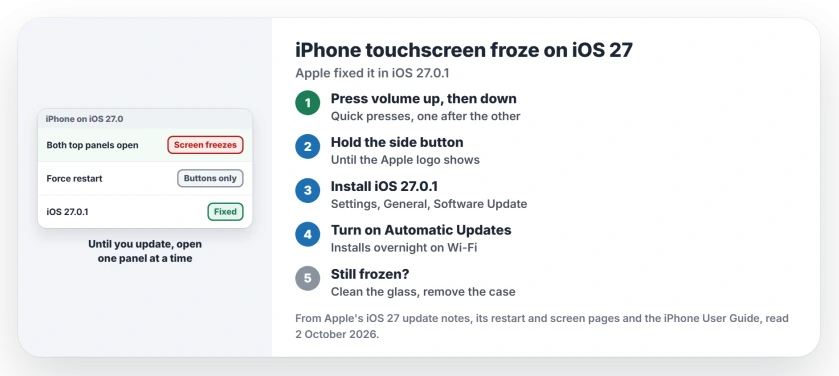
Status: checked 2 October 2026. iOS 27.0.1 fixes a touchscreen that stops responding when Notification Center and Control Center are both open. A force restart brings a frozen iPhone back.
1. Force restart with the buttons
A frozen screen cannot take a swipe, so use the buttons. If your iPhone has Face ID, press and let go of volume up, then volume down.
Then press and keep holding the side button. Keep going until the logo appears on the black screen, which Apple warns can take longer than 10 seconds.
Phones with a Home button use a different combination, and Apple's restart page covers each one.
2. Install iOS 27.0.1
Once the screen answers again, open Settings, tap General, then Software Update. Install iOS 27.0.1 or anything newer. I would do it today rather than wait for the overnight install.
You do not lose anything by updating, because Apple says your data and settings "remain unchanged" when you move to the latest iOS.
3. Let updates install by themselves
Apple's Automatic Updates switch sits on the same Software Update screen, so you can set it in the same visit. With it on, your iPhone installs new versions overnight while it charges on Wi-Fi.
Apple says you get a notice before an update goes in, so nothing changes on your phone without warning.
4. Open one panel at a time until then
Until 27.0.1 is on your phone, avoid pulling Notification Center and Control Center down together. Open one, close it, then open the other.
That is the trigger Apple names, so keeping the two panels apart should keep the freeze away until you update.
When the screen still ignores you
If touches still fail after the update, go through the short screen checklist that Apple publishes for this. Clean and dry the glass, unplug anything from the charging port, and take off the case and screen protector.
If none of that helps, Apple points you to service, since the update has already dealt with the iOS 27 freeze.
If you are still deciding on the update, the iOS 27.0.1 page lists everything it fixes. And if your screen ignores touches in other ways too, the unresponsive screen page works through the wider causes.
Why did my iPhone screen stop responding on iOS 27?
Apple names one cause: Notification Center and Control Center open at the same time. Its iOS 27.0.1 update fixes it.
How do I restart a frozen iPhone without the screen?
Use the buttons: press volume up, then volume down, and keep the side button down until the logo comes up.
Does iOS 27.0.1 fix the touchscreen problem?
Yes. Apple lists it among the 27.0.1 fixes, next to the Face ID restarts and a photo color artifact on iPhone 18 Pro models.
The Short Version
- iOS 27.0 can freeze the touchscreen.
- The trigger is both top panels open at once.
- Force restart: volume up, volume down, hold the side button.
- Install iOS 27.0.1 from Settings, General, Software Update.
- Turn on Automatic Updates.
- Open one panel at a time until you update.
- Still frozen? Clean the screen and remove the case.
Where to Next
Check your iOS version now in Settings, General, About, before the screen locks up on you again. If it still says 27.0, update tonight on Wi-Fi.
If your screen freezes again on 27.0.1, tell me what you had just opened in a comment. Each pattern goes on this page.

Isaac Smith is the founder and editor of PC Glance, a website that covers computers, laptops, and technology. He is a tech enthusiast and a computer geek who loves to share his insights and help his readers make smart choices when buying tech gadgets or laptops. He is always curious and updated about the latest tech trends.