

Your browser pages turned a warm yellow after an update, while the rest of Windows looks normal. That is annoying when white pages should look white. I would change one browser flag before you touch your monitor.
An adviser's answer on Microsoft's Q&A board cleared the tint for the owner who raised it. More than 30 people have marked the same question as theirs since 30 September.
What owners saw
The question that drew the crowd was blunt. The owner asked about "the yellow browser page after latest windows update", and in their words: "It's happening in Edge and Chrome so it's not specific to Edge."
Another owner found it on some screens only. They wrote: "If you have multiple monitors, you might even notice that the window is yellow on one and not yellow on the other monitor."
The new Outlook and Teams can show it too, because they draw their windows with the same Edge engine.
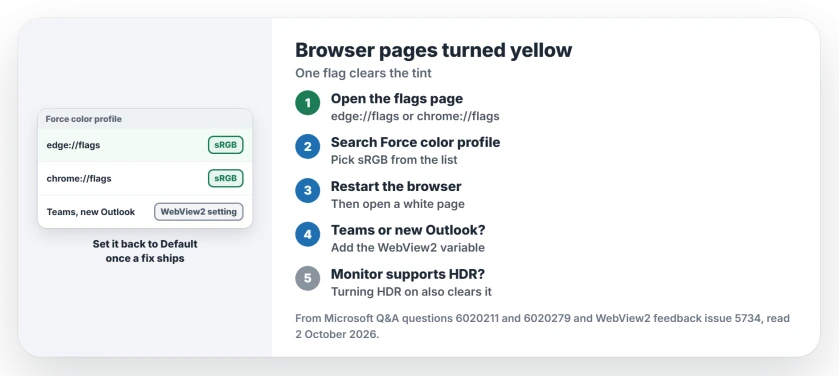
Status: checked 2 October 2026. Forcing the sRGB color profile in Edge or Chrome removed the yellow tint for owners. Teams and the new Outlook need a separate change.
1. Force sRGB in Edge
This is the answer the asker accepted. Over 40 people marked it helpful. The Q&A thread gives the steps.
Type edge://flags in your address bar and search for Force color profile. The adviser's last step: "Click the drop-down list then select sRGB". Then let Edge restart.
A second owner confirmed it: "the Edge flag workaround worked for my Edge".
2. Do the same in Chrome
Chrome has the same flag, at chrome://flags in your address bar. One owner set Force color profile to sRGB there and wrote: "After doing this, Chrome's colors immediately returned to normal."
3. Teams and the new Outlook need more
The browser flag does not reach your apps that only borrow the engine. The second owner found that "apps that use EdgeWebView such as Teams and Outlook dont seem to be solved by it".
A bug report on Microsoft's WebView2 feedback site gives a fix that its author verified. It is user-reported: add a user environment variable named WEBVIEW2_ADDITIONAL_BROWSER_ARGUMENTS with the value --force-color-profile=srgb.
That author wrote that it "fixes all WebView2 apps at once". One new Outlook user had no luck with it, though. Check your own apps after the change.
4. Or turn HDR on for that display
The same report says the tint shows on HDR-capable, wide-gamut monitors running in SDR. Its author noted that "enabling HDR makes it neutral".
If your monitor supports HDR, try switching it on in Settings, System, Display. Then no browser change is needed.
5. Put things back once a fix ships
The report ties the tint to version 154 of the Edge engine, which arrived in late September. A later version should fix it.
When it does, set Force color profile back to Default and remove the environment variable. Then check one white page.
If your whole screen looks warm rather than just the browser, the Night light page shows where Windows hides that switch. And for the display settings themselves, the HDMI settings page shows where Windows keeps them.
The same Edge version also stopped Microsoft Print to PDF for many owners, and the Print to PDF page has the build that fixes it.
Why are my browser pages yellow after a Windows update?
Owners trace it to the browser engine in Edge and Chrome on some wide-gamut monitors, not to Windows itself. Forcing the sRGB color profile in the browser flags fixed it for them.
How do I fix a yellow tint in Microsoft Edge?
Open edge://flags, search for Force color profile, select sRGB and restart Edge. That was the accepted answer on Microsoft's Q&A board.
Why is the new Outlook yellow too?
The new Outlook draws its window with the Edge engine, so the browser flag does not reach it. A WebView2 environment variable fixed apps like it for one owner, but not for every new Outlook user.
The Short Version
- Browser pages turned yellow on some monitors.
- It comes from the Edge engine, version 154.
- In Edge, set edge://flags Force color profile to sRGB.
- In Chrome, use the same flag at chrome://flags.
- Teams and new Outlook need a WebView2 setting.
- Turning HDR on also clears it.
- Undo the change once a fixed version arrives.
Where to Next
Set the flag in the browser you use most, restart it and open a plain white page. If it looks white again, do the same in your other browser.
If the new Outlook stays yellow after the WebView2 setting, post your monitor model in a comment. I will add every model that turns up to this page.

Isaac Smith is the founder and editor of PC Glance, a website that covers computers, laptops, and technology. He is a tech enthusiast and a computer geek who loves to share his insights and help his readers make smart choices when buying tech gadgets or laptops. He is always curious and updated about the latest tech trends.