Edge and Chrome pages turned yellow because of a color bug in version 154 of the Chromium engine both browsers run on. Version 156 fixes it, so update the browser first.
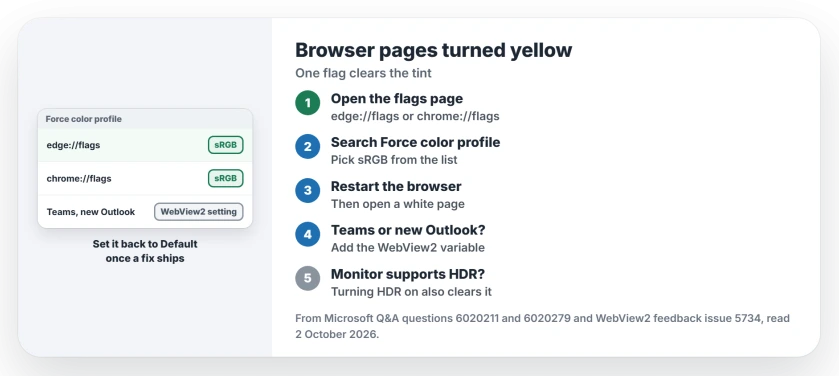
Still yellow, or can't update yet? Open edge://flags/#force-color-profile in Edge or chrome://flags/#force-color-profile in Chrome, set Force color profile to sRGB, and relaunch.
Teams and the new Outlook use the same engine, so they can turn yellow too. They need their own fix, covered further down.
In this guide
What's behind the yellow tint
Every monitor hands Windows a color profile that describes its screen. Version 154, which arrived in late September, stopped throwing out broken profiles that Windows itself ignores.
So web pages took on a warm cast while File Explorer and Word stayed white. That's also why the tint can show on one screen while the other stays white: each monitor has its own profile.
The first reports came from wide-gamut, HDR-capable monitors running with HDR off, and older monitors with a custom profile turned up soon after.
Anything that draws with the Edge engine can be affected, including Teams and the new Outlook. That engine is WebView2, and a one-line check lists the apps running it on your PC.
1. Update Edge or Chrome to version 156 or later
The code fix went into version 156. Chrome 156 rolled out fully on October 20, and Microsoft's release notes list Edge 156 on October 22. Edge 157 followed on November 5.
In Edge, open edge://settings/help and let it download the update, then select Restart. In Chrome it's chrome://settings/help, then Relaunch.
A tester on Microsoft's WebView2 bug report checked a 156 build on an affected monitor, and a pure white page measured pure white again. Version 154 on the same screen showed a clear yellow.
Teams and the new Outlook use the WebView2 engine, which updates on its own. Quit both apps fully, or restart the PC, so they start again on the new version.
2. Force sRGB with the browser flag
Type edge://flags/#force-color-profile into Edge's address bar and press Enter. Next to Force color profile, choose sRGB, then select Restart at the bottom.
Chrome has the same switch at chrome://flags/#force-color-profile. One owner on Microsoft's forum set it there and Chrome's colors went back to normal the moment it restarted.
The flag tells the browser to treat your screen as a standard sRGB display and skip the monitor's profile. Chromium lists it as a setting for testing, so set it back to Default once you're on version 156.
For other experiment changes, use Chrome's flag controls and reset options to keep the workaround separate from normal browser settings.
3. Remove the monitor's custom color profile
Some screens carry an old color profile from the maker, and that file is what the bug reacts to. At one company, removing the BenQ monitors' own profile cleared the tint in Edge and the WebView2 apps on their PCs.
To swap it for the standard one, press Windows + R, type colorcpl and press Enter. On the Devices tab, pick the yellow monitor and tick Use my settings.
Select Add, choose sRGB IEC61966-2.1, then Set as Default Profile. Write down the old profile's name first, in case you want it again later.
One owner with an older Samsung monitor did exactly this and got white pages back with the browser flag left on Default. It won't help every screen, though: on one HDR-capable monitor the tint stayed with every profile removed.
4. Fix Teams and the new Outlook
The browser flag doesn't reach apps that only borrow the engine. For those, add a user environment variable named WEBVIEW2_ADDITIONAL_BROWSER_ARGUMENTS with the value --force-color-profile=srgb.
The quickest way is Command Prompt: run setx WEBVIEW2_ADDITIONAL_BROWSER_ARGUMENTS "--force-color-profile=srgb", then quit and reopen Teams and Outlook. The person who filed the bug report found it fixed every WebView2 app at once.
It didn't work in every case. One person on the same report and one new Outlook user stayed yellow, and for them the profile change in step 3 was the next thing to try.
Once version 156 is in, remove the variable. Search Start for environment variables, open the result for your account, select the variable and choose Delete.
5. Or turn HDR on for that monitor
The same bug report found that switching HDR on made the tint go away. On an HDR-capable screen, open Settings > System > Display, select the monitor and turn on Use HDR.
Something else turning things yellow?
If your whole screen looks warm rather than just the browser, the Night light page shows where Windows hides that switch. And for the display settings themselves, the HDMI settings page shows where Windows keeps them.
Profiles cause odd errors outside browsers too: the old Windows Photo Viewer blames memory when it is really a profile clash.
Edge has changed in other ways this year. A small dot on the text cursor comes from its writing helper, and the blue dot page shows the switch behind it.
The same Edge version also stopped Microsoft Print to PDF on some PCs, and the Print to PDF page has the build that fixes it. Edge also dropped Collections earlier this year, and the Collections page shows where your saved pages went.
If it's still yellow
Check the version in edge://settings/help or chrome://settings/help. On 156 or later with the tint still there, set the flag to sRGB again and try the profile change in step 3.
Then report it from Edge with Alt + Shift + I, naming your monitor model and Edge version, so the team can match it to the bug.
Why is Microsoft Edge yellow?
A bug in version 154 of the Chromium engine let broken monitor color profiles tint web pages. Version 156 fixes it, so update Edge. Until then, set edge://flags/#force-color-profile to sRGB and restart Edge.
What does Force color profile do?
It tells the browser which color space to assume for your screen instead of reading the monitor's profile. Set to sRGB, it treats every screen as a standard one, which turns white pages white again on affected monitors.
Why is only one monitor yellow?
Each monitor has its own color profile, and only the one with a broken or unusual profile gets the tint. Updating to version 156, forcing sRGB, or giving that monitor the standard sRGB profile clears it.
The Short Version
- The yellow tint came with version 154 of the Edge and Chrome engine.
- Version 156 fixes it, so update the browser first.
- Can't wait? Set
edge://flags/#force-color-profile(or the chrome:// one) to sRGB. - A custom monitor color profile can cause it; switch that screen to sRGB IEC61966-2.1.
- Teams and new Outlook take the WebView2 environment variable, or turn HDR on.
- Put the flag back to Default once you're on 156.
Checked November 8, 2026.