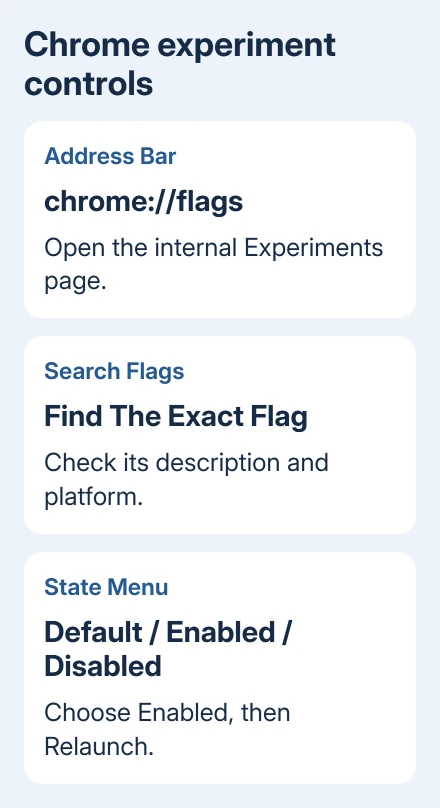
Type chrome://flags in Chrome's address bar, find the experiment you need, choose Enabled, and relaunch Chrome. Enter that address in the browser itself; a website search field will only look for pages about it.
Flags are temporary experiments, so a feature mentioned in an old walkthrough might have moved, become standard, or disappeared. Change one flag at a time and keep a way to return it to Default.
In this guide
Open the Experiments page in the right browser
Open a new tab in Google Chrome. Click or tap the address bar, replace its contents with chrome://flags, and press Enter or Go. There are no spaces between chrome, the colon and the two slashes.
The resulting page is called Experiments. It has a search field and a list of available flags. This is an internal Chrome page, so it doesn't need a website account or an extension to open.
Desktop Chrome and Chromebook use the same address. On Android, enter it in the Chrome app's top bar. Open Chrome directly; a browser panel inside another app doesn't give you that app's Chrome experiment controls.
Chrome on iPhone and iPad has a different set of features and platform limits. Don't expect a desktop or Android flag to appear there. The experiment has to be available in the version and platform you're actually using.
If Chrome is disabled on your Android phone, enable the Chrome app first. That restores the app; choosing Enabled beside a flag only changes that particular experiment inside it.
Find one flag and change its state
Use the Search flags field within the Experiments page. Enter the flag's exact name or a distinctive part of it. A search in the browser's ordinary address bar would leave this page and search the web instead.
Read the result's description and check which platforms it supports. A similar name isn't enough reason to change a flag, especially when instructions refer to a graphics or security feature with a different purpose.
- Find the exact flag under the available experiments.
- Open the state menu next to that flag.
- Select Enabled to turn the experiment on.
- Choose Relaunch when Chrome offers it.
- After Chrome reopens, try the specific feature you changed.
Finish any unsent messages or other work before relaunching. The browser must restart to apply many flag changes, so don't assume a form will preserve everything you typed into it.
Google's flags instructions recommend changing one experiment at a time. If something goes wrong, you'll know which change to reverse rather than guessing among several.
I'd keep the flag's name in a note until you've checked the result. That's especially useful when a workaround solves one problem but creates a different one, such as a rendering fault on another page.
Understand Enabled, Disabled and Default
Enabled asks Chrome to turn that experiment on. Disabled asks it to turn the experiment off. Default lets that Chrome build decide its normal behavior, which can differ between versions.
Default isn't another word for Disabled. If a feature becomes standard, its default state can already provide it. Forcing an old setting can therefore be unnecessary after an update.
Some experiments offer several named choices rather than a simple on/off menu. Choose the exact option required by the instructions you're following. Don't pick the first enabled-looking choice when the options describe different behavior.
A direct address can include a flag identifier after a number sign, such as chrome://flags/#flag-name. The identifier must belong to a real current flag. Adding a guessed name to the address can't create the experiment.
After relaunching, check whether the feature actually works. A menu that still says Enabled tells you which option you chose; it can't add hardware support or a feature missing from your platform.
When the flag isn't in the list
Check the spelling, remove extra words from the search, and read any platform restriction in the original instructions. A flag available on Windows might not be offered on Android, or the other way around.
On desktop Chrome, open Menu > Help > About Google Chrome to check the version and available update. On Android, check Chrome's listing in the Play Store. On iPhone or iPad, use its App Store listing.
Relaunch after an update when requested, then look for the experiment again. Updating won't necessarily restore it: flags can be removed when development ends or when the feature ships as part of normal Chrome.
The Chrome flags explanation describes these experiments separately from ordinary settings. When a feature has a normal Settings switch, use that supported control rather than trying to bring back an expired flag.
For example, a browser yellow-tint workaround concerns a particular rendering problem. Leave unrelated graphics experiments alone when the browser's colors already look right.
Return a change to Default or reset all flags
When a problem starts after one experiment, reopen chrome://flags, search for its name, choose Default, and relaunch. Test the same page or action that failed before making another change.
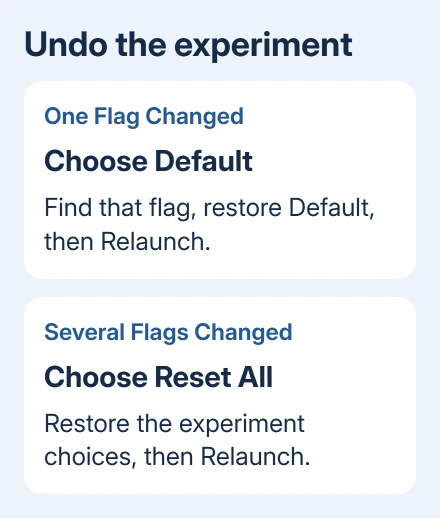
If several experiments changed and you can't tell which caused the problem, select Reset all at the top of the Experiments page. Then choose Relaunch. That restores the flag choices to their defaults together.
Reset all on this page is different from resetting Chrome's ordinary settings. Start with the experiment reset when flags caused the problem, so you don't change more of your browser setup than necessary.
If Chrome still opens but behaves badly after that, update it and follow the browser reset procedure only if the remaining symptom calls for it. Check which settings it changes before you confirm.
When Chrome won't open after the experiment
A crashing browser can't display its own Reset all button. Don't delete your profile folder as the first response, because that folder also holds browser data you may need.
If your workplace manages the laptop, give IT the flag name and Chrome version, and ask them to help start Chrome with experiments disabled. Developer startup switches are separate from the dropdown choices on the flags page.
For your own device, open Chrome Help's troubleshooting options and explain that the crash began immediately after a flag change. Include your operating system and whether another Chrome window or profile can still open.
The Short Version
Open chrome://flags, search for one exact experiment, choose Enabled and relaunch. Use Default to undo that flag or Reset all to undo every experiment. A missing flag needs a current platform check, not an invented replacement.
Checked November 10, 2026.