

The Use Dolby Vision mode checkbox sits in the expanded HDR controls for a Dolby Vision-certified display. Select the correct monitor in Windows 11 Display settings, open HDR, and expand its toggle section.
Dolby Vision playback support doesn't automatically give every PC this control. If it remains absent, check certification and drivers with the manufacturer. The reported missing-checkbox case has no confirmed universal repair.
In this guide
1. Select the HDR display before opening its controls
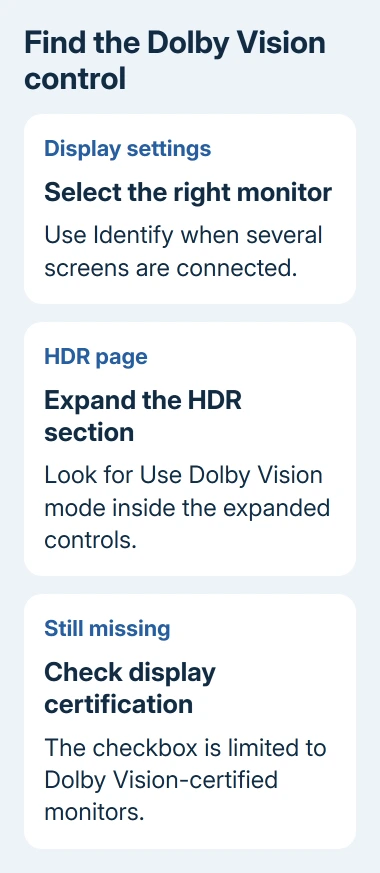
Open Settings > System > Display. With several connected screens, select the HDR-capable monitor at the top. Use Identify if you aren't sure which numbered rectangle represents the monitor you're looking at.
Each display has its own settings. A laptop's built-in screen and an external monitor can have different HDR capabilities, so opening the laptop panel's controls won't tell you which choices the external display offers.
Select HDR for the chosen screen. Read the capabilities shown there and check whether Use HDR is available. If Windows doesn't offer HDR for that display, start with the connection and driver check in section 3.
If you normally use duplicate displays, note that Windows HDR support can depend on the display arrangement. The Windows HDR settings instructions cover multiple displays and the supported HDR controls.
Don't judge the mode from a bright desktop alone. Read Windows' capabilities and the monitor's signal-information page, if available. Brightness, HDR support and Dolby Vision mode tell you different things.
2. Expand HDR and look for the certified-display option
Inside the selected display's HDR page, expand the HDR toggle section. Look for Use Dolby Vision mode among the expanded controls. The main HDR switch and the Dolby Vision checkbox aren't the same setting.
Microsoft's HDR instructions say to deselect Use Dolby Vision mode to disable Dolby Vision and use a non-certified HDR10 mode. They also limit the checkbox to Dolby Vision-certified monitors.
If the checkbox is present and your aim is HDR10, clear it and compare the result on that same display. Some monitors may limit peak brightness in Dolby Vision mode; the HDR10 alternative may be brighter in some circumstances.
Disabling Dolby Vision won't always make the picture brighter on every monitor or in every scene. Compare the picture with the problem you wanted to fix, rather than expecting a brightness boost.
If the expanded section still has no box, there isn't another universal Windows switch to reveal it. Keep the screen and connection details for the manufacturer rather than trying a registry edit for an unrelated HDR problem.
I'd check the selected display and expanded section before installing another Dolby app. Both checks take little time and directly match the location of the missing control.
3. Check the connection and display driver
For an external monitor, check the monitor's manual for the HDR-capable input and required cable or connection mode. A display's advertised features don't mean every port, adapter or dock can carry the same signal from your PC.
If your monitor uses a dock or video adapter, try a supported direct connection when possible and compare the result. Keep that monitor selected in Settings afterward so you're checking its capabilities instead of the laptop panel's.
Record the graphics adapter under Device Manager > Display adapters. Open its Properties > Driver tab and note the driver version. Also note the full monitor model. Run winver through Windows+R to record your Windows version and build.
Open Settings > Windows Update > Check for updates and complete any restart. For a model-specific display or graphics package, follow the manufacturer's instructions and check support for your Windows version.
The Windows driver update options help you choose between a manufacturer package and Windows Update. Updating unrelated devices won't add a display feature that the current setup doesn't support.
After updating, reopen that monitor's expanded HDR section. Note whether the checkbox appeared, the display's listed HDR capabilities changed, or nothing changed. Give support that comparison along with the driver version.
If HDR itself is missing, ask support about the connection's HDR10 support first. If HDR works and only the Dolby Vision checkbox is absent, ask specifically about Dolby Vision certification and this Windows control.
4. Don't treat a temporary HDR10 switch as a repair
The reported case involved an ASUS ProArt PA32UCX-K. Its owner wanted to disable Dolby Vision because of raised black levels, but couldn't find the checkbox on Windows 11 24H2.
A graphics-driver update switched it to HDR10 temporarily, but Dolby Vision returned after reboot. HDR10 video also changed the mode, yet windowed playback caused repeated switching between HDR10 and Dolby Vision.
That doesn't give you a desktop mode that stays selected. Starting a video every time Windows boots doesn't restore the missing checkbox, and the same owner reported that it caused another visible problem.
The thread also includes an unsuccessful attempt to install the suggested Dolby apps. Installing an app didn't make the checkbox appear for that owner. There is no confirmed app-installation fix in that discussion.
For washed-out colors, work out whether you have an HDR desktop problem or a browser-only color change. A yellow browser page with normal Windows colors needs a different comparison from a monitor receiving the wrong HDR mode.
If you need to compare ordinary desktop output, switching Use HDR off temporarily gives you an SDR comparison. That turns HDR off as a whole; it isn't a way to keep HDR10 while disabling only Dolby Vision.
When the checkbox still isn't offered
Send the monitor manufacturer its model, connection path, graphics driver, Windows build and a picture of expanded HDR settings. Ask whether this exact setup should show Use Dolby Vision mode.
Also ask whether the monitor's firmware or its on-screen menu provides a supported way to select HDR10. The forum owner's monitor followed the incoming signal and couldn't make that change manually, so check the model's actual controls.
If the maker confirms the box should appear, request Windows display support in Get Help and include that confirmation. Press Windows+F to open Feedback Hub and report the missing control and unwanted mode switching.
The Short Version
Expand HDR on the display you're using. The Dolby Vision box is limited to certified displays. If absent, verify support for the exact setup. App installation and video playback didn't restore the checkbox in the report.
Checked November 17, 2026.






