
A yellow screen on Windows 10 often comes from Night light, which warms the display. Turn it off in Display settings first. A tint that stays all day, affects only one monitor, or appears only inside a browser needs its own repair.
Use white areas to compare the color. Open a blank document and Settings. If both look yellow, work through the display checks here. If only web pages change color, use the browser fix linked in the first section.
In this guide
1. Turn off Night light and its schedule
Open Start > Settings > System > Display. Set Night light to Off, then open Night light settings. Switch Schedule night light off while you're checking the problem.
The schedule matters because a screen can look normal in the morning and turn amber again that evening. If you turn Night light off but leave its schedule on, it can switch itself back on.
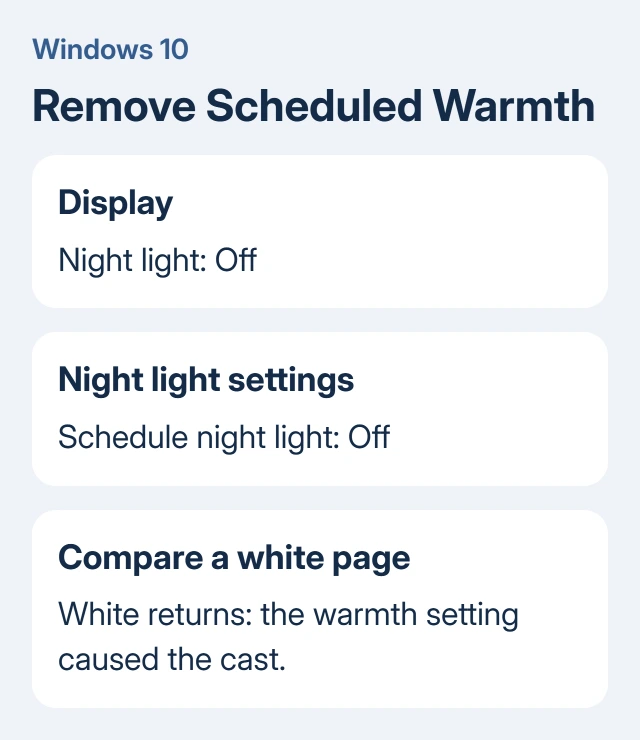
Compare the same blank document immediately after changing the setting. If white returns, Night light was warming the screen's colors. Keep the schedule off, or adjust it later through the Night light controls.
Microsoft describes the Windows 10 schedule and calibration controls in its display color instructions. Select the Windows 10 section when reading that page.
If the Night light switch is unavailable, check the display driver in step 5. A separate monitor can also use its own warm preset, so Night light isn't the cause of every yellow screen.
If Settings and the desktop look normal but browser pages look yellow, follow the Edge and Chrome yellow-tint repair. That fault needs browser or color-profile checks rather than changing the whole display.
2. Remove an unwanted color filter or warmth utility
Go to Settings > Ease of Access > Color filters. Turn Turn on color filters off for this comparison. Older Windows 10 layouts put the control under Color & high contrast instead.
Color filters alter the Windows picture. If turning a filter off restores normal color, revisit Color filters to choose the accessibility setting you need. A filter selected for another person can make the desktop look wrong to you.
Look beside the taskbar clock for a screen-warming application. Expand the hidden icons if needed. If you installed one, pause its color adjustment through that application's own controls and compare the document again.
Adjust the controls separately. Turning several adjustments off at once can restore white without showing which app will change it again tomorrow. Once you find the control that changes the picture, adjust that setting before moving on.
3. Check the monitor's own picture mode
For a separate monitor, open its menu with the physical controls. Look for Color Temperature, Color Mode, or a blue-light reduction setting. The names and available presets depend on the model.
A warm picture preset can keep the screen yellow even with Windows Night light disabled. Choose the normal or default color preset described in your monitor's manual, then look at the same document again.
I'd check this before adjusting individual red, green, and blue levels. A preset is easier to reverse, and those three controls can turn one unwanted cast into another if you change them without a reference.
If a previous owner changed several controls, photograph the current settings before using the monitor's factory reset. Follow its manual for the reset. This changes the monitor's settings. It doesn't reinstall Windows or delete your files.
On a laptop's built-in screen, look for a display or eye-comfort utility supplied by the laptop maker. Use its model-specific instructions. The physical menu on a desktop monitor doesn't have an equivalent button sequence on every laptop.
4. Compare the connection before calibrating
With an external display, reconnect both ends of its video cable. Try a different suitable cable or another input if available. For a VGA connection, inspect the connector for a bent pin rather than forcing it into the socket.
The monitor color troubleshooting steps include checking the signal cable and restoring monitor settings. Use the matching manual to locate controls on your own model.
A laptop with a second display gives you a useful comparison: show the same white document on each screen. If only one looks yellow, check that screen, its cable, its own settings, and the Windows color settings assigned to it.
If both change together, look again at software that adjusts the whole desktop. If another computer also looks yellow on the external monitor, concentrate on that monitor and the connection used for the comparison.
Don't compensate for a damaged connection by pushing color sliders around. Fix the connection first. Otherwise, replacing the cable later can leave you with an unnecessary color correction.
5. Check the graphics driver, then calibration
If it began after a graphics update, open Device Manager > Display adapters. Right-click the graphics adapter, open Properties > Driver, and look for an available Roll Back Driver button. Use it when the previous version had normal color.
If rollback isn't offered, get the display driver listed for your exact laptop or graphics hardware and Windows version. Use the manufacturer's installer instructions. A dual-graphics laptop can need model-specific packages.
Restart after a driver change and compare the display before changing anything else. The driver needs attention if Night light became unavailable or Windows started using a basic display driver after an update.
If a slight tint remains after those checks, search Windows Settings for calibrate display color. Follow the instructions on the affected display. Keep settings that warm the screen turned off while you judge its color examples.
Calibration adjusts the color on a screen that otherwise works normally. It won't repair a failing panel, an intermittent cable, or a color change caused by an application that turns itself back on.
Arrange service when the tint follows the screen
Ask the laptop or monitor maker to check the display if the tint stays with its normal settings and another suitable connection. Give support the model, when the tint began, and whether it also appears with another computer.
For a laptop, explain whether an external monitor looks normal. For a separate monitor, report whether its own menu also looks discolored. This helps support decide whether to check software, the connection, or the screen itself.
The Short Version
Turn off Night light and its schedule first. Check filters, warmth tools, and the monitor picture mode next. Compare cables and displays before changing drivers or calibrating. A tint that follows the screen needs a display assessment.
Checked November 16, 2026.





