
A long delay opening desktop files, while the same files open quickly elsewhere, can come from the desktop folder's location rather than a slow drive. Try Open with to get a document open, then check whether OneDrive is backing up Desktop.
One owner restored normal opening by stopping Desktop backup after checking that only the OneDrive Desktop folder existed. That's a better reason to check the Desktop path than to keep clearing caches or reinstalling OneDrive.
In this guide
1. Compare the same file outside the desktop
Choose one ordinary document that's slow to open. Right-click it, select Open with, and choose the app that normally reads it. Compare that with double-clicking the same file from the desktop.
Then copy the file to Downloads and open that copy. Use a file, not just a shortcut, so you're comparing two locations for the same content. Leave the desktop original untouched during these folder comparisons.
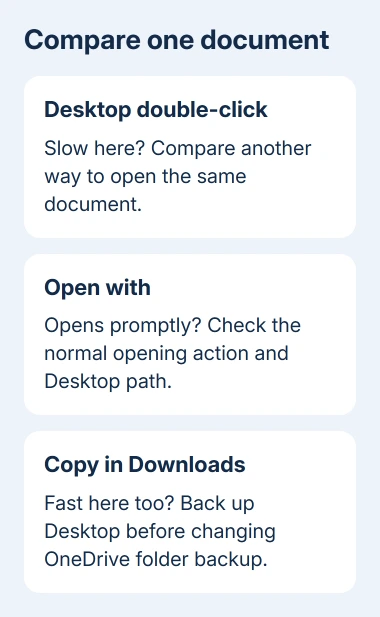
If Open with and the Downloads copy both open promptly, the app and file can work without the desktop delay. I'd check where Windows keeps your desktop before treating this as a slowdown affecting the whole computer.
If every location is slow, this particular OneDrive path fix isn't a good match. Check whether the delay affects just one app, whether it needs downloading, and whether the drive is busy before changing Desktop backup.
For a file marked with a cloud icon, its right-click menu offers Always keep on this device. Wait for its download to complete, then compare locations. A file waiting to download and a local file waiting to launch are different delays.
The reported desktop-path case affected locally available files too. Keeping them on the device didn't fix the delay. This check helps you tell a download delay from the folder problem the owner fixed.
2. Check which Desktop folder Windows is using
Press Windows + R, type shell:desktop, and press Enter. Click File Explorer's address bar to read the actual folder path. A OneDrive-backed Desktop normally includes OneDrive in that path.
Now open another Explorer window and enter %USERPROFILE% in its address bar. Look for a Desktop folder. Compare it with the Desktop folder inside your OneDrive folder without moving or deleting either one.
With folder backup on, a OneDrive Desktop path is normal. A missing local Desktop folder doesn't mean you need registry changes. Check for both symptoms: Windows uses OneDrive's Desktop folder, and files open slowly only from the desktop.
The owner's successful follow-up describes a missing local Desktop, a remaining OneDrive Desktop, and prompt opening after Desktop backup was turned off.
If both folders exist, compare their contents and the active path. Don't assume the folder with familiar files is the one Windows currently uses. Write down the current path so you can explain what you found.
If you're also dealing with OneDrive folder settings, check which folders are synced before reorganizing the desktop. An opening delay shouldn't turn into a file-recovery problem.
3. Copy the desktop files somewhere safe first
Make a separate backup folder outside Desktop and outside OneDrive, preferably on an external drive. Copy the desktop items there. Open a few copied documents to check that the backup contains their contents.
For online-only items, download them first. A shortcut to a cloud file or a copied placeholder isn't the same as an independent copy of the document. Wait for OneDrive to finish before relying on that backup.
Include folders as well as loose documents. Shortcuts can be useful to keep, but they point to other locations; copying a shortcut doesn't back up the document or application it launches.
This backup comes before changing folder backup because the next screen can ask where to keep the files. You'll have a copy you've checked if the desktop contents move or your version shows different steps for stopping backup.
Leave the backed-up originals alone until opening works and you've checked the active Desktop folder again. Deleting duplicates has no benefit while you're still working out which location is being used.
4. Stop Desktop backup through OneDrive's settings
Open OneDrive from its cloud icon near the clock. Use its settings menu to reach Settings > Sync and backup > Manage backup. Find Desktop and turn its backup off.
Microsoft's folder-backup instructions describe the choices shown when stopping backup. Read the destination choice carefully before you confirm where to keep your files.
Current versions ask whether to keep files in the cloud or on your computer. Choose Keep the files only on my PC for a local desktop if offered. It removes those files from OneDrive, so keep your separate backup.
Older versions can leave existing files in the OneDrive folder and show a link to them from the local folder. Follow the message your version displays. Don't assume the files will automatically appear on your local desktop.
If an organization controls the backup switch, ask IT to check the folder redirection. Don't unlink a managed account or change its registry paths to get around the policy.
After the change, open %USERPROFILE% again and check for the local Desktop folder. Use shell:desktop to check the active location too. Copy missing items from the checked backup if the local desktop is empty.
5. Test the repaired desktop and keep its backup covered
Open the same document from Desktop, then open a second file type. Check a shortcut too if shortcuts were slow. The expected result is prompt opening from Desktop as well as from Downloads.
Once Desktop backup is off, OneDrive won't automatically back up new files you save there. Choose another backup method, such as Windows File History, for files you continue to keep there.
If only one file type remains slow and Open with works, check Settings > Apps > Default apps. Search for its extension and select the intended app. Retest that file type before changing other defaults.
Cache cleaning, system-file checks, reinstalling OneDrive, and recreating the configured account hadn't solved the owner's delay. Changing the Desktop path later worked. Skip those earlier repairs; they didn't help the owner.
If the delay remains, send Windows support the active Desktop path, affected file types, and the Open with versus Downloads comparison. Ask IT to check folder redirection and the default opening action on a managed PC.
The Short Version
Compare Open with and a Downloads copy first. For a matching OneDrive Desktop delay, back up the files, stop Desktop folder backup, and check the active local path. Test several desktop items and arrange backup for future files.
Checked November 16, 2026.





