
EVENT_TRACING_FATAL_ERROR means Windows' event-recording component has crashed. Use Windows Recovery to repair startup or undo a recent change before reinstalling. That code doesn't name a driver to remove or a file to erase.
If Safe Mode also crashes, move to recovery tools rather than repeating the same failed boot. An owner with this exact error recovered through a clean installation after System Restore and Safe Mode had failed.
In this guide
1. Reach recovery without starting a reinstall
Look for Automatic Repair, then choose Advanced options. From the recovery menu, open Troubleshoot > Advanced options. These tools work without loading your Windows desktop, even when startup keeps ending at the crash screen.
If the sign-in screen remains available, hold Shift while choosing Power > Restart. Keep holding it until the recovery screen appears. This restart option works without signing into an account.
If recovery won't load, create a Windows installation USB on a working computer. Boot from that USB and choose the repair option. Check the computer's manual for its boot-menu key.
Get your BitLocker recovery key ready before opening tools that need drive access. If BitLocker has encrypted the drive to protect its contents, those tools may ask for the key. A clean installation won't recover files from a locked drive.
Photograph or write down the crash screen, including a named file if one appears. Microsoft identifies EVENT_TRACING_FATAL_ERROR as bug check 0x11D, with several possible subtypes.
The error's name doesn't tell you the cause on your computer. Don't remove an event log or apply a registry command just because another computer displayed the same headline error.
2. Try Startup Repair for the boot failure
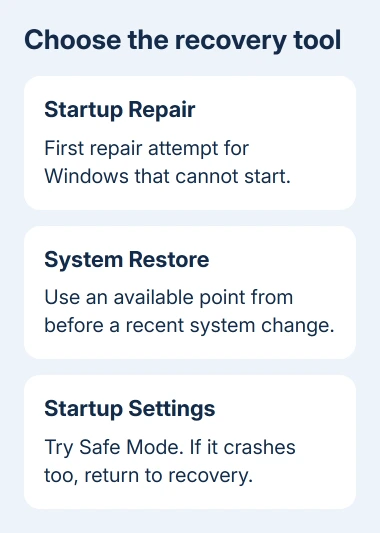
In recovery, select Troubleshoot > Advanced options > Startup Repair. Select the Windows installation if asked and let the repair finish. The repair may request your account details before it starts.
If it reports a successful repair, start Windows normally. After reaching the desktop, repeat a normal restart to check for another crash. Save important files before making further changes to the machine.
If Startup Repair says it couldn't repair the PC, return to Advanced options. That means Startup Repair couldn't get Windows running. The message doesn't identify the storage drive as faulty.
The computer stuck at boot guide covers failures that stop at a maker's logo instead of reaching Windows. Keep those separate from a Windows stop screen that actually names EVENT_TRACING_FATAL_ERROR.
For this named crash, the next useful question is what changed immediately before it. A recent update and a recently installed device call for different recovery attempts.
3. Match the rollback to the recent change
For a crash that began just after updating Windows, open Troubleshoot > Advanced options > Uninstall Updates. Available choices can include Uninstall latest quality update and Uninstall latest feature update.
Match that choice to the change installed just before the failure. Monthly quality updates and Windows version upgrades have separate rollback choices. Don't remove updates at random if the error started without an update.
For a recent driver or app installation, open Advanced options > System Restore. Pick a point from when Windows started normally. Check the list of affected programs so you know which apps the restore will change.
System Restore undoes system changes; you still need a separate backup for your documents. If recovery can't complete it, note the message and move on rather than retrying one failed restore point indefinitely.
The owner with this exact error had already tried System Restore without success, then tried Safe Mode. A restore point is an option to try, but it didn't fix their crash.
If a rollback restores startup, look up the affected driver or firmware on the manufacturer's support site before putting the same change back. Keep the failure date and update name for support if it returns.
4. Use Safe Mode only if it can stay running
Select Troubleshoot > Advanced options > Startup Settings > Restart. At the numbered menu, choose 4/F4 (Safe Mode). Use 5 or F5 only when you need the networking option.
Safe Mode leaves out many drivers and background services during startup. If it opens while normal startup crashes, remove a recent app or roll back its changed driver without the usual startup programs running.
For a driver rollback, find the affected device in Device Manager and open Properties > Driver. Select Roll Back Driver when available and complete the rollback. Stick to the device whose driver recently changed.
If both startup modes fail with the same stop code, return to recovery. The asker also tried Safe Mode with Networking, but it crashed too. Repeating it wasn't the successful step.
Save a copy of the crash information if Safe Mode gives you access. If Windows saved dump files, which record details of the crash, a technician can use them to check the error subtype and whether a driver was involved.
5. Protect the files before the last recovery option
If repair, rollback, and Safe Mode fail, a clean installation is still an option. The asker also reported that the suggested Reset failed. In the owner's follow-up, Windows booted normally after the clean-install advice.
Copy accessible personal files onto another drive before any erasing step. If the files can't be opened, the disk is encrypted, or you aren't sure which partition contains them, ask a repair technician to copy or recover them first.
The accepted answer includes deleting partitions, the sections a drive is divided into. That erases data. Before following it, check your backup and confirm which drive you're about to erase.
Use official Windows installation media and the edition your PC is licensed for. Follow the clean-install instructions with your backup drive disconnected while you select the installation drive. Restore applications and settings afterward.
If the PC won't boot from the USB, check its boot-menu and media setup before changing the internal disk. A USB boot failure and the Windows stop error are separate problems.
If a fresh installation crashes too, ask the computer maker or repair shop for tests of the storage drive and memory, plus a review of any crash dump files. Tell them the exact stop code and that it survived a fresh Windows installation.
When recovery cannot read the drive
A drive that disappears from recovery needs a separate check before reinstalling Windows. Tell the repair shop whether the firmware still detects it. Ask them to preserve its data before attempting a repair or replacement.
The Short Version
Try Startup Repair, a relevant rollback, or Safe Mode from recovery. Don't keep repeating a failed option. A clean installation restored boot in the reported case; copy and check your files before erasing Windows.
Checked November 16, 2026.





