
You choose Microsoft Print to PDF, press Print, and nothing happens. No Save As box, no file, no error. I would update Edge before you reinstall anything, because the fault sits in Edge itself.
Microsoft has logged it as an Edge 154 fault, and more than 50 people marked the same question on its Q&A board. The new Outlook hit the same wall a few days later.
Where it fails
The question went up on 27 September. An owner whose workplace had it too said "it appears it is only an issue with Edge". Their team had tested other apps first: "We tested with Word and the dialog box comes up".
Another owner saw it on three PCs. "The Save As dialog box never appears", Edge did not freeze, and "We do not receive any error messages". The print job never reached the queue either.
Switching PDF printers will not save you. A third owner found "it is also happening to the Adobe print to PDF", and in the new Outlook a Nitro PDF printer failed the same way.
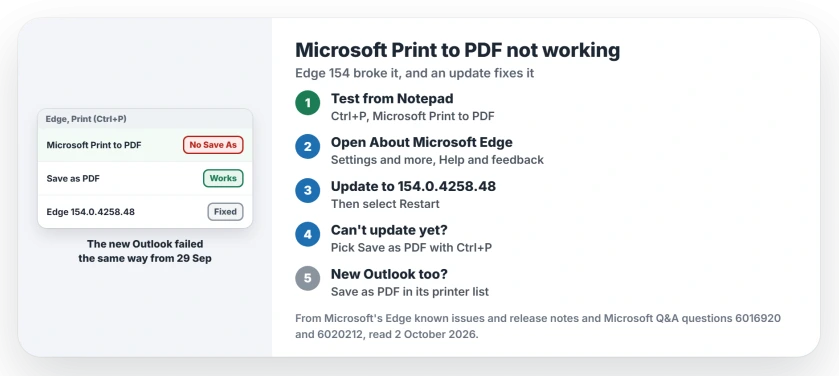
Status: checked 2 October 2026. Edge 154.0.4258.48 fixed Microsoft Print to PDF. The new Outlook failed the same way from 29 September; Save as PDF in its printer list worked.
1. Test it from Notepad first
An adviser on the thread gave a quick test. Open Notepad, type a few words, press Ctrl and P, choose Microsoft Print to PDF and select Print.
If the Save As box opens there, your Windows PDF printer is fine. Most owners found Word, Notepad and Chrome still worked, while Edge did not. One owner did report Notepad failing too, so test more than one app.
2. Update Edge to 154.0.4258.48
Microsoft says on its Edge known issues page that some users of version 154 "may experience printing failures when attempting to print from Microsoft Edge". Then comes the good news.
The entry ends: "This issue is fixed in Microsoft Edge stable release 154.0.4258.48." That build arrived on 29 September, five days after version 154 itself.
In your Edge window, open Settings and more, then Help and feedback, then About Microsoft Edge. Let the update download, then select Restart to finish. That is all it takes.
Owners confirm it. One wrote: "I just updated Edge to Version 154.0.4258.48 and Microsoft Print to PDF is working again." Another reply credits the same update with fixing it for their company's PCs.
3. Or choose Save as PDF instead
Can't update yet? Microsoft's workaround is to pick Save as PDF in your print window rather than Microsoft Print to PDF. The owner with three PCs had found it already: "Save as PDF" works.
There is one catch. Microsoft adds: "This workaround is not applicable to the Windows system print dialog (Ctrl+Shift+P)." So open printing with Ctrl and P, not with Shift as well.
4. In the new Outlook, use the same trick
If your mail lives in the new Outlook, it broke on 29 September. In their words, one owner on its own board wrote: "The issue started yesterday afternoon."
Microsoft's Outlook help gives that exact printer as the way to save an email as a PDF.
One owner spotted Save as PDF in the same printer list, writing "that seemed to work for me instead of Print to PDF or Print to Adobe". A second owner tried it and replied that it "does the trick".
Why Outlook too? It draws its window with WebView2, and Microsoft's notes say "WebView2 shares code and binaries with the Microsoft Edge browser". Ours: its version 154 runtime came out on 28 September, the day before Outlook broke.
5. Two other routes for one email
A moderator suggested opening the same email in Outlook on the web and printing from your browser. Pick Save as PDF in that print window and the fault never comes into it.
Or switch back for a moment. An owner found "if I switch back to Classic Outlook, it works in there". It failed again once they moved back to the new Outlook.
Reinstalling the printer does not help
Owners turned Microsoft Print to PDF off and on in Windows features, reset and repaired Edge, cleared the cache, made a new profile and ran sfc. None of it brought the Save As box back, so you can skip those steps.
That fits Microsoft's note, since the fault was inside Edge and not in the Windows printer you were reinstalling.
The yellow tint page covers the other Edge 154 complaint from the same week. And when a real printer stays silent, the printer page has its own checks.
Why is Microsoft Print to PDF not working in Edge?
It is a known Edge 154 fault on Microsoft's own list. The print window fails to appear or closes when you choose Microsoft Print to PDF. Edge 154.0.4258.48 fixes it.
How do I save an email as a PDF in the new Outlook?
Microsoft's route is Print, then Microsoft Print to PDF. While that fails, owners pick Save as PDF in the same printer list, or print the email from Outlook on the web.
Does reinstalling Microsoft Print to PDF fix it?
No. Owners turned the feature off and on, repaired Edge and ran sfc without any change. Updating Edge fixed it, and Save as PDF works in the meantime.
The Short Version
- Edge 154 broke Microsoft Print to PDF.
- No Save As box appears and no file is made.
- Update Edge to 154.0.4258.48 or later.
- Or pick Save as PDF in your print window.
- That workaround needs Ctrl+P, not Ctrl+Shift+P.
- The new Outlook failed the same way from 29 September.
- Save as PDF worked there for owners too.
Where to Next
Open About Microsoft Edge now and check that your version is 154.0.4258.48 or higher. Then print one page to PDF. The Save As box should open.
Still failing in the new Outlook after a few days? Post your Outlook version under this page, and I will note which versions fix it.

Isaac Smith is the founder and editor of PC Glance, a website that covers computers, laptops, and technology. He is a tech enthusiast and a computer geek who loves to share his insights and help his readers make smart choices when buying tech gadgets or laptops. He is always curious and updated about the latest tech trends.