
Your PC installs Intel Extension 2.1.10103.24, Windows says it worked, and the same update is back after a restart. That is frustrating. I would try your laptop maker's driver app before you hide anything.
Owners on Microsoft's question board have reported the loop since August 2025, on HP, Dell and Lenovo laptops. Two of the threads carry more than 20 people marking the same question.
How the loop shows up
The first report came in August 2025 from a Windows 11 Pro owner. Update history listed the driver as successfully installed, yet Windows kept asking: "Why is repeating request to install multiple time?"
Another owner described the whole cycle: "it says installed, but when I restart, it says it need to install again. Over and over".
If yours is a managed laptop, it bites harder. One HP EliteBook owner found it back at "Pending restart" after every restart, and under a company deadline that meant a forced restart every few days.
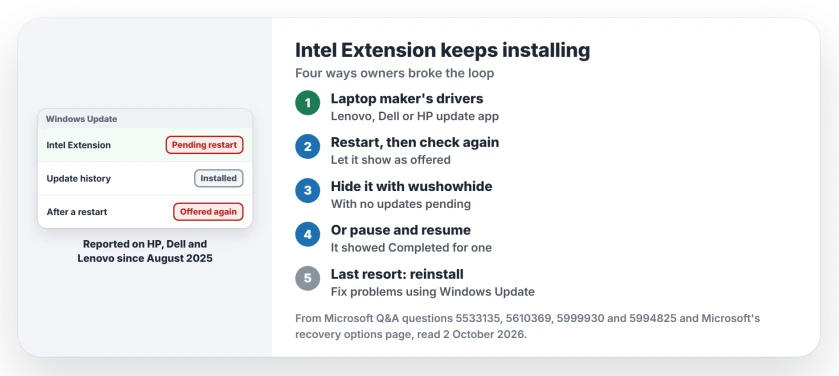
Status: checked 2 October 2026. Microsoft has published no fix for the Intel Extension loop. Owners stopped it with their laptop maker's drivers, the hide tool or a repair install.
1. Get your laptop maker's drivers first
The first asker fixed it this way. They ran Lenovo's driver update app, took every recommended update, then installed the next monthly Windows update: "I am no longer experiencing the problem."
A Dell owner did the same with Dell's own package for a Latitude 5350, installed before Windows Update found the extension again. In their words: "This was fixed for me".
A moderator on the board agrees with starting there, whatever your laptop brand.
On some laptops, they wrote, the loop only cleared "after updating the associated OEM platform drivers or BIOS/firmware rather than the Intel Extension component itself."
2. Hide it, at the right moment
Microsoft's Show or Hide Updates tool, the file wushowhide.diagcab, hides one update so Windows stops offering it to you. Run it and choose Hide updates. Tick the Intel Extension and finish.
Ours: Microsoft's download link for the tool still answered when we checked on 2 October 2026.
Timing is everything here. Several owners found the tool did not list the update at all, since Windows already treated it as installed. You may hit the same wall.
One owner got past that: "I had to reboot and let the system fake install the item, and then run the tool with no updates pending."
An HP owner's steps were recommended by a moderator, and over 10 people marked them helpful. After hiding it, restart and check that Windows Update no longer offers your Intel Extension.
3. Pause, then resume
One owner tried a cache reset, sfc and DISM with no change. Then they paused updates and resumed them, and the extension showed as Completed. That is user-reported, from one laptop.
Another owner just pauses for a week at a time to clear the tray icon it leaves. That is a holding pattern, not a fix, and the pause page explains how long you can stretch it.
4. Reinstall Windows with Windows Update
When nothing else clears it, a repair install did for two owners. One used Settings, System, Recovery, Fix problems using Windows Update and Reinstall now, then let the extension install once more.
Microsoft says on its recovery options page that this route keeps your things: "Your personal files, apps, and settings are kept." The repair install page walks you through it.
What did not stop it
Resetting the Windows Update cache, sfc and DISM did not stop the loop for owners, and neither did unplugging a dock. One owner with several affected laptops wrote that hiding did not work for them either.
On a work laptop, pausing may be blocked and hiding needs admin rights. One owner in that spot asked their IT team to block the driver centrally.
Why does the Intel Extension update keep installing?
Owners think Windows Update does not recognize the version that is already installed. A moderator lists driver detection mismatches and laptop maker packages that differ from Intel's generic one. No official fix has been published.
Is it safe to hide the Intel Extension update?
Owners hid it without reporting any side effects. A moderator suggested hiding it "while monitoring for an updated HP or Intel driver package", so check your laptop maker's app now and then.
Why can't the Show or Hide tool find the update?
By the time you run it, Windows lists the extension as installed, so there is nothing to hide. Restart, let it show as offered again, then run the tool with no updates pending.
The Short Version
- Intel Extension 2.1.10103.24 reinstalls itself in a loop.
- Reports go back to August 2025 on HP, Dell and Lenovo.
- Update your laptop maker's drivers first.
- Then hide it with Microsoft's Show or Hide tool.
- Run the tool after a restart, with nothing pending.
- Pausing and resuming cleared it for one owner.
- A repair install with Windows Update fixed it for two.
Where to Next
Open your laptop maker's update app now, Lenovo Vantage, Dell SupportAssist or HP Support Assistant, and install every driver it offers. Restart twice and check Windows Update again.
If the extension keeps coming back after that, name your laptop model in the comments. I will keep a list of the models that loop.

Isaac Smith is the founder and editor of PC Glance, a website that covers computers, laptops, and technology. He is a tech enthusiast and a computer geek who loves to share his insights and help his readers make smart choices when buying tech gadgets or laptops. He is always curious and updated about the latest tech trends.