

You open the Microsoft Store and it sits there for a few seconds, then closes by itself. Every time. I would look at what Windows logged about the crash before you try the usual resets again.
One owner had this right after installing Windows 11 26H2. Event Viewer pointed them at an Xbox component, and reinstalling it fixed the Store. A moderator thanked them for posting the fix.
The clue in Event Viewer
The owner described it exactly: "When I launch the Microsoft Store App, is crashes after about 20 seconds". The Store also vanished from their list of installed apps.
Repair and Reset did nothing, so they opened Event Viewer. The crash entry named the Store's own program, WinStore.App.exe, and a faulting module: "gameplatformservices.dll_unloaded".
Its name points at the Xbox gaming platform, which is why the owner turned to the Xbox app and Gaming Services. Their verdict once it worked: "Well, this was the solution. Un-install and re-install XBox and Gaming Services".
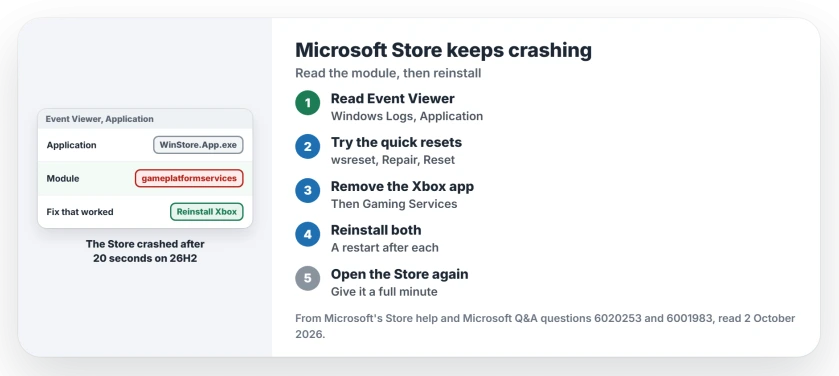
Status: checked 2 October 2026. No Microsoft statement. One owner fixed a Store that crashed after 20 seconds on Windows 11 26H2 by reinstalling the Xbox app and Gaming Services.
1. Read the crash in Event Viewer
Right-click Start, choose Event Viewer, then open Windows Logs and Application. Open the Store, wait for the crash, and press Refresh in the right-hand pane so the new entry appears.
Look for a red Error entry, usually from the source Application Error, that names WinStore.App.exe. The line under it, Faulting module name, tells you which part failed.
If yours names gameplatformservices.dll, carry on with this page. A different module points somewhere else, and I would search for that file name first.
2. Try Microsoft's quick resets
Microsoft says you should reset the Store cache first: press Windows + R, type wsreset.exe and select OK. In its words, "after about ten seconds the window will close and Microsoft Store will open automatically".
Repair and Reset are your next tries. On the owner's 26H2 PC the Store sat under System Components in Settings, Apps, as a volunteer moderator told them: "Store is located under System Components".
Neither helped this owner, but both are quick. Microsoft's Store help lists wsreset first.
3. Remove the Xbox app and Gaming Services
The owner's own order: "un-install Xbox, reboot, install Xbox, reboot, install Gaming Services, reboot". Remove your Xbox app from Settings, Apps, Installed apps, and restart.
Game Bar is a separate Xbox piece, and it has its own repair if it misbehaves later.
Ours: Gaming Services may not offer you an Uninstall button. In an administrator PowerShell window, this removes it:
Get-AppxPackage Microsoft.GamingServices | Remove-AppxPackage -AllUsers4. Reinstall them without the Store
Your crashing Store makes reinstalling awkward. Ours: winget can fetch both from Microsoft's catalog in an administrator terminal, using their Store IDs:
winget install --id 9MV0B5HZVK9Z --source msstore --accept-package-agreements --accept-source-agreements
winget install --id 9MWPM2CQNLHN --source msstore --accept-package-agreements --accept-source-agreements
The first is the Xbox app and the second is Gaming Services. Restart after each one, as the owner did.
Then open your Store and give it a full minute, longer than the 20 seconds it used to last. For the owner the result was simple: "Open Store app, result: no crash".
What did not help
Repair and Reset under System Components did not stop the crash for the owner on 26H2.
One Windows 10 owner had the same crash after "10-15 seconds" and tried wsreset, a PowerShell reinstall and an in-place repair of Windows. None worked, and a new local account crashed too. Both reports are user-reported.
If you end up at a repair install, reinstalling Windows explains which option keeps your files.
Why does Microsoft Store close after a few seconds?
For one owner on Windows 11 26H2, Event Viewer tied the crash to an Xbox gaming file, gameplatformservices.dll. Reinstalling the Xbox app and Gaming Services stopped it.
Will reinstalling the Microsoft Store delete my apps?
An Independent Advisor on the thread said no: "reinstalling the Microsoft Store will not affect your other installed apps". The fix here leaves the Store alone anyway.
Where did the Microsoft Store go in Installed apps on 26H2?
Under System Components. Search for Store in Settings, Apps, and it opens that list, where Repair and Reset live under Advanced options.
The Short Version
- The Store opened, then crashed after about 20 seconds.
- Event Viewer named gameplatformservices.dll.
- Try wsreset, Repair and Reset first.
- Remove the Xbox app and Gaming Services.
- Reinstall both, restarting after each step.
- winget installs them while the Store is broken.
- Then give the Store a minute to prove it.
Where to Next
Open Event Viewer and read the module name in the crash entry first. If it names gameplatformservices.dll, reinstall the Xbox app and Gaming Services.
If yours named a different file, put it in a comment. Another reader may have the same crash and that file is the clue they need.

Isaac Smith is the founder and editor of PC Glance, a website that covers computers, laptops, and technology. He is a tech enthusiast and a computer geek who loves to share his insights and help his readers make smart choices when buying tech gadgets or laptops. He is always curious and updated about the latest tech trends.