
Your laptop used to sign you in with your face, and now the camera never wakes at the sign-in screen. Zoom and the Camera app still work. I would reinstall Windows Hello Face before you touch the camera drivers.
One owner with this exact problem asked on Microsoft Q&A, and 6 more people flagged the same problem. A step Microsoft Support sent them fixed it.
Two cameras, not one
The owner put it plainly: the camera would not switch on at startup, "so can't use facial recognition to log on". In the same breath: "My camera still works for Zoom calls etc".
That is less strange than it sounds, because an adviser on the thread explained that "Windows Hello uses the Infrared camera", while Zoom and the Camera app use the normal webcam.
Microsoft says the same on its Windows Hello page: facial recognition works "with your PC's infrared camera or an external infrared camera". A working webcam proves nothing about the infrared one.
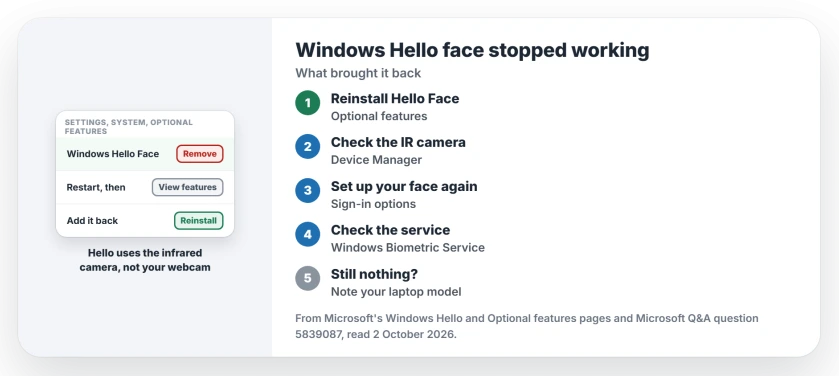
Status: checked 2 October 2026. Reinstalling the Windows Hello Face optional feature, a step from Microsoft Support, brought face sign-in back for the owner; 6 others share the question.
1. Reinstall Windows Hello Face
The owner's fix starts here. Open Settings, then System, then Optional features. On older Windows 10 and 11 builds it sits under Apps instead.
Under Installed features, find Windows Hello Face. Microsoft's own Optional features steps say to select the feature "to expand it, and then select the Remove button".
Restart the PC, then go back to Optional features, choose View features next to Add an optional feature, search for Windows Hello Face, and add it before you restart again.
The owner's report on Microsoft Support's list: "step 1 worked for me". Windows Update downloads the feature, so stay online while it installs.
2. Check the infrared camera in Device Manager
If the reinstall changes nothing, I would check the camera next: right-click Start and open Device Manager. Look under Cameras or Imaging devices for an infrared camera, often called something like Intel RealSense IR or Realtek IR.
If it shows as disabled, right-click it and choose Enable device. If it is missing, the adviser's advice was to get the camera drivers from the support page of your laptop's maker.
On a desktop with a plain webcam, there is no infrared camera to find. As another adviser put it: "You'll need IR based webcam to use facial recognition".
3. Set up face recognition again
Go to Settings, Accounts, Sign-in options, and open Facial recognition (Windows Hello). Remove it if it is listed, then set it up fresh and let it scan your face.
If your camera still never lights up, the webcam page works through the camera itself, version by version.
4. Check the biometric service
Microsoft Support's list also covered the service behind Hello. Press Windows + R, type services.msc, and find Windows Biometric Service.
It should say Running, with its startup type on Automatic. If it is stopped, select Start and try signing in again.
What did not help
A working Zoom webcam did not mean Hello's camera was fine for the owner, which is the trap here.
These reports are user-reported, from one owner and two advisers on that thread.
Zoom sees my camera, so why can't Windows Hello?
Because they are different cameras: Zoom uses the normal webcam, while Windows Hello face recognition uses the infrared camera beside it.
How do I reinstall Windows Hello Face?
Open Settings, System, Optional features, remove Windows Hello Face, and restart. Then add it again with View features, and restart once more.
Can Windows Hello face recognition use any webcam?
No. Microsoft says it needs your PC's infrared camera or an external infrared camera. Windows Hello itself covers the other sign-in options if yours has none.
The Short Version
- Hello uses an infrared camera, not your webcam.
- Zoom working proves nothing about it.
- Reinstall Windows Hello Face from Optional features.
- The owner's face sign-in came back after that.
- Check the infrared camera in Device Manager.
- Set up face recognition again afterwards.
- Make sure Windows Biometric Service is running.
Where to Next
Remove and reinstall Windows Hello Face from Optional features, restarting after each part. Then set up your face again.
If it still will not see you, put your laptop model in a comment. Infrared cameras vary a lot by maker.

Isaac Smith is the founder and editor of PC Glance, a website that covers computers, laptops, and technology. He is a tech enthusiast and a computer geek who loves to share his insights and help his readers make smart choices when buying tech gadgets or laptops. He is always curious and updated about the latest tech trends.