
You enter your PIN, the screen turns blue, and Windows says "The User Profile Service service failed the sign-in. User profile cannot be loaded". Clicking OK takes you straight back to the sign-in screen. It looks worse than it usually is.
I would restart before touching the registry. Microsoft and at least one owner fixed it that way, and the deeper fixes are easier from Safe Mode anyway. Your documents normally still sit in your own folder under C:\Users.
One Microsoft Q&A thread on this message has 100+ people in the same spot. Its close relative, the temporary profile, has threads with 300+.
What failed, and where your files are
Windows keeps your settings in a profile: a folder under C:\Users plus an entry in the registry that points at it. When the two stop matching, Windows refuses to load you. Your folder is normally still there.
Sometimes it lets you in anyway with an empty desktop. Microsoft says that in this case "Windows creates a temporary profile and signs you in with that one." An empty desktop has other causes too, but a temporary profile is one of them.
Microsoft adds a warning for that case: "Any files you have created or changed while in the temporary profile will be lost when you sign out." Save new work to a USB stick before you restart.
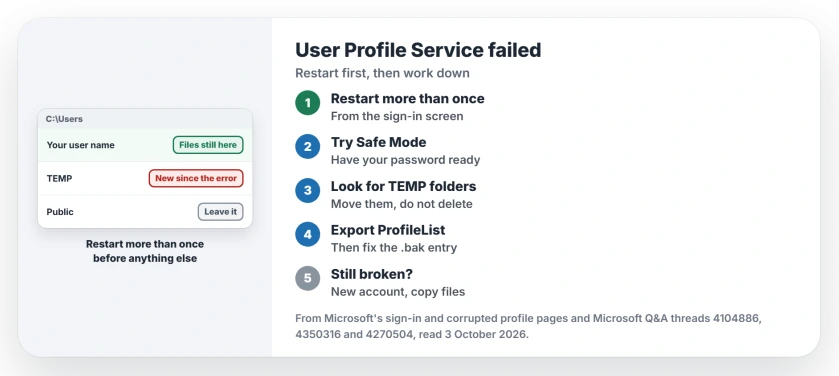
Status: checked 3 October 2026. Owners cleared it with a restart or by removing leftover TEMP folders. Microsoft's last step copies your files into a new account.
Restart more than once
Microsoft's sign-in help puts restarting first, with a note: "You might need to restart your device more than once."
It worked for one owner. Their reply on the thread was simply "I restarted my laptop and everything back". A moderator confirmed: "The OP already replied that it was fixed by simply restarting."
Ours: use Restart from the power icon on the sign-in screen, not the power button. Give each start a full minute. Then sign in.
Sign in through Safe Mode
Microsoft's next step: "Restart your device in safe mode and sign in with your original profile." Safe Mode loads fewer programs, so whatever blocked your profile may not run.
At the sign-in screen, hold Shift and choose Restart. Then pick Troubleshoot, Advanced options, Startup Settings, Restart, and press 4.
Did it sign you in? Restart normally and try again. Your PIN may not work in Safe Mode, so have your account password ready.
Look for TEMP folders under C:\Users
One owner found the cause by date. Folders named TEMP had appeared in their Users folder since the trouble started. "So I simply deleted these folders and it started working again." Ten people marked that answer helpful.
Seeing them takes a signed-in session: Safe Mode, or a second administrator account. Adding a second account takes a minute if someone else can sign in on that PC.
Ours: move any TEMP folder to another drive instead of deleting it. If nothing changes, you can put it back.
Fix the .bak entry in the registry
Advisers on several threads point to one registry key. It lists every profile on the PC, and a broken one often shows up twice, once with .bak on the end.
Open Registry Editor from Safe Mode and go to:
HKEY_LOCAL_MACHINE\SOFTWARE\Microsoft\Windows NT\CurrentVersion\ProfileListClick each S-1-5 key and read ProfileImagePath on the right until you find your user name. The adviser's steps: delete the copy whose path says TEMP, then rename the .bak one by removing .bak.
That answer has 50+ helpful votes on a 300+ thread. The asker still came back with this: "I've tried this multiple time with no success." Ours: right-click ProfileList and choose Export before you change anything.
One owner saw the .bak appear the day an update installed: "The .bak extension SID occurs after windows update only." An adviser elsewhere agrees: "This happens often after a feature update."
Antivirus that scans as you sign in
Microsoft suggests this when restarts fail: "If multiple restarts don't help, try temporarily disabling your antivirus software or any other app that might scan your device during sign-in."
Ours: in Safe Mode, uninstall a third-party antivirus outright rather than pausing it. Microsoft notes that some products only let go after complete removal and a restart.
When the profile is beyond repair
Microsoft's own fix starts over: "In case your user profile gets corrupted, here are the steps to create a new one." Make a new administrator account, sign in to it, and copy your files across.
Open C:\Users and your old folder, select everything, and paste it into the new user's folder.
Microsoft adds one odd instruction: "Do not change File Explorer view options to show hidden files and folders or show hidden protected operating system files."
Expect some setup afterwards. "If you have email messages in an email program, you must import your email messages and addresses to the new user profile separately." Some apps also need signing into again.
What did not help
A full reset, for one asker. They had tried "even a full reset of my PC (which didn't work either)" before posting. Copy your files out first if you head that way.
Clicking OK on the message repeatedly. It returns you to the sign-in screen with nothing changed.
Are my files gone when the profile won't load?
Usually not. Microsoft's own fix copies them out of your old folder in C:\Users. What you can lose is anything saved inside a temporary profile.
Why does Windows sign me in with a temporary profile?
It could not load your normal profile, so it built a blank one to let you in. Microsoft's fixes for that message and this one are the same.
Can a Windows update cause this?
Owners have seen the .bak entry appear right after an update, and one adviser says it happens often after feature updates. Microsoft has not named a specific update.
The Short Version
- Restart from the sign-in screen, more than once.
- Try Safe Mode next, with your password ready.
- Look for new TEMP folders under C:\Users.
- Export ProfileList before fixing the .bak entry.
- Remove third-party antivirus if restarts fail.
- Last resort: a new account, then copy your files.
Where to Next
Restart twice from the sign-in screen now. If the message comes back, go into Safe Mode and check C:\Users for folders that should not be there.
Which step got you back in? Say so in a comment, and add the Windows version you run. I will move the steps that work most often to the top.

Isaac Smith is the founder and editor of PC Glance, a website that covers computers, laptops, and technology. He is a tech enthusiast and a computer geek who loves to share his insights and help his readers make smart choices when buying tech gadgets or laptops. He is always curious and updated about the latest tech trends.