
Your PC shows the blue screen with the stop code INACCESSIBLE_BOOT_DEVICE, restarts, and does it again. Safe Mode gives you the same code.
Before you run any repair commands, I would think about what changed last. Windows has lost its own drive, yet very often the drive is fine. A BIOS reset that flipped one storage setting is the classic cause.
100+ people have marked a Microsoft Q&A question about this exact chain of events as theirs.
What the stop code is telling you
Microsoft's page on this stop code starts with the drive itself: "The INACCESSIBLE_BOOT_DEVICE bug check often occurs because of a boot device failure." That sounds worse than it usually is.
Then it names the less scary causes. "Repartitioning the system partition, changing the BIOS configuration, or installing a disk controller can also cause this error."
Microsoft's longer troubleshooting article lists "Changes to the storage controller mode or settings in the BIOS" among the causes, next to updates and storage drivers. Owners report it after BIOS resets, CPU swaps and updates.
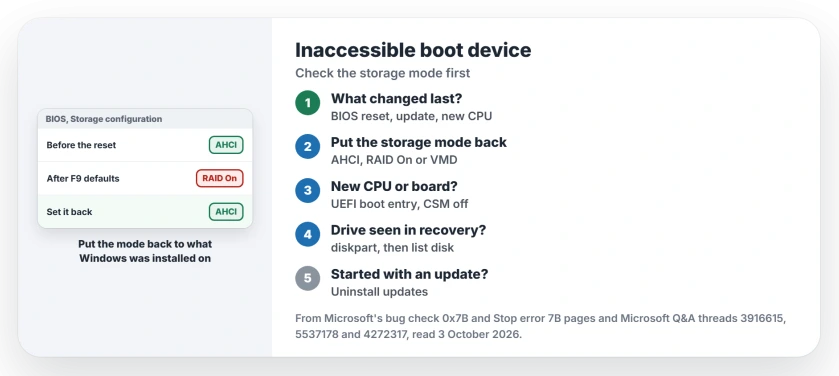
Status: checked 3 October 2026. Microsoft says to revert a changed controller mode. Owners fixed it by setting SATA back to AHCI and by fixing the boot device after a CPU swap.
Put the storage mode back
The 100+ thread started with one key press. The asker wrote: "I was in my BIOS and pressed F9 to reset settings to default". Every start after that failed.
Microsoft's fix for that case is direct: "If you have recently made changes to UEFI (BIOS) settings, such as changing the controller mode from legacy to AHCI in UEFI, revert those changes."
Find the storage or SATA setting in your BIOS. It may read AHCI, RAID On, Intel RST or Intel VMD. Windows normally starts only in the mode it was installed with.
Want AHCI anyway, for Linux or a new drive, without a reinstall? One Safe Mode start lets Windows load that driver first.
On a fresh install the same setting can bite the other way, with setup listing no drives at all; our page on Intel VMD in Windows 11 setup has the switch and the driver route.
One owner with the same stop code after an update found theirs under System Agent, then Storage Interface. Their fix, in capitals: "CHANGE SATA OPERATION TO AHCI".
Ours: on a PC with one drive, this setting changes how Windows talks to the drive, not what is on it. Note the old value first, then change one thing and try again.
Changing BIOS settings can trigger a BitLocker screen on the next start. Your recovery key is usually stored in one of a few places, so find it before you begin.
After a new CPU or motherboard
A 70+ thread opened with a CPU upgrade and this stop code. An owner there explained why: "It's common for the bios to reset to default settings when installing a new cpu."
They listed what that reset can change: "This can result in CSM being enabled, disabling of the TPM module, and other shenanigans." Their own fix was simple: "I just had to enter the bios and set the boot device".
Set Windows Boot Manager as the first boot entry. On a Windows 11 PC, use UEFI mode with CSM off.
If the PC stops before Windows with a line asking for a proper boot device, a BIOS reset and the CSM switch fixed it for owners.
Another owner adds a hardware catch: "Intel processors may allow some ports/slots on the motherboard to be usable but not with a different one."
So check the manual if your SSD sits in an M.2 slot. Microsoft also lists "Using a different storage controller than the one that was used when Windows was installed" as a cause.
Check that recovery can see the drive
Hold the power button as Windows starts. Do it two or three times and recovery opens. Choose Troubleshoot, Advanced options, then Command Prompt, and run:
diskpart
list disk
list vol
Your Windows drive should be listed, with a large NTFS volume. That is the good sign.
If the blue screen calls the boot volume unmountable rather than inaccessible, chkdsk and System Restore are what owners used.
Microsoft is blunt about the opposite case: "If the disk that contains the OS isn't listed in the output, you'll have to engage the OEM or virtualization manufacturer."
I would also check whether the BIOS itself lists the drive. Missing there too points at the drive or its connection, not at Windows.
When it started with an update
If the stop code arrived right after Windows Update, go to Troubleshoot, Advanced options, Uninstall updates first. It keeps your files and apps.
Microsoft's article also gives a command for updates that never finished. Replace C with your Windows drive from list vol, as Microsoft notes: "Replace C: with the system partition for your computer."
dism /image:C:\ /cleanup-image /revertpendingactionsSecurity software that loads early
Antivirus can sit in the storage path. Microsoft lists "Missing, corrupted, or misbehaving filter drivers that are related to the storage stack" as a cause.
One owner hit this on new servers after installing Bitdefender. "They had me turn off the 'Device Control' function in the AV Suite and that stopped the boot error."
Ours: did it start right after new security software? Remove that software from Safe Mode.
What did not help
The usual bootrec commands, for the asker whose problem began after an update. Their reply was "did all the steps but the problem remained".
A reset, in that same thread. It failed without changing anything. The storage mode fix arrived months later, from another owner.
Can a BIOS update cause INACCESSIBLE_BOOT_DEVICE?
It can. An update can reset your settings to defaults, storage mode included. A BIOS update is not always needed. After one, check the storage and boot settings first.
Does INACCESSIBLE_BOOT_DEVICE mean my SSD is dead?
Not on its own, and I would not replace anything yet. If recovery's list disk shows the drive and healthy volumes, your data is usually still there. The cause is then a setting or a driver.
What is the difference between AHCI and RAID mode?
They are two ways for the PC to talk to the drive. Each needs its own driver in Windows. Switch modes later and Windows lacks the driver it expects.
The Short Version
- Think about what changed: BIOS reset, update, new CPU.
- Microsoft says to revert a changed controller mode.
- Owners fixed it with SATA set back to AHCI.
- After a CPU swap, set the UEFI boot entry again.
- Check recovery can see the drive with diskpart.
- Uninstall updates if it started after Windows Update.
- Have your BitLocker key ready before BIOS changes.
Where to Next
Open your BIOS now and write down the storage mode. Reset or updated it recently? Try the other mode once, then save and restart.
Was yours a storage mode, a boot entry or an update? Leave a comment, and add your PC model. Setting names differ by maker.
For any other stop code, read the code first, the same way.

Isaac Smith is the founder and editor of PC Glance, a website that covers computers, laptops, and technology. He is a tech enthusiast and a computer geek who loves to share his insights and help his readers make smart choices when buying tech gadgets or laptops. He is always curious and updated about the latest tech trends.