
Your cable is plugged in, the network says Unidentified, and the troubleshooter ends with "Ethernet doesn't have a valid IP configuration". Wi-Fi on the same PC may work perfectly.
Before you try the long list of fixes, I would run one command. It shows whether your router ever answered, and that splits the problem in two. A second test, after a shutdown, catches the version that keeps coming back.
On Microsoft Q&A, one thread with this message counts 2,300+ people asking the same thing.
What the message means
Your PC asks the router for an address every time it connects. When nothing answers, Windows gives itself one, and that stand-in address is what the troubleshooter is complaining about.
Microsoft says of the feature: "With this feature, a Windows computer can assign itself an Internet Protocol (IP) address in the event that a DHCP server is not available or does not exist on the network."
Those stand-in addresses always start with 169.254. Microsoft puts it this way: "If a DHCP server does not respond after several discover messages are broadcast, the Windows computer assigns itself a Class B (APIPA) address."
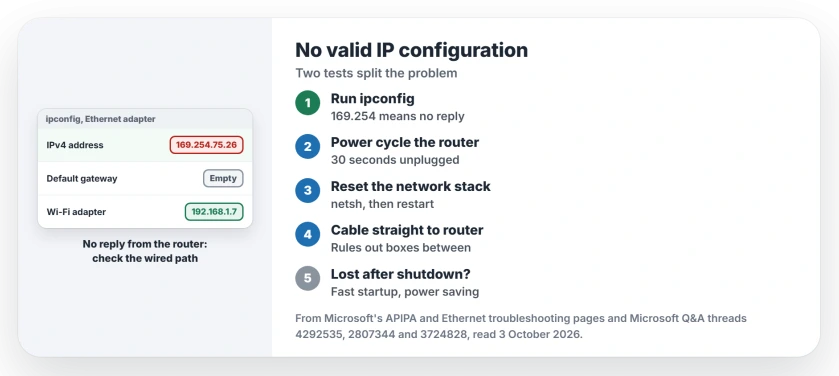
Status: checked 3 October 2026. A 169.254 address means the router never answered. Owners fixed it at the router, in a powerline adapter, or with fast startup off.
Test one: read the address
Press Windows + R, type cmd, press Enter, then run:
ipconfigFind the block headed Ethernet adapter Ethernet. One owner's read like this, while their Wi-Fi had a normal address:
Autoconfiguration IPv4 Address. . : 169.254.75.26
Default Gateway . . . . . . . . . :
A 169.254 address with an empty gateway means the request went out and no reply came back. Nothing answered. The fault sits between the PC and the router, not in your browser.
Typed a fixed address yourself and still see 169.254? Then the router is not the cause; another device holding that address is.
A Media disconnected line means your cable has no link at all. Check whether the cable made a link first, since that is another fault entirely.
Power cycle the router properly
Microsoft's Ethernet steps are to unplug the router and modem, then "Wait at least 30 seconds or so." Plug your modem in first, wait for its lights to settle, then the router.
On the 2,300+ thread this was a volunteer moderator's first suggestion, with 80+ helpful votes. It did not help the asker: "I tried it but unfortunately to no new results."
Reset the network settings
The most helpful answer on that thread, with 500+ votes, is a reset from an administrator Command Prompt.
Run netsh winsock reset on your PC, then netsh int ip reset. Follow those with netsh advfirewall reset and ipconfig /flushdns, and restart when all four are done.
Microsoft's own list adds ipconfig /release and ipconfig /renew. I would run ipconfig again after the restart. A real address, often starting 192.168, means it worked.
If Windows recovers but WSL on the same PC still cannot reach the internet, run those resets with WSL shut down first.
Anything sitting between the router and the PC
Powerline adapters, switches and docks can stop the router's reply reaching you. One owner on a 100+ thread used a TP-Link powerline pair.
An adviser there said: "It's looking like the router is not able to reach the PC via the powerline adapter to hand it an IP address."
The owner came back the next day. "All I did was switch the TP connected to the router and the PA511 to my computer. I paired them and now it works."
Ours: as a test, run one cable from the router directly to your PC. If that gets an address, the box in the middle is the problem.
Test two: does it come back after a shutdown?
Does yours get an address after the troubleshooter, then lose it again? One owner wrote: "However after I shutdown the computer and then later turn it back on I don't have internet again".
Losing the router every few hours, on Wi-Fi as well, is a different report, and it needs the adapter reset plus a reinstall.
That pattern points at fast startup. Another owner on the 100+ thread said: "I fixed it by turning off fast startup in my Windows 10 laptop." A normal shut down is closer to hibernating, so the adapter wakes in the same stuck state.
The accepted answer on that every-boot thread goes after power saving too. In Device Manager, open your Ethernet adapter. On the Power Management tab, clear the only tick box about saving power.
On the Advanced tab, the same answer says to turn off "Energy Efficient Ethernet (EEE), Green Ethernet" and similar options. Their names vary by adapter maker.
Reinstall the adapter driver
If nothing else helps, Microsoft suggests removing the Ethernet adapter in Device Manager and restarting. "Consider this approach if your network connection stopped working properly after a recent update."
I would download the driver from your PC or motherboard maker first, on another device if you have to. Windows usually reinstalls it on its own, but not always.
Microsoft lists network reset at the very end of its steps. Network reset removes more than you might expect, including VPN adapters.
What did not help
Resetting Windows. The asker on the 2,300+ thread had done it before: "I could only fix it after resetting windows entirely." Then it came back. "It hasn't even been 2 months since."
Disabling and enabling the adapter over and over. The powerline owner tried it about fifteen times before finding the real cause.
What does the valid IP configuration error mean?
Your PC asked the router for an address, heard nothing back, and gave itself a 169.254 one. That stand-in cannot reach the internet.
Why does Ethernet lose its address after every restart?
Owners report two causes: fast startup and the adapter's power saving settings. Turning off either one stopped the pattern for them.
Why does Wi-Fi work when Ethernet does not?
Wi-Fi gets its address over the air, so the router clearly works. The reply is getting lost somewhere on the wired path: the cable, a powerline adapter, a switch, or the adapter itself.
The Short Version
- Run ipconfig and look at the Ethernet address.
- 169.254 means the router never answered.
- Power cycle the router and modem, 30 seconds off.
- The netsh reset has 500+ helpful votes.
- Plug straight into the router to rule out boxes in between.
- Lost after every shutdown? Try fast startup off.
- Turn off the adapter's power saving options.
- Network reset is Microsoft's last step.
Where to Next
Run ipconfig now and note the Ethernet address. If it starts with 169.254, test a direct cable to the router before touching any Windows setting.
Did a powerline adapter, a switch or fast startup turn out to be yours? Tell me in the comments, because those in-between boxes rarely get checked.

Isaac Smith is the founder and editor of PC Glance, a website that covers computers, laptops, and technology. He is a tech enthusiast and a computer geek who loves to share his insights and help his readers make smart choices when buying tech gadgets or laptops. He is always curious and updated about the latest tech trends.