
Your PC starts to a black screen showing one line of white text: "reboot and select proper boot device or insert boot media in selected boot device and press a key". Windows never appears.
I would reset the BIOS to its defaults before blaming the drive. The asker of the biggest thread on this got Windows back that way, once they managed to open the BIOS at all.
That Microsoft Q&A question has 2,000+ people with the same problem.
What the message means
The text comes from your PC's firmware, before Windows loads. Ours: it checked its list of boot devices and found nothing it could start from. Owners report it after a BIOS change, a new SSD and a crash.
An adviser with 100+ helpful votes names two causes. Either the drive is not recognized, or the boot files are damaged.
Their first check: "The first thing that you need to check is if your hard drive is recognized in Bios and if doesn't have any problem."
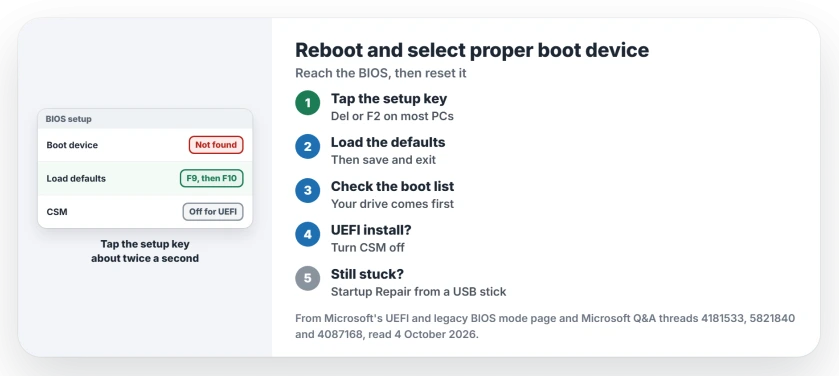
Status: checked 4 October 2026. Owners got Windows back by resetting the BIOS to defaults, and after a fresh UEFI install by turning CSM off.
Tap the setup key to get in
The 2,000+ asker could not get in at first: "I pressed my bios key, f12 but no bios settings". One press is easy to mistime.
The next day they wrote: "I manged to get into the bios by repetitively tapping the bios key and I reset the settings and my pc works normally".
The key depends on the maker. Del and F2 are the commonest, with F10, F12 and Esc on some brands. Ours: start tapping the moment you press power. Aim for about two taps a second.
Does Windows still start sometimes? Then try a softer route. Microsoft's firmware page describes holding Shift while you select Restart, then Troubleshoot, Advanced options and UEFI Firmware settings.
Load the defaults
Inside the BIOS, look for Load Optimized Defaults or Load Setup Defaults. Many boards put it on F9. Save and exit, usually with F10.
That reset alone fixed the 2,000+ asker's PC.
One builder switched on ultra fast boot and lost the BIOS entirely: "I also cant go back to BIOS since all my USB ports are not working." Their keyboard stopped working before Windows loaded.
An adviser's answer for that case: "take out the little button cell battery on the mainboard, and leave it out for about 1-2 Minutes, then put it back in." They added: "That will reset the BIOS to factory settings."
Ours: unplug a desktop at the wall first. On a laptop that battery is often deep inside, so check the maker's manual first.
Check the drive is listed and first
Once you are in, open the Boot tab. The adviser's next step: "Once you are on Bios settings, go to the boot tab and check if your hard drive is recognized, if it is not you need to check the hard drive connection."
Pull out USB sticks and memory cards first. The PC may try those before your drive. Your Windows drive, or Windows Boot Manager, should come first in that list.
On a desktop, I would reseat both cables on the drive if it is missing. A drive the BIOS cannot see at all points at a cable, power or the drive itself.
Match UEFI and CSM to the install
A March 2026 owner saw the error only on restarts after a clean install. Their PC "shuts down and starts up just fine but when i try to restart it and it restarts it shows" the message.
The adviser's diagnosis: "It's possible you installed UEFI and CSM is active, which is why it's not identifying the boot, or it was installed in legacy mode."
Their result: "i turned off CSM and saved BIOS it fixed that black screen problem". The PC then opened the BIOS on each restart, and the thread ends with the adviser suggesting Secure Boot next.
Microsoft's guidance: "In general, install Windows using the newer UEFI mode". Its page also warns: "You might see separate commands for the same device."
Right after a new SSD
Two askers hit this right after swapping drives. One was "replacing my old HDD", and another had tried "to upgrade my ssd from at 500gb to 1tb".
Ours: put the new drive first in the boot order. If it still fails, the copy may have missed the small boot partition, and a fresh install is the cleaner way out. Fitting a new SSD starts with what your board takes.
If the drive is listed but will not start
One asker's BIOS still saw everything after a run of blue screens: "my BIOS still showing the ssd (an ADATA SU630) and the windows boot assistant as boot devices, but as I said, it doesn't work anymore."
Ours: then the boot files are the suspect. Start from installation media built on a second computer, choose Repair your computer, then Startup Repair. A boot drive Windows cannot open has its own stop code, with a BIOS setting first.
What did not help
A BIOS tweak, for a gamer whose PC hit the message mid-game: "I tried the setting in BIOS and it only helps for a short time, when I play games my PC crashes again with the same error."
Ours: a drive that drops out under load is power, a cable or the drive, not a setting. Pressing a key as the message asks just repeats the search.
Is my hard drive dead if I see this?
Not necessarily. On the 2,000+ thread a BIOS reset fixed it. If the BIOS lists your drive, it is alive enough to start again.
Why does it only happen when I restart?
For the March 2026 owner, CSM was switched on after a UEFI install. Turning it off stopped the error.
Do I need boot media to fix it?
Only if the drive is fine and Windows will not start from it. A Windows USB stick gets you Startup Repair, or a fresh install as the last step.
The Short Version
- The firmware found nothing it could start from.
- Tap the setup key repeatedly to reach the BIOS.
- Load the defaults, then save and exit.
- Check the drive is listed and first in the boot order.
- After a UEFI install, turn CSM off.
- Drive listed but still stuck? Startup Repair from a USB stick.
Where to Next
Switch the PC off, then tap Del or F2 the moment you press power. Load the defaults, save, and see whether Windows starts.
Did the reset work, or was it CSM or the drive? Your board's make in the comments helps other owners find their setup key.

Isaac Smith is the founder and editor of PC Glance, a website that covers computers, laptops, and technology. He is a tech enthusiast and a computer geek who loves to share his insights and help his readers make smart choices when buying tech gadgets or laptops. He is always curious and updated about the latest tech trends.