
You drag a file onto a USB stick or an external drive and Windows refuses: "The disk is write protected. Remove the write-protection or use another disk." Renaming fails too.
I would clear the read-only flag in diskpart before trying anything else. An owner on a 100+ thread got their drive back that way. If the flag will not clear, the drive itself is the problem, and the job becomes saving your files.
Its largest Microsoft Q&A thread lists 800+ people with the identical question.
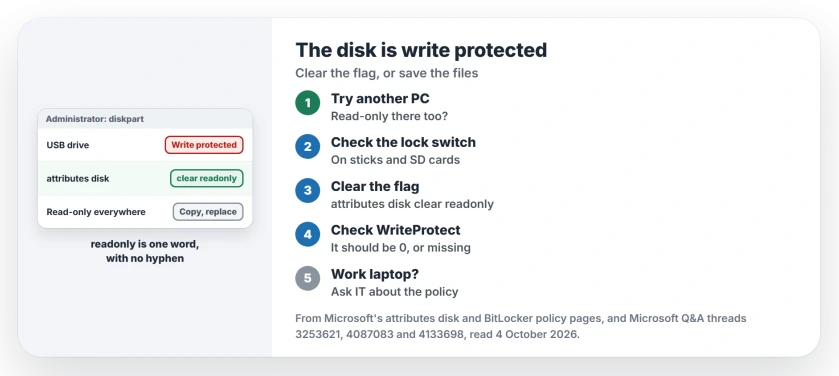
Test the drive on another PC first
This one check splits the causes in two. The 100+ asker did it before anything else: "I tried the external drive on another computer and it works fine. It is writeable."
That pointed at their own PC, and the fix that followed was a setting. A drive that is read-only on every computer is a different story, covered further down.
If files open read-only and copies say Access Denied instead, look at your antivirus before the drive itself.
And when only a folder's Read-only box keeps refilling itself, that box is normal on folders and is not what blocks you.
Check the stick or SD card for a tiny slider marked with a padlock. Slid to locked, it does exactly this.
Status: checked 4 October 2026. Owners cleared it with attributes disk clear readonly in diskpart, and one internal drive with a Windows reinstall.
Clear the read-only flag in diskpart
Open Command Prompt as administrator, type diskpart and press Enter. Type list disk, find your drive by its size, then type select disk followed by its number.
Pick carefully. Your internal drive is in that list too. Microsoft's diskpart page notes: "A disk must be selected for the attributes disk command to succeed."
Then type attributes disk clear readonly and press Enter. Microsoft describes the command in one line: "Displays, sets, or clears the attributes of a disk."
The 100+ asker reported back: "Next I tried option 2 which worked. I can now write to the drive." Unplug the drive and plug it back in.
Diskpart can refuse other jobs too. If it will not delete a recovery or maker partition, that protected partition message has its own fix.
Type readonly as one word
The top answer on the 800+ thread tells you to type "attributes disk clear read-only", with a hyphen. Microsoft's syntax has no hyphen: the option is readonly.
Ours: if diskpart rejects your line, look at that hyphen before anything else. Microsoft says the option is readonly.
Check the WriteProtect value is 0
Some guides point at a registry value called WriteProtect, under HKEY_LOCAL_MACHINE, SYSTEM, CurrentControlSet, Control, StorageDevicePolicies.
Ours: 1 switches protection on. 0 switches it off. If the key is missing, it is not your cause.
Watch the direction. One adviser on the 800+ thread wrote: "Change the Value data to 1 and click OK." The asker caught it: "I thought the value 1 is true and 0 is false". They were right.
Work laptops can force read-only
Organizations can force drives to read-only. Microsoft's BitLocker policy page says that when one setting is on, "all removable data drives that are not BitLocker-protected are mounted as read-only".
A matching setting covers internal drives, where "all fixed data drives that are not BitLocker-protected will be mounted as read-only". On your work laptop, this is your IT team's call.
One asker suspected exactly this after adding a work account: "I use my work's azure account to log into Office 365". A clean install did not help them: "came back after scheduled reboot".
When the stick itself is failing
Flash drives wear out, and many fail into a read-only state. An adviser described it on a 10+ thread: "so you can read the files from the drive (or run the apps from the drive) but you cannot add files to the drive".
Owners report the same pattern: old files still open, nothing new saves. The 800+ asker could delete files but not copy new ones, then got this: "It prompts error: 0x8000FFFF: Catastrophic failure".
Copy your files off while it still reads. A volunteer moderator's view: "You could try a full format (not Quick) to see if that helps." Then: "But may be best not to rely on it."
Ours: a stick that stops saving is often near the end, so I would replace it rather than trust a format.
What did not help
Disk checking, for the 100+ asker before the diskpart step. Windows refused to repair a drive it could not write to: "The tool reported that it could not fix the drive because it was write-protected."
Pulling a stick out mid-copy is how one owner got there: "unfortunately i unplugged the pen drive while copying the files." The advice they got was to return the stick under its warranty.
An internal drive needed more. One owner tried diskpart and the registry, then wrote: "I have just reinstall windows 11 and it fixed the issue." Formatting a USB drive has its own refusals, with the switch and the flag first.
Does clearing write protection delete my files?
No. The diskpart command only changes the drive's read-only setting. Your files stay where they are, though a failing drive can still lose them later.
Why is my USB drive suddenly write protected?
The threads point to three causes: a read-only flag on the drive, a lock switch, and a stick that is wearing out. A work policy can do it on managed PCs.
Why does diskpart say it cleared the attributes but nothing changed?
A worn-out stick can keep reporting read-only whatever you set. A September 2026 reader wrote: "so I did this and it didn't change the write protection". Copy your files off and replace it.
The Short Version
- Test the drive on another PC and check for a lock switch.
- In diskpart, select the right disk first.
- Type attributes disk clear readonly, with no hyphen.
- WriteProtect should be 0, or missing.
- Work laptop? Read-only drives can be policy.
- Read-only everywhere? Copy your files and replace the stick.
Where to Next
Plug the drive into a second computer now and try saving one small file. If it saves there, clear the read-only flag on yours in diskpart.
Was it the flag, a switch, or a stick at the end of its life? A comment naming the cause, and the kind of drive, helps the next reader.

Isaac Smith is the founder and editor of PC Glance, a website that covers computers, laptops, and technology. He is a tech enthusiast and a computer geek who loves to share his insights and help his readers make smart choices when buying tech gadgets or laptops. He is always curious and updated about the latest tech trends.