
You select a partition in DiskPart, type delete partition, and get "Cannot delete a protected partition without the force protected parameter set". Disk Management offers you nothing but Help on the same block.
I would find out which partition you selected before you add anything to that command. The fix is one word. On the wrong partition, it takes your recovery tools with it.
Asked in May 2016, that Super User question now stands at 642,578 views. Its accepted answer scores 180, and the comments under it read like thank-you notes.
What the message is protecting
Microsoft documents the rule on its delete partition page, where DiskPart "only permits you to delete known data partitions". A recovery partition is not one, so DiskPart stops.
Ours: the refusal is not DiskPart's own text. On this laptop it sits in vdsutil.dll.mui, the Virtual Disk Service's message file, right next to "The operation is not supported on non-OEM partitions".
The parameter it asks for does not exist under that name. An owner on Microsoft Q&A worked it out in November 2025: "It looks like, in this case, the parameter is named OVERRIDE".
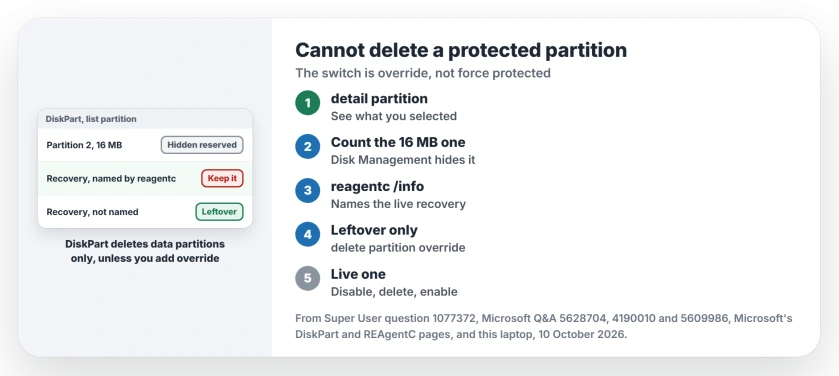
Status: Microsoft's DiskPart and REAgentC pages, this laptop's partition list and Q&A owners, all looked at on 10 October 2026. Override removed the leftovers.
Find out which partition you selected
Right-click Start and open Terminal (Admin). Type diskpart and press Enter. Then enter these lines, each followed by Enter, with your own disk and partition numbers in place of 0 and 6.
list disk
select disk 0
list partition
select partition 6
detail partition
The detail lines tell you what you hold. A Windows recovery partition shows the type de94bba4-06d1-4d40-a16a-bfd50179d6ac. An owner on Q&A posted one with Attrib 0X8000000000000001.
That attribute is two flags added together. Microsoft's gpt page says 0x0000000000000001 "Specifies that the partition is required by the computer to function properly". The 8 at the front keeps the drive letter away.
Ours: the numbering trips people. Get-Partition on this laptop lists six partitions. Number 2 is a 16 MB Reserved one that Disk Management never draws, so counting blocks there gives you the wrong number for DiskPart.
Check which recovery partition Windows uses
Before deleting anything labeled Recovery, run reagentc /info in the same admin window. Microsoft says /info "Displays the current status of Windows RE and any available recovery image".
Read the Windows RE location line. It ends in something like harddisk0\partition8. That names the partition Windows actually starts its repair tools from.
An owner on Q&A with four extra partitions ran it and found partition 8 named. They replied "Yup you were right". The others were leftovers from upgrades, and they planned to delete all four.
Ours: reagentc needs admin. On this laptop, a plain window refuses it and asks for an elevated prompt, so keep the admin window open for every step here.
Delete a leftover with override
Select the partition that reagentc did not name. Check it with detail partition once more. Then run:
delete partition overrideMicrosoft says override "Enables DiskPart to delete any partition regardless of type". That is exactly what the Super User answer gives, and one comment under it just says "saves the day".
Another owner on Q&A had two 450 MB recovery partitions from two failed BitLocker attempts. A volunteer moderator gave them the safe order: reagentc /disable, delete both with override, then reagentc /enable.
Use that order only if you must remove the partition reagentc names. Afterwards, reagentc /info should say Windows RE status: Enabled again, and if it does not, your repair tools are gone until you fix it.
Before you delete the big one
A block of 20 GB or more with no name is often the laptop maker's factory image. Our guide to what not to touch in Disk Management explains why deleting it removes the factory reset too.
An independent advisor put the cost plainly to one owner: "windows recovery will likely not function afterwards". Going ahead anyway? Then I would make a USB recovery drive first, so a broken PC still has a way back.
When the space still will not join C:
Deleting the partition does not always let you extend C:, because Disk Management only adds free space that sits right after C: on the disk. A recovery partition between the two still blocks it, as an advisor on Q&A told one owner.
A different owner got another line entirely on an old drive, "The specified command or parameters are not supported on this system". No answer on that thread fixed it.
In that case I would check whether Disk Management labels your disk Dynamic. Microsoft's page treats those separately. It says "To delete a dynamic volume, always use the delete volume command instead".
The Short Version
- The message means DiskPart deletes only data partitions unless you add override.
- Run detail partition to see what you selected, and count the hidden 16 MB one.
- reagentc /info names the recovery partition Windows uses; leave that one.
- Delete leftovers with delete partition override.
- For the live one: reagentc /disable, delete, reagentc /enable, then check /info.
Where to Next
Deleted a leftover and got your space back? Post in a comment how many recovery partitions your disk had, and I will add your count to the ones listed here.

Isaac Smith is the founder and editor of PC Glance, a website that covers computers, laptops, and technology. He is a tech enthusiast and a computer geek who loves to share his insights and help his readers make smart choices when buying tech gadgets or laptops. He is always curious and updated about the latest tech trends.