
You open a folder and Windows stops you: "The file or directory is corrupted and unreadable." Usually it is one folder on an external drive, sometimes your own Downloads, and it will not delete either.
I would copy off everything you can still reach, then run chkdsk with /r on that drive. The person behind the biggest thread accepted that answer. It comes with one warning: chkdsk may remove the broken folder for good.
300+ people share that Microsoft Q&A question.
What the message means
Ours: the part of the drive that describes that folder is damaged, so Windows cannot read it. Unfinished writes and bad sectors are the usual suspects.
The 300+ asker found it on an external drive used for games, with "a specific folder that I can't delete".
They had a theory too: "I suspect this might have occurred because I didn't eject the external drive manually, potentially leading to the bad sector."
A folder that refuses to delete because some program still holds it is a different box, and that program can be found.
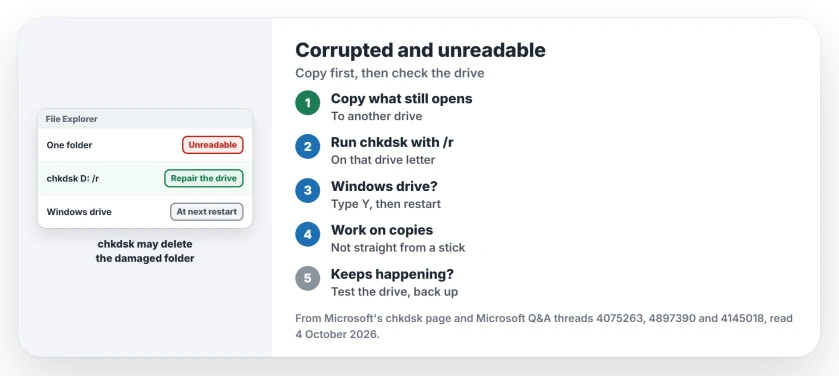
Status: checked 4 October 2026. The 300+ asker accepted chkdsk /r as the fix; it can delete the damaged folder, so copy everything else off first.
Copy what you can first
Everything outside the damaged folder usually still opens. Copy it to another drive before you run any repair.
The accepted answer, with 50+ helpful votes, is frank about the cost: "Running this command is the best method to solve this, if the folder is corrupt, that command will delete it from the drive and resolve any other errors on that drive."
Ours: chkdsk repairs the drive's structure, not your documents. I would treat the damaged folder as lost and be glad of anything it rescues.
Run chkdsk with /r
Open Command Prompt as administrator. Type chkdsk, the drive letter and /r, for example chkdsk D: /r, and press Enter. A large drive can take hours.
Microsoft's chkdsk page describes /f in four words: "Fixes errors on the disk." The /r option does that too, and also checks the surface for bad spots.
If the folder is on your Windows drive, Microsoft says what happens next: "If chkdsk can't lock the drive, a message appears that asks you if you want to check the drive the next time you restart the computer."
Type Y and restart. An adviser gave a Downloads owner the same instruction: "Schedule chkdsk for the next boot when prompted."
Stop it happening again
Two long-time helpers on a 100+ thread, one of them a Word MVP, blamed working straight from a stick.
One wrote that "you should NEVER save a file directly from Word to a USB stick or open and work on a file that is located on such a device".
They added: "Corruption of the file is an almost certain consequence." Ours: copy the file to your PC, work on it there, then copy it back.
Unplugging is safer than it was. Windows changed its safe eject default, but pulling a drive in the middle of a copy can still do this.
When chkdsk finds nothing
A January 2025 asker kept losing programs to this message after an update. They wrote: "I ran DISM, Scannow, chkdsk. All of them tell me that everything is OK."
Their pattern was odd: "Right now it seems that only exe files are being affected". They reinstalled the same apps, only to see them break again.
Ours: when new files keep going bad, I would back up everything and test the drive with its maker's tool. A drive that keeps corrupting files is often on its way out.
If system repair tools stop with error 1392, an 80+ thread's moderator suggested a repair install. DISM and SFC come before that, and repairing Windows in place keeps your files.
What did not help
A virus scan, for the January 2025 asker: "I use TotalAV antivirus suite and ran a complete virus check and nothing was found."
Reinstalling the affected programs, for the same person. The message came back as other apps broke.
Will chkdsk delete my files?
It can delete the damaged folder or file, as the accepted answer warns. Everything it can read stays. Copy what matters off the drive first.
Can I fix it without chkdsk?
If the rest of the drive reads fine, copy your files off and reformat the drive. Ours: that also clears the damage, without trusting a repair.
Why does only one folder show the error?
The damage sits where that folder is recorded on the drive. Owners report the rest of the drive opening normally, which is why copying first works.
The Short Version
- One folder's record on the drive is damaged.
- Copy everything else off before any repair.
- Run chkdsk with /r on that drive letter.
- On the Windows drive, schedule it for the next restart.
- Work on copies, not files straight from a stick.
- Keeps happening? Back up and test the drive.
Where to Next
Copy your readable files to another drive now. Then run chkdsk with /r on the drive with the broken folder.
Was it an external drive, a stick or your Windows drive? Say which in the comments, and whether the folder survived the check.

Isaac Smith is the founder and editor of PC Glance, a website that covers computers, laptops, and technology. He is a tech enthusiast and a computer geek who loves to share his insights and help his readers make smart choices when buying tech gadgets or laptops. He is always curious and updated about the latest tech trends.