

You try to rename, move or delete a folder, and Windows refuses: "The action can't be completed because the folder or a file in it is open in another program." Nothing looks open.
I would close the Preview pane and end COM Surrogate in Task Manager, then use Restart rather than Shut down. Those three cleared it for owners on Windows 10 and 11.
When it keeps coming back, a free Microsoft tool names the program that is holding on, and that program is the real fix.
The 700+ Same question count is on the Windows 10 thread alone.
Why the box cannot name the program
Windows only names the holder if that program registered the file when it opened it. Microsoft's developer notes describe apps doing this so Windows can "gather information to present to the user in a dialog box."
When the box says another program, the holder did not register. In the threads, those holders turned out to be the Preview pane, the thumbnail maker, Adobe's PDF software and an Office helper.
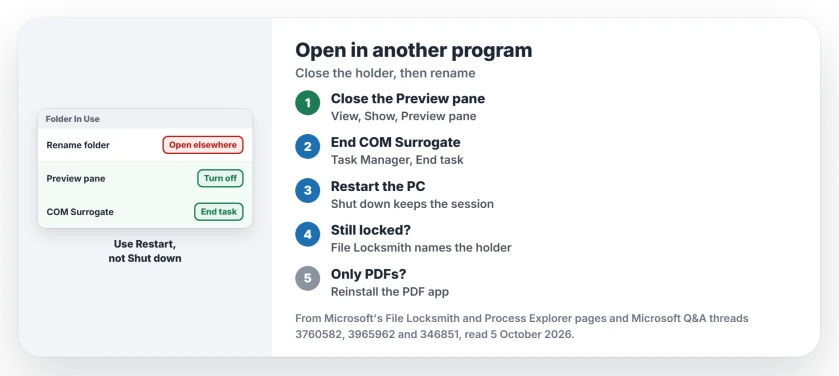
Status: checked 5 October 2026. Owners cleared it by ending COM Surrogate, by restarting rather than shutting down, and by reinstalling Adobe when only PDFs stayed locked.
Close the Preview pane
An MVP on the 700+ thread put it in two lines: "Make sure you don't have the Preview pane displayed in File Explorer. If you're displaying a preview, Windows considers the file open."
In Windows 11, open View, then Show, and untick Preview pane. On Windows 10, the switch sits on the View tab. Then try again. The Preview pane has other quirks too, like going blank on purpose.
A volunteer moderator on a 50+ Windows 11 thread added the rest: "Please turn off the Preview pane, set the folder view to Details, close Explorer, reopen it and delete the file."
End COM Surrogate
COM Surrogate makes the thumbnails you see in a folder. An adviser on a December 2025 thread described it: "It generates thumbnail previews that appear when you browse files and folders on your PC."
Open Task Manager with Ctrl+Shift+Esc, find COM Surrogate, right-click it and choose End task. Then try the rename again.
On the 50+ thread, that tip was confirmed by an owner in January 2025: "That worked. Thank you!" A photographer on a 20+ thread has to do it after every image they open.
Ours: for a folder of photos you edit all day, turn thumbnails off in File Explorer's Folder Options, View tab: Always show icons, never thumbnails.
Restart, not Shut down
A Windows 10 owner wrote: "I had computer shutdown in weekend and power back on Monday, but it is still locked." Then they restarted: "Today I just rebooted the computer and folder is released !"
Ours: with Fast Startup on, Shut down does not start Windows fresh, and Restart does. The two buttons do different jobs, which is why a weekend off changed nothing.
Find the program holding it
Three tools, all from Microsoft. The first is built in: press Windows+R, type resmon, open the CPU tab and type the folder name into the Associated Handles search box.
It will not always show you the holder. A 2022 asker did that search and "it doesnt show up in associated handles".
The second is File Locksmith, part of Microsoft's free PowerToys. Turn it on in PowerToys, right-click the file or folder, choose Show more options, then Unlock with File Locksmith.
Microsoft's page says it "will scan all of the running processes that it can access", so choose Restart as administrator to see the rest. Microsoft's File Locksmith page has the full steps.
When a whole USB drive will not eject, there is a faster route, because Windows logs the program that blocked it.
The third is Process Explorer. Microsoft says its search "will quickly show you which processes have particular handles opened". An adviser gave a company those exact steps in August 2025.
Close what you find in the normal way. Ours: if it is a background name you do not recognize, search it before you end it.
The app that never lets go
Sometimes the holder is one program that keeps files after you close them. A Windows 11 Pro owner noticed only PDFs did it: "I deleted and re-installed Adobe and that seems to have fixed the issue."
In May 2026 another owner traced locked folders to aimgr.exe, and a Microsoft moderator said "aimgr.exe belongs to Office/Microsoft 365". The owner's own fix was to replace the program file, which I would not copy.
Deleting a program's folder by hand hits this box too, because the program is still running. Ours: uninstall it from Settings, Apps, Installed apps instead.
What did not help
Safe Mode, for a Windows 7 owner: "Ive tried deleting it in Safe Mode, and it still gives me the error". A 2011 owner fixed theirs by turning off Launch folder windows in a separate process, but it was already off for the 700+ asker.
Restarting Explorer alone, for the Windows 11 Pro owner: "I have tried restarting my computer, restarting windows explorer, checking the task manager for open programs, and nothing has fixed it." Adobe was their answer.
Why does Windows say a folder is open when nothing is open?
Something in the background has a file inside it open, usually a preview, a thumbnail or a program that did not let go. The box cannot name it, so you have to look.
Is it safe to end COM Surrogate?
Owners on the 50+ and 20+ threads end it again and again. Ours: Windows starts it again the next time a folder needs a thumbnail, so you lose nothing but the preview images for a moment.
Can I force delete a file that is in use?
Find and close the holder first. Ours: tools that force a file closed pull it out from under the program using it, which can crash that program or lose unsaved work. I would close the program properly instead.
The Short Version
- Close the Preview pane and switch the folder to Details.
- End COM Surrogate in Task Manager.
- Use Restart, not Shut down.
- Still locked? File Locksmith or Resource Monitor names the holder.
- PDFs only? Reinstall the PDF app.
- Uninstall programs instead of deleting their folders.
Where to Next
Close the Preview pane now, end COM Surrogate, and try the rename again. If the box comes back, run File Locksmith on that folder.
Which program was holding your files? Tell us in the comments; it saves someone else a long search.

Isaac Smith is the founder and editor of PC Glance, a website that covers computers, laptops, and technology. He is a tech enthusiast and a computer geek who loves to share his insights and help his readers make smart choices when buying tech gadgets or laptops. He is always curious and updated about the latest tech trends.