
You open Google Password Manager in Chrome and the list is empty. Chrome stops filling in your sign-ins and stops offering to save new ones. Yet your passwords still show when you check your Google Account online.
I would restart the computer before you change anything in Chrome. Two owners got everything back that way, after hours of searching.
Asked on Super User in September 2023, it now shows 39,384 views, and the restart answer has the most votes.
The blank list
The asker wrote: "If I go to 'Manage Passwords' in Chrome the list is blank." On the web it was different. At passwords.google.com, "my passwords are listed."
Chrome had also stopped asking. "I no longer get prompted to save my password when logging in or when changing my password".
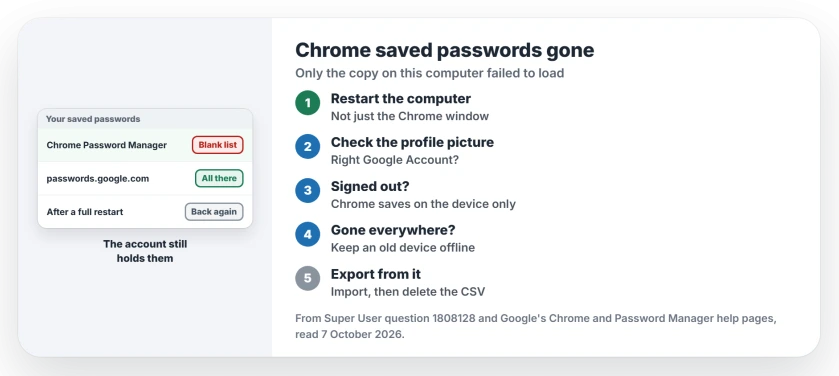
Status: checked 7 October 2026. Chrome showed no saved passwords while passwords.google.com still had them. A full restart of the computer brought the list and autofill back for two owners.
So your passwords are safe in your account. Nothing is lost. The copy Chrome reads on this computer is what failed to load.
1. Restart the computer, not only Chrome
Do this first. One owner hit it the day after a Chrome update on a Mac. "Spent hours searching the internet for a solution to no avail."
Then they restarted the laptop, "and suddenly password manager was intact again upon restart". Autofill worked again too.
A second reader replied on Linux: "I was on Debian and restarting fixed it for me too!" So it is not tied to one system.
Ours: closing the Chrome window often leaves Chrome running in the background. A full restart of the whole computer is the surer test of the two.
Lost your open tabs in the same crash? Avoid starting Chrome a second time until you copy its Sessions folder somewhere safe.
2. Check which account Chrome is signed in to
A commenter suggested to "make sure your Chrome is still logged in with your Google account." Click the round account picture in Chrome's top right corner and read the email address.
That matters because of where Chrome saves. Google says on its password help page that when you are not signed in to Chrome, "it stores passwords locally on your device."
Signed out, or signed in to a second account, Chrome shows a different list. Your old passwords live in the account you used before. If you share the computer, our saved passwords on Windows page explains the two places Windows keeps them.
3. Missing on every device too?
That is worse. It is also a different case. In the accepted answer, a parent cleared the saved passwords on a child's PC. The deletion then spread across every device through sync.
An old PC saved them. It "hadn't synced." They turned off its Wi-Fi first, so it could not catch up and lose the passwords as well.
"I turned the WIFI off, went in to chrome Password Manager, then settings, then exported all passwords to a csv file." They imported that file on the connected computer and synced it back.
If you have an old laptop or tablet with Chrome on it, keep it offline until you have exported its passwords. Google's page lists Export Passwords in the same settings, and it takes a minute.
Ours: delete that CSV file once you have imported it. It holds every password in plain text, so empty the bin too.
What I would not do
Do not clear your browsing data with passwords ticked while the list is blank. You would remove the local copy on purpose.
Do not sign out of Chrome to reset it either, until the passwords show again. Signing out can make the local list look even emptier. Our new PC page shows how passwords move with your account instead.
Why did my passwords disappear after a Chrome update?
The owner who restarted saw it right after an update, and the restart fixed it. Ours: Chrome finishes some updates only when it starts fresh, so a half-loaded profile is a fair guess. The thread never found the exact cause, and one reader called it "Definitely something buggy with it."
The Short Version
- Your passwords are still in your Google Account if passwords.google.com shows them.
- Restart the whole computer first. It worked twice in the thread.
- Check the profile picture for the right Google Account.
- Signed out, Chrome only saves passwords on the device.
- Gone everywhere? Export from an offline device that has not synced.
Where to Next
Restart the computer, open Chrome, and check Google Password Manager again before you change anything.
Did the restart bring yours back? Which system were you on? Leave a comment.

Isaac Smith is the founder and editor of PC Glance, a website that covers computers, laptops, and technology. He is a tech enthusiast and a computer geek who loves to share his insights and help his readers make smart choices when buying tech gadgets or laptops. He is always curious and updated about the latest tech trends.