
You set sleep to Never in Windows 11, yet the PC still goes dark overnight. In the morning the power light is off, and a key press brings it back. Downloads, remote sessions or a virtual machine have all stopped in the night.
I would look for a second timer that the main settings page used to hide. It is called Hibernate after, and for the asker it was the culprit.
Posted to Super User in May 2023, the question has 60,535 views. Their own follow-up comments confirm what fixed it.
Never did not mean never
The asker wrote: "My fully-updated Windows 11 Pro system keeps turning itself off or going into sleep or hibernation mode." It was a new mini PC running a virtual machine.
They had tried hard. "I've tried everything I can find online to set the power settings to NEVER sleep or hibernate." In the end, "I currently have a mouse jiggler on the system to keep it alive and available."
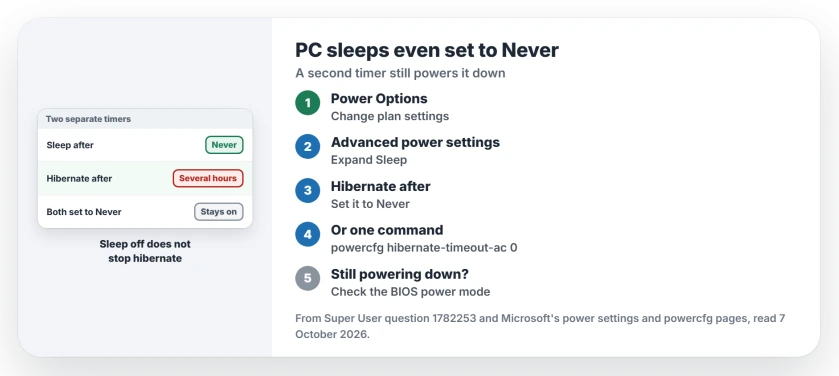
Status: checked 7 October 2026. A Windows 11 PC set to never sleep still powered down overnight. Setting Hibernate after to Never in the advanced power settings stopped it.
Sleep and hibernate are separate timers, so you can switch one off and still have the other running in the background. That catches people out.
1. Find Hibernate after
Open Control Panel, then Power Options. Next to your plan, click Change plan settings, then Change advanced power settings.
Expand Sleep, then Hibernate after. Read the value. The asker found it there, "which was set to several hours". They changed it to Never. Later they replied: "It was the hibernate setting".
Another owner gave you the same route as a path, and where the box asked for minutes they typed in a huge number instead. A reader improved on that: "Rather delete the number completely and save (or press enter). It sets it to 'never'."
On current Windows 11, Microsoft's power and sleep page names the main settings section Screen, sleep, & hibernate timeouts. Check it there too, since your newer build may show the hibernate timer next to the sleep one.
2. Or set it from a command
The same timer can be set in one line. Microsoft documents hibernate-timeout-ac in its powercfg reference, for plugged-in power, with the value given in minutes. Open Terminal as administrator and run:
powercfg /change hibernate-timeout-ac 0Ours: 0 switches that timer off on your PC. Use hibernate-timeout-dc for battery power on a laptop.
If you never want hibernation at all, the reference also lists powercfg /hibernate off. That removes the hibernate file too, so I would only use it on a desktop.
3. Still powering down? Check the BIOS
One owner found the cause outside Windows entirely. On an MSI laptop they fixed it by changing the BIOS power scheme from balanced to performance.
Ours: names differ between makers. Look for power, energy or eco settings in the firmware setup, and make a single change per restart.
What it was not
A commenter doubted it at first, because hibernation does not wake on a mouse move. But the asker's PC woke on a key press, and the hibernate timer fixed it.
Your power button setting may decide what a key press does, so test after each change.
Is yours the reverse, a PC that will not sleep at all? Our powercfg sleep page covers that. And if it wakes up again by itself, read our PC wakes itself up page.
Only the screen going dark while the PC is locked comes from a different hidden setting. The locked display timer has its own fix.
Why is there no Hibernate after option on my PC?
One reader could not find it in their advanced settings at all, on Windows 11. Ours: Windows hides the option when hibernation is switched off, and then there is no hibernate timer to cause this. Run powercfg /a in Terminal to see which sleep states your PC supports right now.
The Short Version
- Sleep set to Never does not stop the hibernate timer.
- Open Change advanced power settings, then Sleep, then Hibernate after.
- Set it to Never, or delete the number and press Enter.
- Or run powercfg /change hibernate-timeout-ac 0 as administrator.
- Still powering down? Check the BIOS power mode next, since the firmware can override Windows.
Where to Next
Open Change advanced power settings and read the Hibernate after value before you change anything else.
How long was your timer set to? Write it in a comment, along with any BIOS change you made.

Isaac Smith is the founder and editor of PC Glance, a website that covers computers, laptops, and technology. He is a tech enthusiast and a computer geek who loves to share his insights and help his readers make smart choices when buying tech gadgets or laptops. He is always curious and updated about the latest tech trends.