
Your C: drive is nearly full, and a size tool points at one folder you are not allowed to open. System Volume Information holds tens of gigabytes, sometimes more than half the drive.
I would start with restore points. They are the first thing to check. One asker had a stranger cause, a pile of files full of nothing, and I cover that one too.
Asked on Super User in October 2022, the question has 118,536 views. Similar questions on Microsoft Q&A report as much as 92 GB sitting in that one folder.
What fills the folder
The asker ran Windows 10 Home. Their folder held about 150 GB. That was roughly 60 percent of the C: drive, and neither Disk Cleanup nor a smaller restore limit moved it much.
Inside sat more than 100 files with long GUID names, some dating back to 2018, and the newest from that same week. They wanted to know if deleting those files by hand from Windows was safe.
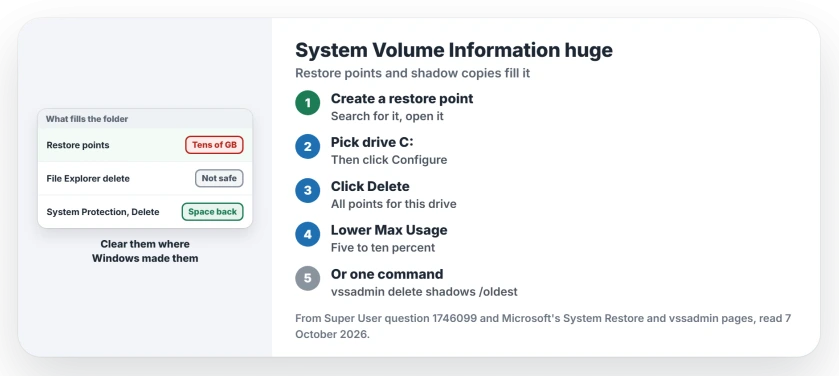
Status: checked 7 October 2026. A huge System Volume Information folder on Windows 10 or 11 usually holds restore points. Deleting them from System Protection frees the space safely.
One reader's answer, now the top one on the thread, is plain about it. "These are restore points". So the safe way in for you is the System Protection screen, never File Explorer. Do not delete them by hand.
1. Delete the restore points
Microsoft says restore points are "snapshots of the system's configuration and settings at a specific moment", made during software installs and updates. They pile up quietly over the years.
Type Create a restore point into Windows search and open the result that matches it. On the System Protection tab, pick your C: drive in the list and then click Configure.
Then click Delete next to the line about all restore points for this drive. One owner on Windows 10 22H2 found three big files in the folder, with restore points made on the same dates. After clearing them, "files from SVI disapeared".
Our System Restore page explains what you give up. You lose the undo points, not your documents. I would clear them all unless you plan to undo a recent change.
2. Cap the space they can take
On the same Configure screen, the Max Usage slider sets how much of your drive restore points may use. Microsoft's System Restore page covers turning the feature on and applying a point.
Ours: five to ten percent still leaves you room for several restore points. Drag it down and click Apply. Windows then trims the oldest copies to fit.
One commenter found their shadow copy storage set to unbound growth, 100 percent, with no backups configured at all. That is how a drive fills to zero. Check your own setting.
3. Or delete the oldest from a command
Microsoft's vssadmin reference gives you a gentler cut that removes one copy at a time, oldest first. Open Terminal as administrator and list what is stored first:
vssadmin list shadowstorage
vssadmin delete shadows /for=C: /oldest
Per Microsoft, the /oldest switch "Deletes only the oldest shadow copy".
Run it a few times and check the size again with the first line between runs. The /all switch removes every copy for that drive at once, if you would rather clear them all.
Files full of zeros
The asker's case did not fit, and yours may not either. When they checked, vssadmin found no shadows at all, and wbadmin found no backups either. Then they opened one file in a hex editor and found "ALL files only contain 0-Bytes".
The accepted answer suggested moving them off the drive first, rather than deleting them straight away. "If no problem arises for a few days, they can be deleted". The asker moved them from a Linux live USB and used the laptop for days.
In their words: "The files did not reappear". Windows updated, hibernated and restarted normally.
Ours: only consider this when you have checked that restore points and shadow copies are already empty, and keep the moved files until you are sure. I would not touch them before that.
Disk Cleanup did not touch this folder for the asker, but it clears other space. Our drive full page lists the other places your space quietly goes on a Windows PC.
Is it safe to delete System Volume Information?
Not the folder itself. Windows needs it for restore points and other system data, and you cannot open it normally anyway. The contents you can safely remove are restore points and shadow copies, through System Protection or vssadmin. Hand deletion is the zero-byte case only.
The Short Version
- A huge System Volume Information folder is usually restore points.
- Open Create a restore point, choose Configure, then Delete.
- Lower Max Usage so the space stays free after you clear it.
- Or run vssadmin delete shadows /for=C: /oldest as administrator.
- Files full of zeros were safe to move for one asker, but only after every other check came back empty.
Where to Next
Run vssadmin list shadowstorage first, so you see how much space restore points take before you delete anything.
How big was your folder before you cleared it? Tell me the size you saw, and whether restore points or zero-byte files were behind it.

Isaac Smith is the founder and editor of PC Glance, a website that covers computers, laptops, and technology. He is a tech enthusiast and a computer geek who loves to share his insights and help his readers make smart choices when buying tech gadgets or laptops. He is always curious and updated about the latest tech trends.