
You open Remote Desktop Connection, the saved password should sign you straight in, and Windows asks for it again. The message says Windows Defender Credential Guard does not allow using saved credentials.
I would not switch Credential Guard off. You can save the password in a different form that Credential Guard still accepts, with one built-in command.
Asked on Super User in December 2022, the question has 91,260 views. The matching Microsoft Q&A thread shows Same question 20+, and it is still getting answers.
Why the saved password stopped working
It started for the asker on Windows 11 Pro 22H2, build 22621. "I can no longer use the saved RDP credentials and every connection gives this message". Registry edits, policy changes and a reboot had not helped them at all.
Microsoft says on its Credential Guard known issues page that "Windows credentials saved by the Remote Desktop client can't be sent to a remote host".
From Windows 11 22H2, Microsoft turns it on by default on eligible Enterprise and Education PCs, and on some Pro ones, so your PC may have it without you ever choosing it.
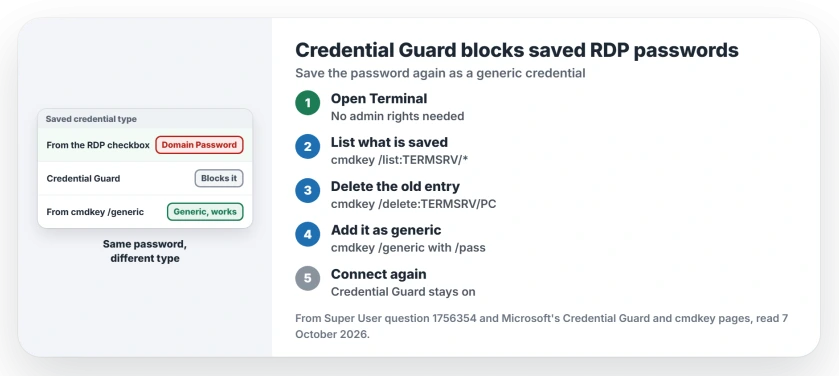
Status: checked 7 October 2026. Saved Remote Desktop passwords fail under Credential Guard on Windows 11. Saving them again as a generic credential with cmdkey makes them work.
Your saved password is not gone. It is stored as the wrong type. That is all. What the Remote Desktop checkbox saves is a Domain Password entry, and that is the type Credential Guard will not hand over. That is the trap.
The fix: save it as a generic credential
One owner did exactly that, in the thread's accepted answer, which has 139 votes. "I went through my TERMSRV saved credentials and removed them, and re-added with cmdkey commands".
Microsoft's cmdkey reference describes the switch that matters, /generic, which "Adds generic credentials to the list". Open Terminal and work through three lines, swapping in your own PC name and user:
cmdkey /list:TERMSRV/*
cmdkey /delete:TERMSRV/SERVERNAME
cmdkey /generic:TERMSRV/SERVERNAME /user:USERNAME /pass
The first shows what is saved. The second removes the old entry. The third adds it back as Generic.
Leave the password off the end of /pass, as the third line in the block does. The owner explained that this way the command asks for it, "which will prompt for password instead", so it never sits in your shell history.
Did it work for others?
Yes. "This worked great on windows 11". Another reader wrote "this worked great! ty". The owner also saved Microsoft account sign-ins this way, the kind that use a full email address as the user name.
If that Microsoft account sign-in is refused on a PC you only ever unlock with a PIN, the cause is different. One password sign-in on that PC clears it.
The fix began with an owner on Microsoft Q&A, who stressed: "It is important to add specifically GENERIC credentials". Under that answer, a reader wrote "this fixed it! thanks". The type in cmdkey /list now reads Generic.
Prefer clicks to commands?
One commenter found the same route in Credential Manager, with no typing needed at all. Open it from Start by typing its name, then go to the Windows Credentials side. There you delete the TERMSRV entry, then use Add a generic credential with the same PC name. Both routes end the same way.
Our saved passwords page shows where Credential Manager keeps these entries. Ours: type the address as TERMSRV/ and then the PC name or IP. Match what you type in Remote Desktop.
What I would not do
The other popular answer turns Credential Guard off through three registry values. The post it came from called that a throw the baby out with the bathwater move, and one reader replied: "No. This did not work for me".
Credential Guard protects the passwords Windows has cached from being stolen by malware. Ours: the generic credential gets you the same convenience without that trade of security for comfort. Keep it on.
If Remote Desktop will not connect at all, the password is not your problem. Start with our Remote Desktop not connecting page instead, which begins with your Windows edition.
Why do I have to re-enter the password after the 22H2 update?
Microsoft says that because Credential Manager "can't decrypt saved Windows Credentials, they're deleted". Several readers had to type theirs in again after the upgrade, even before trying any fix. Once you save it as generic, it stays.
The Short Version
- Credential Guard blocks passwords saved by the Remote Desktop checkbox.
- Run cmdkey /list:TERMSRV/* to see what is saved.
- Delete the old entry with cmdkey /delete.
- Add it again with cmdkey /generic and /pass, then type the password when asked.
- Leave Credential Guard on; the registry route failed for at least one reader.
Where to Next
Run cmdkey /list:TERMSRV/* now and look at the Type line. If it says Domain Password, that entry is the one to replace.
Did the generic credential survive your next Windows update? Tell me your build number when it stuck, so others can compare.

Isaac Smith is the founder and editor of PC Glance, a website that covers computers, laptops, and technology. He is a tech enthusiast and a computer geek who loves to share his insights and help his readers make smart choices when buying tech gadgets or laptops. He is always curious and updated about the latest tech trends.