
You click Present now in Google Meet and choose a window or your whole screen. Nothing shares. It is maddening mid-call. Chrome already has screen recording permission in System Settings, and switching it off and on again changes nothing.
I would reset Chrome's permission entry from Terminal rather than keep flipping the switch. That was the accepted fix on the thread, and it takes one line in Terminal. It is quick and safe.
Asked on Ask Different in March 2022, the question has 93,858 views, and owners kept adding fixes to it. The same fault reached the Meet desktop app too, so it was not one browser tab.
The switch was already on
The asker had already checked the obvious setting before posting. "In the Mac settings under security, screen recording is enabled for Chrome".
They restarted Chrome, restarted the Mac, and toggled the permission with restarts in between. None of it helped.
"The screen sharing also doesn't work for google meet (the app)". So the fault sat in the permission record on the Mac, not in one meeting.
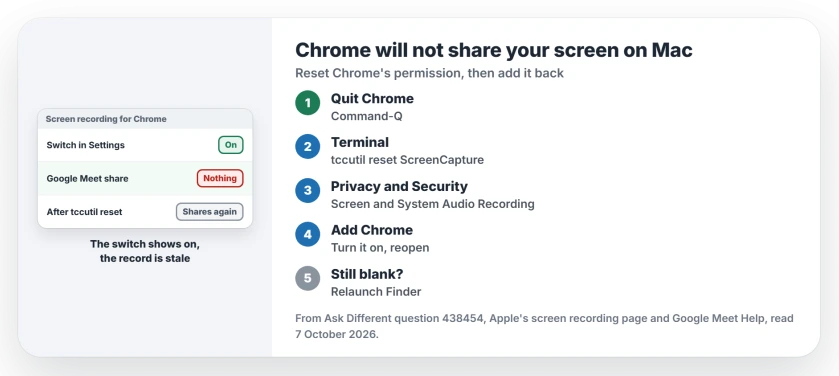
Status: checked 7 October 2026. Chrome on a Mac can fail to share a screen even with permission on. Resetting its permission with tccutil and adding Chrome again fixed it for owners.
The switch you see in System Settings can show on while the record behind it is stale. Resetting clears it, so Chrome has to ask you again the next time it shares.
1. Reset Chrome's permission
Quit Chrome completely first, with Command-Q, so no window is left running in the background. Then open Terminal and run the accepted answer's command:
tccutil reset ScreenCapture com.google.ChromeThat is the whole fix. Ours: this clears only Chrome's screen recording entry in the privacy database, nothing else on the Mac. Your other apps keep their permissions, and Chrome keeps its passwords, tabs and extensions.
2. Add Chrome back
Open System Settings, then Privacy & Security, then Screen & System Audio Recording, on any recent version of macOS.
Apple's screen recording access page shows this list. Apple says you "can allow apps to record both your screen and audio, or just your audio".
Add Google Chrome from the Applications folder if it is missing, then turn it on with the switch beside its name. Check the switch is blue. Reopen Chrome and try sharing again.
Google's own Meet help names the same place in settings for macOS Sequoia, where the first share now shows a permission prompt. "If you missed the initial dialog to allow permissions", you add Chrome in these settings yourself.
3. Still blank? Restart the window server
One reader needed one more step before the reset would take on their Mac. They had to reset WindowServer "by forcibly relaunching Finder from the Force Quit Applications utility". That helped them.
Press Option-Command-Esc, pick Finder, and click Relaunch. Ours: restarting your Mac does the same job, it just takes longer.
Did the reset work for others?
The asker accepted it. A simpler version helped another owner, who removed Chrome from the list and added it back: "Removing and adding it again worked for me, thanks!" Another reader said that alone did not solve theirs, which is why the Terminal reset comes first.
Results were mixed. Some owners found that a Chrome update fixed it outright, with no reset at all. "I just updated .83 right now and I can confirm that this fixes the issue!"
Yet the next reader replied "Confirming that .83 does not fix it for me". So update Chrome, then reset as well.
Need to share right now?
Safari is the quick way out. Join the same meeting in Safari while you sort Chrome out later. One owner said sharing worked there on the same Mac while Chrome kept failing for them. Another noted that Safari cannot share a single window from another app, which matters if you present slides from Keynote or PowerPoint. I would keep Safari as the backup for any call that matters.
If sharing works but your Mac runs hot afterwards, our replayd page covers the process that records your screen. And if a call plays a steady whine through your speakers in Meet, read our high-pitched tone page.
The Short Version
- Chrome can fail to share a screen even with the permission switch on.
- Quit Chrome, then run tccutil reset ScreenCapture com.google.Chrome.
- Add Chrome back in Screen & System Audio Recording and reopen it.
- Still blank? Relaunch Finder from Force Quit, or restart your Mac.
- Update Chrome too, since one release helped some owners, though not all.
- Safari works in a pinch.
Where to Next
Quit Chrome now and run the tccutil line before your next call, so you are not fixing it with the meeting waiting.
Did the reset work first time, or did you need the Finder relaunch too? Which version of macOS runs on your Mac? Say so in the comments.

Isaac Smith is the founder and editor of PC Glance, a website that covers computers, laptops, and technology. He is a tech enthusiast and a computer geek who loves to share his insights and help his readers make smart choices when buying tech gadgets or laptops. He is always curious and updated about the latest tech trends.