
You join a Google Meet call and a sharp, high-pitched tone plays in your headphones before anyone speaks. It is worrying when the sound actually hurts. I would switch off one Meet audio setting before you blame your headset.
The asker in the Google Meet Help Community took it to Google through their company. Google's answer was one setting, and it ended the tone for them.
What owners hear
The question is specific: "When loading into a meeting room, google meet specifically plays an audio tone that is extremely high pitched". In their words: "It actually hurts my ears".
Two more people replied that they had it too in the following weeks. The asker was on a company account, which matters for the fix.
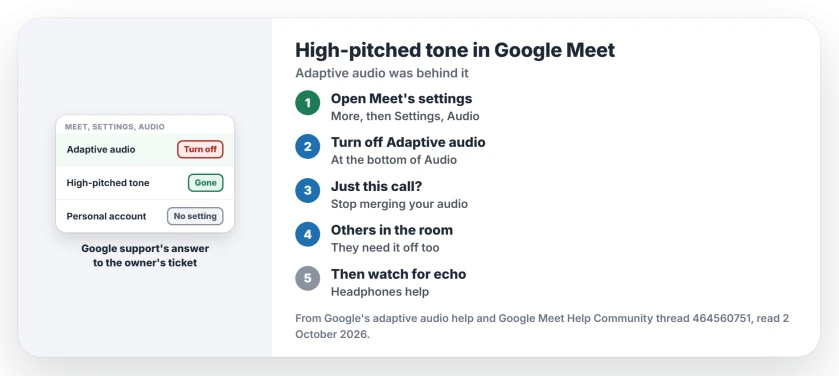
Status: checked 2 October 2026. Google support told the owner to turn off Adaptive audio, and that stopped the tone. The setting only exists on Google Workspace accounts.
1. Turn off Adaptive audio for good
The owner came back with Google's reply: "Their suggestion was to turn off" the Adaptive audio setting under Audio in Meet's settings. Their result: "This has resolved it for me".
Google's adaptive audio help gives the steps. In a meeting, click More, then Settings, then Audio, and turn off Adaptive audio at the bottom.
2. Or stop it for one meeting
Google also lists a quicker switch for a single call, which leaves your settings alone. Click the people button at the bottom right, open the menu next to your name, and choose Stop merging your audio.
3. Check what account you use
Google says the feature "requires an eligible Google Workspace subscription". A Google Product Expert in the thread put it the same way: "The adaptive audio feature is only offered to Workspace accounts".
So on a personal Gmail account, this setting will not be there at all, however hard you look. The expert's earlier, general advice was to try another device or another location.
4. Ask others in the same room
Adaptive audio joins up the laptops that sit in one room, so they share microphones and speakers. Google says that "When Meet automatically detects the presence of multiple laptops in the same room, it switches to adaptive audio mode".
That is why the expert added that you, and anybody else in the room with you, "will need to turn the feature off". One laptop left with it on can keep the whole room merged together. Ask them first. Agree on it as a room.
5. Expect echo, and plan for it
Google warns: "Turning off adaptive audio may cause echo or a howling noise". That is the trade.
Ours: wear headphones in shared rooms after you turn it off, and mute when you are not speaking. If your headset itself misbehaves, the headphones page covers the PC side.
What did not help
The asker had first looked for a way to switch the tone off and found nothing obvious. The setting does not mention a tone at all, which makes it simple to overlook.
Meet on a Mac has a second quiet trap, a present button that shares nothing from Chrome. Resetting Chrome's recording permission sorts that.
This fix is user-reported by one owner, and Google's own support suggested it. Teams calls have their own audio fixes if your trouble is there instead.
Why does Google Meet play a high-pitched sound?
For the owner here, the tone came with Meet's Adaptive audio, which links laptops in the same room. Turning it off stopped the sound.
How do I turn off adaptive audio in Google Meet?
In a meeting, click More, then Settings, then Audio, and turn off Adaptive audio. For one call only, choose Stop merging your audio next to your name.
Can I turn it off on a personal Gmail account?
The setting only appears on eligible Google Workspace accounts, the kind a company or school provides. On a personal account, try another device or room instead.
The Short Version
- A high tone can come with Adaptive audio.
- Turn it off under Settings, then Audio.
- For one call, stop merging your audio.
- It only exists on Workspace accounts.
- Others in the room should turn it off too.
- Expect some echo afterwards.
Where to Next
Open Meet's Settings in your next call, choose Audio, and turn off Adaptive audio before anyone starts talking. Then leave, rejoin the same meeting and listen for the tone in your headphones.
If it still plays, tell me your account type and whether others share your room. I will look into your case and add it here.

Isaac Smith is the founder and editor of PC Glance, a website that covers computers, laptops, and technology. He is a tech enthusiast and a computer geek who loves to share his insights and help his readers make smart choices when buying tech gadgets or laptops. He is always curious and updated about the latest tech trends.