
Ubuntu in WSL says Temporary failure resolving when you run sudo apt update. A ping to google.com answers Temporary failure in name resolution. Windows itself browses fine.
I would leave the firewall alone at first. Both errors are about looking names up, not about the connection, and the owner fixes dealt with DNS and the network stack.
Microsoft's WSL pages cover DNS too, plus cases that only hit VPN users and work PCs.
The Super User thread on it, from December 2021, sits at 70,489 views.
The lookup fails, not the line
Temporary failure in name resolution means Linux could not turn a name into an address. The cable or Wi-Fi can be fine while that one step breaks.
Test it inside WSL. Ping 8.8.8.8, then ping google.com. If the first answers and the second fails, your connection works and only DNS is broken. If both fail, start with step 1.
On Windows 11 22H2 and later, WSL answers its own lookups through Windows.
Microsoft's WSL networking page says DNS tunneling "uses a virtualization feature to answer DNS requests from within WSL, instead of requesting them over a networking packet".
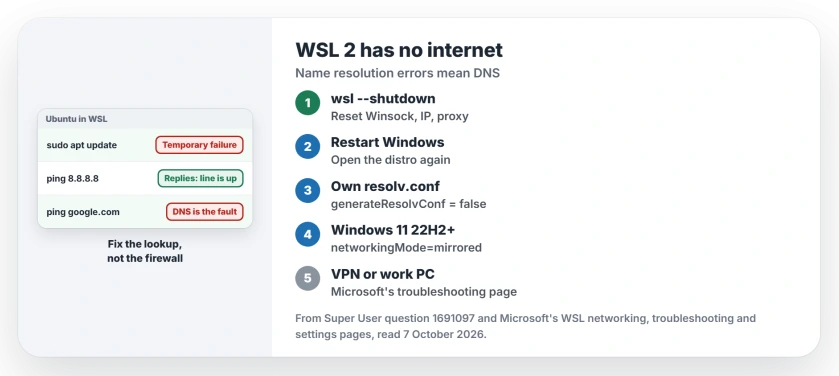
Status: checked 7 October 2026. WSL 2's name resolution errors point at DNS. Reset the Windows network with WSL shut down, write your own resolv.conf, or try mirrored networking.
Ours: WSL 3.0.1.0 runs here on Windows 11 Home, build 26200.9457, with no .wslconfig file in the user folder. That file does not exist until you make one, so every networking setting there sits at its default.
1. Shut WSL down and reset the Windows network
Run these in an administrator Command Prompt. The last line restarts the PC, so save your work first:
wsl --shutdown
netsh int ip reset all
netsh winhttp reset proxy
netsh winsock reset
ipconfig /flushdns
shutdown /r
That list is the accepted answer's script, in a slightly different order, without its repeated Winsock line. The answer's author suspects that moving between networks, such as work and home, confuses WSL.
One owner already had a locked resolv.conf and still lost the connection. Resetting the network, in their words, "with WSL stopped did fix the problem for me though".
Another turned off Fast Startup as well, and the script then solved it on Windows 11 with Debian. If the same reset helps Windows itself, our Ethernet IP page runs through those commands too.
2. Give Linux its own resolv.conf
WSL writes /etc/resolv.conf for you each time it starts. If that file holds a server that does not answer, every lookup fails. You can write your own instead.
Inside WSL, run these. The third line replaces /etc/wsl.conf, so if yours already holds settings, such as systemd, add the two network lines with an editor instead:
sudo rm /etc/resolv.conf
sudo bash -c 'echo "nameserver 8.8.8.8" > /etc/resolv.conf'
sudo bash -c 'echo "[network]" > /etc/wsl.conf'
sudo bash -c 'echo "generateResolvConf = false" >> /etc/wsl.conf'
sudo chattr +i /etc/resolv.conf
The last line locks the file so nothing rewrites it. To change it later, run sudo chattr -i /etc/resolv.conf first. Microsoft documents generateResolvConf in its WSL settings page.
Owners replied with relief. One wrote "The resolv.conf did the trick for me, too", another "I cannot believe all my network issues were cause of the resolv.conf".
A third, tired of recreating the file again and again, wrote "I just want it to work". Ours: that is the cost, since a fixed server never follows you onto a VPN or a new network.
3. Try mirrored networking on Windows 11
Mirrored mode gives WSL the same network connections Windows has, in place of its own private network. Microsoft recommends trying it, on Windows 11 22H2 or later, "to enable mirrored mode networking".
Create a file called .wslconfig in your Windows user folder, C:\Users\ followed by your name. Put these two lines in it:
[wsl2]
networkingMode=mirrored
Then run wsl --shutdown from Windows and open your distro again. Microsoft says mirrored mode brings "Improved networking compatibility for VPNs".
Windows 10 cannot use it. An owner there got an error that their Windows version "does not have the required features", and WSL fell back to its usual networking.
4. On a VPN, a work PC, or with IPv6 switched off
Microsoft's WSL troubleshooting page covers three cases separately. On a VPN it describes the same manual resolv.conf, with the VPN's own DNS server added "as the very first entry in the list of DNS servers".
On a work PC, the firewall may be set not to merge local rules. Microsoft says WSL networking then fails by default, and only your administrator can add the rule it needs.
With IPv6 switched off in the registry through a value called DisabledComponents, Microsoft warns that "WSL network connectivity can fail". Ours: that value did not exist on our laptop, which means IPv6 was left alone.
For the Global Secure Access client, "We recommend disabling DNS Tunneling" is Microsoft's line, through dnsTunneling=false in .wslconfig.
If WSL fails to launch at all, instead of launching without a network, our WSL 0x80370114 page covers that first.
A window that blinks shut as soon as WSL opens is a separate fault, and it comes down to which distribution is the default.
And if Vmmem keeps gigabytes of your RAM after you close Linux, quit Docker Desktop and stop WSL the proper way.
The firewall rules that changed nothing
The asker allowed wsl.exe through the firewall, added an inbound rule, and set the network to Private. None of it helped.
Ours: inbound rules control traffic coming into the PC, and a lookup starts inside WSL heading out. I would undo rules you added for this once WSL works, so they do not linger.
One owner in June 2026 found another trigger entirely. Their fix came only after they "restarted it outside of VSCode", having shut WSL down from an administrator terminal.
Why does WSL lose internet after I change networks?
The answer's author blames the network change itself. Ours: wsl --shutdown and reopening your distro is the cheapest test after moving between home, office or a hotspot.
The Short Version
- Temporary failure in name resolution is a DNS fault inside WSL, not a dead connection.
- Shut WSL down, reset Winsock, IP and the proxy, flush DNS, restart.
- Still failing? Write your own resolv.conf and stop WSL from rewriting it.
- On Windows 11 22H2 or later, mirrored networking is the other route.
- VPN, work PC or IPv6 switched off: Microsoft's troubleshooting page covers each.
Where to Next
First, run wsl --shutdown and reopen your distro. It is free, and sometimes it is enough.
Still no lookups after all four? Tell me which VPN or security software the PC runs, and I will look for its own WSL notes.

Isaac Smith is the founder and editor of PC Glance, a website that covers computers, laptops, and technology. He is a tech enthusiast and a computer geek who loves to share his insights and help his readers make smart choices when buying tech gadgets or laptops. He is always curious and updated about the latest tech trends.