
Every time you paste more than one line into Windows Terminal, a box stops you and asks whether to paste anyway. You know what you copied, so you want the box gone.
I would switch it off in Settings. It now sits there as a dropdown. The usual advice is a JSON line under an older name. It still works, but Settings is quicker.
A Super User question on this box, asked in September 2021, has 28,177 views.
Why Terminal asks first
Microsoft says the reason is that "In most shells, one line corresponds to one command". A pasted line break can run a command at once, "without you having time to validate the commands".
So the box appears when the text "contains multiple lines", in the words of Microsoft's Terminal documentation. The asker saw it on every paste, calling it a message "that's attempting to save me from myself".
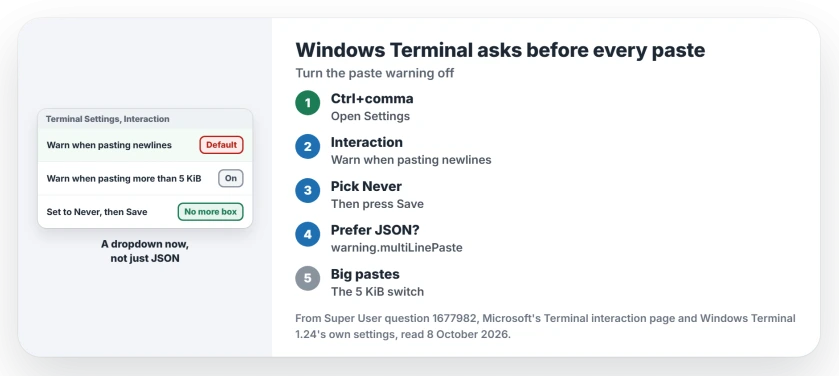
Status: checked 8 October 2026 on Windows Terminal 1.24. The paste box is the Warn when pasting newlines setting under Interaction. Set it to Never, or edit settings.json.
Ours: this laptop runs Windows Terminal 1.24.12741.0, and its settings.json carries no warning lines, so the default applies.
1. Change it in Settings, no JSON needed
Press Ctrl+comma in Terminal to open Settings. The dropdown arrow next to the tabs has a Settings entry too. Then choose Interaction on the left.
Set Warn when pasting newlines to Never. Press Save at the bottom, since a change in Settings does not apply until you do.
One commenter on the accepted answer wished for exactly this, saying the option "should really be a GUI item". In current releases it is one.
2. Or set it in settings.json
Ctrl+Shift+comma opens settings.json. A 2026 answer gives it as "control shift comma".
Add this line inside the outer braces, next to the other top-level settings, and keep a comma between it and its neighbor:
"warning.multiLinePaste": "never",That is the current name.
The 2021 accepted answer used multiLinePasteWarning, the name Microsoft's settings page still lists. It worked for the asker, an owner who accepted it.
The 2026 answer opens with "In the latest Windows Terminal app, the property you are looking for is" before giving the new one.
Ours: the 1.24 settings library still reads the old name and translates it, so an old line keeps working. The newer name is safer to type.
3. The second box, for very large pastes
A separate check fires when a paste holds more than 5 KiB of text, whatever the line count. In Settings it is the switch called Warn when pasting more than 5 KiB, right next to the first one.
Microsoft documents that it helps "to prevent the terminal from becoming unresponsive" when you right-click by accident with a lot selected. Turn it off only for deliberate big pastes.
Never, or only when bracketed paste is off?
The dropdown has three choices: Always, Never, and Only if bracketed paste is disabled, which is the default in 1.24.
Bracketed paste is a mode a shell can switch on so pasted text arrives as one block instead of running line by line. Terminal's own hint says that if your shell lacks it, "we recommend setting this to" Always.
So the default already stays quiet in shells that protect you, and warns in the ones that do not. I would pick Never only if you check every command before you copy it.
If pasting fails altogether, with no box and no text, our copy and paste page covers the Windows clipboard side.
Does the old multiLinePasteWarning line still work?
Yes, on 1.24: when I read Terminal's source for that release, a plain false still meant Never, while a plain true meant the default mode, not Always. So an old true no longer guarantees a box on every paste.
One 2026 answer credited the new name to PowerShell 7. A reply set that straight: "The name of this setting has nothing to do with PowerShell". It belongs to Terminal, whatever the shell.
If your tabs went missing while you were in Settings, our Windows Terminal tabs page brings them back.
The Short Version
- The box comes from Terminal's Warn when pasting newlines setting.
- Settings, Interaction, Warn when pasting newlines, Never, then Save.
- In settings.json the current name is warning.multiLinePaste, set to "never".
- The 5 KiB box has its own switch.
- The default warns only when your shell has no bracketed paste.
Where to Next
Open Settings with Ctrl+comma, go to Interaction, and set the dropdown. That is the whole job on Terminal 1.24.
Still getting the box after saving? Post your Terminal version from the About page in a comment, so the reply can match your release.

Isaac Smith is the founder and editor of PC Glance, a website that covers computers, laptops, and technology. He is a tech enthusiast and a computer geek who loves to share his insights and help his readers make smart choices when buying tech gadgets or laptops. He is always curious and updated about the latest tech trends.