
WSL opens with a warning, "An error occurred mounting one of your file systems", and tells you to run dmesg. Sometimes the shell still works. Sometimes your C: drive is missing under /mnt.
I would read that dmesg line before changing anything, because it names the drive WSL choked on. Owners report four different fixes, and the line points to yours.
Its Super User question, from October 2021, counts 45,545 views.
Read the line that names the drive
Run this inside the Linux shell that showed you the warning:
dmesg | grep drvfsEach failure prints a mount drvfs line with a path such as /mnt/c or /mnt/e. The letter after /mnt/ is the Windows drive WSL could not attach.
In the asker's log the failing path was /mnt/c, and the line before it read "9pnet: Could not find request transport: virtio". Another owner's log failed on /mnt/d instead.
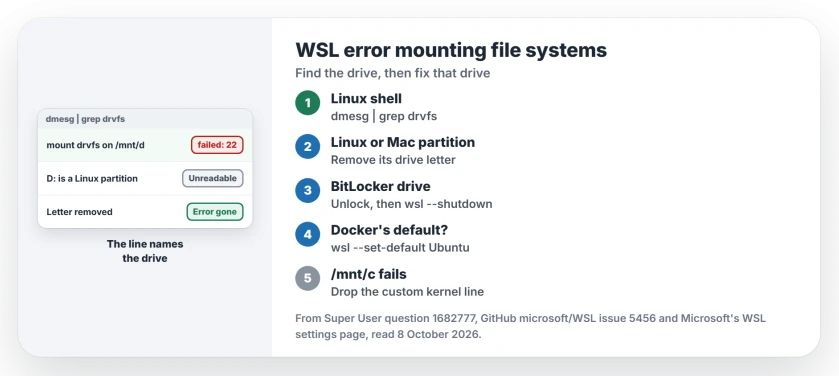
Status: checked 8 October 2026. The dmesg line names the drive. Fix that drive's letter or lock, set your own default distribution, and drop any custom kernel line.
Ours: on this laptop only C: carries a letter. The FAT32 tools partition and the two recovery partitions have none, so WSL has no drive here it cannot open.
A partition Windows cannot read, with a letter on it
If your failing letter is not C:, look at that drive in Disk Management. A Linux or Mac partition with a drive letter gives WSL a drive it cannot mount. I would check this first, since it takes a minute.
One owner with a dual boot wrote "Removing the drive letter of the ext4 partition using Windows Disk Management did the trick".
A second had the same ext4 case and said "the error is gone". A third found "a partition that was supposed to be hidden was assigned a letter".
In Disk Management, right-click your partition, choose Change Drive Letter and Paths, and remove the letter. Your files on it stay put. Close the terminal, then open it again.
A BitLocker drive that is still locked
A locked drive gives the same message. One owner "had a bit locked Hard Drive on E:\ that was not unlocked".
Another unlocked theirs, ran wsl --shutdown, and "the error disappeared". Unlock the drive in File Explorer with its password, then start WSL again.
If you never use that drive in Linux, you can leave it. A third owner found the message "could be safely ignored" for a drive they did not need.
Docker's distribution as the default
If no drive letter stands out and Docker Desktop is installed, check which distribution WSL starts. One owner wrote "For me the default distro changed to docker-desktop-data without noticing".
The fix that owners confirmed over and over is setting your own distribution back:
wsl --set-default UbuntuUse the name exactly as wsl -l -v prints it, since one commenter found theirs was Ubuntu-20.04. Our default distribution walkthrough covers this in more depth.
A custom kernel, or an old one
If the failing path is /mnt/c and dmesg mentions virtio, look in the .wslconfig file in your user folder for a kernel line. The asker had one pointing at their own bzImage.
Microsoft says on its WSL settings page that the key takes "An absolute Windows path to a custom Linux kernel", and that the default is "The Microsoft built kernel provided inbox".
A Microsoft WSL team member put the risk bluntly, asking "I suspect you are using a private kernel?" and warning it opens you up to issues like this. I would delete the line, run wsl --shutdown, and start WSL again.
If you build your own kernel on purpose, another owner traced the mount failure to a missing CONFIG_NET_9P_VIRTIO option.
With no kernel line at all, update WSL from an administrator terminal with wsl --update. One owner wrote "It fixed my problem".
If WSL will not start at all after this, our WSL ERROR_FILE_NOT_FOUND page deals with missing disk files.
Once your drives mount, downloads you copy across from Windows may arrive with a twin file, which comes from the internet zone tag Windows adds to them.
Can I just ignore the message?
If the shell opens and the only failing drive is one you never use from Linux, yes. One owner with a locked spare drive lived with it. If /mnt/c fails, fix it, because Linux tools then cannot see your Windows files.
The Short Version
- Run
dmesg | grep drvfsto see which drive letter failed. - A Linux or Mac partition with a letter? Remove the letter in Disk Management.
- A locked BitLocker drive? Unlock it, then run wsl --shutdown.
- Docker's distribution as default?
wsl --set-defaultwith your own one. - /mnt/c failing with virtio errors? Remove the custom kernel line, or run wsl --update.
Where to Next
Run the dmesg line first. The drive letter it prints decides which section you need.
If the letter points at a drive that looks normal, describe what Disk Management shows for it in a comment, and we can work out what WSL is tripping on.

Isaac Smith is the founder and editor of PC Glance, a website that covers computers, laptops, and technology. He is a tech enthusiast and a computer geek who loves to share his insights and help his readers make smart choices when buying tech gadgets or laptops. He is always curious and updated about the latest tech trends.