
You copy or download a file into your WSL home folder, and a twin turns up next to it with :Zone.Identifier on the end of its name.
They are safe to delete, but I would stop them at the cause. There are two causes, which is why the policy tip you keep finding helps one person and fails the next.
The main WSL issue on GitHub has 416 reactions and 170 comments since September 2021, and it is still open.
Where the twin file comes from
Windows tags files from the internet. Microsoft's Attachment Manager page says "When you download a file, Windows adds information about where the file came from".
On an NTFS drive that tag is a hidden stream on the file, named Zone.Identifier. WSL's Linux side has nowhere to keep it. So it arrives as a separate small file, named after the stream.
A WSL team member wrote in 2020: "Looks like we should be handling these alternate data streams differently". Open one of the twins and you will see something like this:
[ZoneTransfer]
ZoneId=3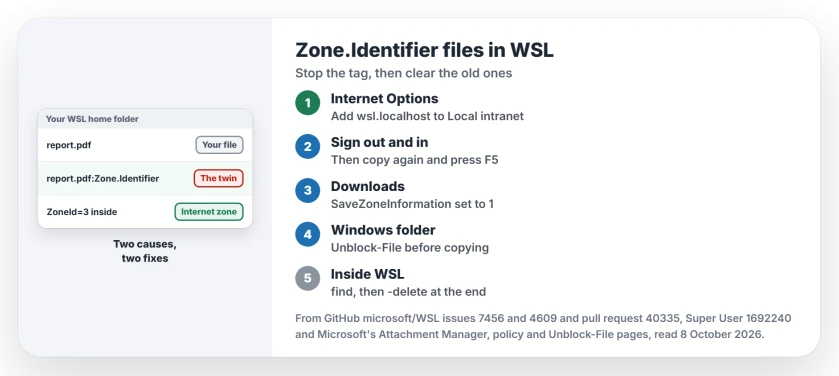
Status: checked 8 October 2026. Downloads carry a zone stream that WSL turns into a file. Put wsl.localhost in Local intranet for copies, stop zone data for downloads, clear the old ones.
Ours: 631 of the 885 files in this laptop's Downloads folder carry a Zone.Identifier stream. One more has a SmartScreen stream and two have OECustomProperty.
No attachment policy is set here, and no wsl.localhost zone entry exists either. WSL 3.0.1.0 is installed with no distro, so we did not copy into one.
1. Copies in File Explorer: add wsl.localhost to Local intranet
Explorer appears to treat \\wsl.localhost as a location outside your PC, in the internet zone. So even a file you create or copy there in Explorer can get the tag. That includes a copy from one WSL folder to another.
One owner explained it in 2025. To Windows, WSL counts as "insecure non local". With wsl.localhost in the Local intranet zone, "copying or creating files in the Windows Explorer works as expected".
- Open Internet Options from Start or Control Panel.
- Go to Security, select Local intranet and click Sites, then Advanced.
- Add wsl.localhost and close the dialogs.
- Sign out and back in, or restart Explorer.
Type it without a star. An owner whose entry did nothing was told "No star. Just wsl.localhost" in reply.
The next day another owner tried it that way. Their copies stopped making twins, and owners report the same into 2026. A 2026 commenter gave the same change as one PowerShell command:
New-Item -Path "HKCU:\Software\Microsoft\Windows\CurrentVersion\Internet Settings\ZoneMap\Domains\wsl.localhost" -Force; New-ItemProperty -Path "HKCU:\Software\Microsoft\Windows\CurrentVersion\Internet Settings\ZoneMap\Domains\wsl.localhost" -Name "*" -Value 1 -PropertyType DWord -ForceThe value 1 you set there is the Local Intranet Zone in Microsoft's list of zone numbers. 3 is the Internet Zone.
2. Downloads: stop Windows saving zone data
A file you save straight into WSL from a browser is tagged before it lands.
The policy for that is Do not preserve zone information in file attachments. It sits under User Configuration, Administrative Templates, Windows Components, Attachment Manager.
Windows Home has no Group Policy editor. So you set the registry value instead, as owners did: SaveZoneInformation as a DWORD of 1, under HKEY_CURRENT_USER\Software\Microsoft\Windows\CurrentVersion\Policies\Attachments.
Documented by Microsoft, the key and value appear in its Attachment Manager policy reference. It also warns: "By not preserving the zone information, Windows can't make proper risk assessments".
That is a real cost. New downloads lose the warning that a file came from the internet. I would only do this on a PC where you know what you download. One owner said it "worked instantly for newly downloaded files".
3. Clear the files you already have
Neither change touches files that are already tagged. One owner applied everything and still saw twins for files downloaded before the change.
In Windows, strip the tag before copying. Microsoft says "the Unblock-File cmdlet removes the Zone.Identifier alternate data stream". Run this in the folder you are about to copy:
Get-ChildItem -Recurse -File | Unblock-FileInside WSL, delete the twins that already exist. This is the command owners use, and one wrote "That worked for me":
find . -name "*:Zone.Identifier" -type f -deleteRun it from the folder you want cleaned, and keep -delete at the end. A commenter warned that putting it before -name deletes everything find reaches.
Why the policy seemed to fail
Several of the people who wrote that the registry change failed were copying inside Explorer. That is the first cause. Only the Local intranet change covers it.
The twins also hide until you refresh. One owner who tested every setting pointed out that the files appear only after F5, so a quick look straight after copying proves nothing.
If none of it helps, copy from the Linux side. A 2022 commenter wrote "just copy the files over using wsl command line the issue does not occur", for example with cp from /mnt/c.
No switch inside WSL yet
In April 2026 a contributor offered WSL a setting to block these files, called fileServer.blockZoneIdentifier. It was closed in May without being merged.
A WSL team member agreed with the review that "this seems to be fixing the symptom, not the cause". For now, the fix lives on Windows.
If File Explorer cannot open \\wsl$ at all, our wsl$ access page covers that first. For drives that fail to show inside WSL, see our mounting error page.
The Short Version
- The twin files are Windows' internet zone tag, written out as a file on the Linux side.
- For copies in Explorer, add wsl.localhost to the Local intranet zone.
- For downloads, enable Do not preserve zone information, or set SaveZoneInformation to 1.
- For old files, run Unblock-File in Windows or the find command in WSL.
- Press F5 before deciding a fix failed.
Where to Next
Make the Local intranet change, sign out and in, then copy one downloaded file into WSL and refresh. Still a twin? Write down how you copied it and from which folder, and put that in a comment. I will work out which cause is left.

Isaac Smith is the founder and editor of PC Glance, a website that covers computers, laptops, and technology. He is a tech enthusiast and a computer geek who loves to share his insights and help his readers make smart choices when buying tech gadgets or laptops. He is always curious and updated about the latest tech trends.