
You type \\wsl$\Ubuntu into File Explorer and get Windows cannot access, check the spelling of the name. Linux is running, and the same path may even open in PowerShell.
I would check one registry list first. A Microsoft WSL developer traced this to a Windows network setting. An update can rewrite it. Owners have used the fix from 2019 to 2026.
The Super User question has 34,941 views since October 2021.
Why File Explorer cannot see WSL
File Explorer reaches your Linux files through a network provider called P9NP, the Plan 9 Network Provider.
Microsoft documents the Linux half on its WSL troubleshooting page: "A 9p protocol file server provides the service on the Linux side to allow Windows to access the Linux file system."
The Windows half is a list of providers in the registry. In one GitHub issue, a Microsoft WSL developer found P9NP missing from that list, which makes Explorer and "any other application that uses the network provider DLL" skip it entirely.
The asker's path broke after a cumulative update. PowerShell still opened \\wsl$\Ubuntu, so their Linux files were fine.
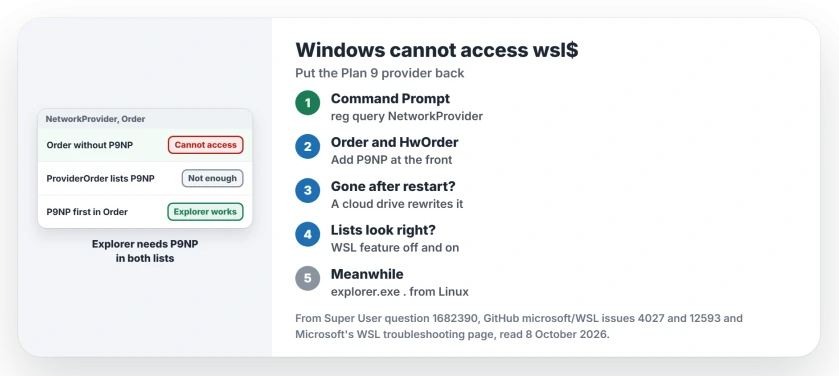
Status: checked 8 October 2026. File Explorer finds WSL through the P9NP network provider. Put P9NP back in the Order and HwOrder lists, then check what keeps removing it.
Ours: on this laptop both lists read RDPNP,P9NP,LanmanWorkstation,webclient. P9NP is there, second in line, so this laptop passes the check.
1. Check the provider list
Run this in Command Prompt. It only reads, so no administrator rights are needed:
reg query HKLM\SYSTEM\CurrentControlSet\Control\NetworkProvider /sLook at the ProviderOrder line under both HwOrder and Order. If P9NP is missing from either, you have found the cause.
If P9NP sits in both, skip to step 4 or the WSL 1 section, since your list is fine.
2. Put P9NP back in both lists
Press Windows and R on your keyboard, type regedit, and go to HKEY_LOCAL_MACHINE\SYSTEM\CurrentControlSet\Control\NetworkProvider\Order.
Double-click ProviderOrder and add P9NP and a comma at the front of the value, leaving the rest of your list as it was. Do the same under HwOrder.
That is the workaround the Microsoft developer gave: add P9NP "as the first entry in the comma-separated list under both keys". The owner who reported it confirmed "The effect was immediate".
A second owner needed a restart first. In October 2025 another wrote "It still works!", and in May 2026 a fourth called it "still valid".
3. P9NP gone again after a restart?
Then another program rewrites the list at startup. A GitHub issue from 2025 describes that loop, with your fix wiped out on every restart.
One owner found the Box cloud drive's provider, cbfsconnect2017, sitting in front of P9NP. Uninstalling the Box driver and installing it again made the Explorer link work through restarts, with the order unchanged.
Another owner saw cbfsconnect2017 move back to first after a reboot, with P9NP second, and access still worked. So the entry matters more than its place.
4. Turn WSL off and on
If the lists look right, owners report another fix: unticking Windows Subsystem for Linux in Windows Features, restarting, then ticking it again.
One wrote "Turning off and on WSL worked for me. I didn't need to delete the instance". Back up first anyway with wsl --export, as a Super User answer advised.
Also check that Virtual Machine Platform is still ticked, since one owner found it switched off. Our WSL 0x80370114 page covers that feature.
WSL 1 only: keep C: mounted
Under WSL 1 the share depends on your C: drive being mounted inside Linux. The Microsoft developer explained "you need to enable automount for this to work", and one owner fixed theirs by adding this to /etc/wsl.conf:
[automount]
enabled = true
mountFsTab = true
Ours: this laptop says WSL 1 is not supported with its current configuration, so the section only applies where WSL 1 still runs.
The quick way in, from Linux
While you fix the list, open your files from the other side. Microsoft's file systems page gives explorer.exe . to open the current Linux folder in File Explorer.
Do not edit the files under the rootfs folder in AppData instead. A Super User answer warned "It can cause corruption".
Why does PowerShell open the path when Explorer cannot?
The provider list only matters to programs that go through it, and the Microsoft developer named Explorer among them. In the asker's case PowerShell reached the same path, which fits that explanation.
If WSL itself will not open, our closing-window WSL page is the place to start.
Copying into the Linux side from Explorer can leave small :Zone.Identifier twins beside your files, and one Internet Options change stops them.
The Short Version
- File Explorer reaches WSL through P9NP, a Windows network provider.
reg queryon the NetworkProvider key shows whether P9NP is listed.- Missing? Add P9NP at the front of ProviderOrder under Order and HwOrder.
- Lost after restarts? A cloud drive provider such as Box may be rewriting it.
- Use
explorer.exe .from Linux meanwhile, never the rootfs folder.
Where to Next
The reg query line comes first. Whether P9NP is in both lists decides whether you need step 2 or step 4.
If P9NP is listed and Explorer still says it cannot access the path, share your ProviderOrder lines in a comment. I will compare them with a working list.

Isaac Smith is the founder and editor of PC Glance, a website that covers computers, laptops, and technology. He is a tech enthusiast and a computer geek who loves to share his insights and help his readers make smart choices when buying tech gadgets or laptops. He is always curious and updated about the latest tech trends.