
You open Ubuntu or type wsl, and nothing starts. WSL says it failed to attach a disk, because the system cannot find the file specified.
The code at the end reads Wsl/Service/CreateInstance/MountVhd/ERROR_FILE_NOT_FOUND, or a CreateVm version of it.
Super User's most viewed question on it has an accepted answer that tells you to unregister your distro. I would not run that first.
Microsoft warns that the command deletes everything stored inside the distro, for good. And the missing file is often WSL's own, not yours.
That question has 123,391 views since December 2022. A report on Microsoft's own WSL tracker from May 2026 has 107 comments so far.
Which file it could not find
The path inside the quote marks matters far more than the long code at the end. It names one of two kinds of file.
A file called system.vhd in C:\Program Files\WSL belongs to WSL itself, and holds the small Linux system WSL ships with rather than your home folder. If that one is missing, your distro is still sitting where it was.
A file called ext4.vhdx, usually in a LocalState folder inside your user profile, is your distro's own disk. Your files live in that one.
The CreateVm code points at WSL's own install as well, not at your distro.
The person who opened the May 2026 report had checked that their ext4.vhdx was there and intact, and even unregistered their distro. The error stayed. Putting WSL's own files back was what fixed it.
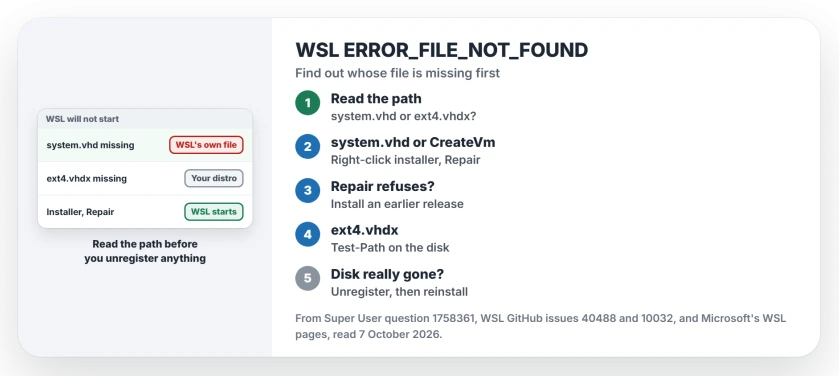
Status: checked 7 October 2026. If the missing file is WSL's own system.vhd, repair WSL. If it is your distro's ext4.vhdx, check that it exists before you unregister anything.
Ours: on the Windows 11 Home laptop we test on, WSL 3.0.1 keeps system.vhd in C:\Program Files\WSL. It weighs 758,039,040 bytes, about 723 MB.
Your distro's disk is a separate file, kept in your own user folder. Two problems, then, with two different fixes.
1. system.vhd or CreateVm: repair the installer
A contributor to Microsoft's WSL project posted the repair on that May 2026 report. Download the installer for your current version from the WSL releases page, and quit Docker Desktop if you use it.
Then right-click the installer, choose Show more options, and pick Repair. The Repair button for WSL inside Windows Settings had not helped that person. Use the installer file.
Your version comes from wsl --version, which Microsoft lists as the way to "Check the version information about WSL and its components". Match that number exactly.
One owner replied there that the "installer repair option works as documented", with thanks. Another, on Super User, found that simply running the file did not fix it, while the right-click route worked.
In their words, "I have right clicked on it and picked the Repair option". WSL started again.
The same contributor explained the cause. An older installer, during an update, marks system.vhd for deletion at the next restart.
A newer one puts a fresh copy in place, and the restart then "executes the delete scheduled by the old installer". The fresh file is gone.
2. Repair refuses? Install a release over it
If Repair answers "This action is only valid for products that are currently installed", the installer does not match your version. One owner on that report hit exactly this.
Most owners there just installed an earlier release on top, and 2.6.3 was the common pick. One wrote "Files are intact after rollback". Another reinstalled the newer version afterwards, "and it seems to keep working".
According to the contributor, the fix landed in WSL 2.9.3 and went back into 2.7.14 as well, so current releases come after both.
The contributor added that it only protects an update made from a fixed version. Repair again if WSL breaks right after updating.
Once WSL starts again, run wsl --update, which Microsoft says will "Update your WSL version to the latest version".
If WSL starts again but cannot look up a single website, the fault is DNS rather than the disk.
If it starts but prints a mount warning that sends you to dmesg, read which drive the log blames.
3. ext4.vhdx: find out if it still exists
This one names your distro's disk, so check whether the file is really gone before any other step. Run wsl -l in PowerShell first, for the exact name of your distro.
Then run Microsoft's own line from its WSL disk space page in PowerShell, with that name in place of the placeholder.
(Get-ChildItem -Path HKCU:\Software\Microsoft\Windows\CurrentVersion\Lxss | Where-Object { $_.GetValue("DistributionName") -eq '<distribution-name>' }).GetValue("BasePath") + "\ext4.vhdx"It prints the path Windows expects. Run Test-Path with that path in quotes. Do not double-click the file itself. Windows would attach it as a drive.
False means no disk sits at that path. Usually the distro was uninstalled while WSL kept its old entry. Unregistering then loses nothing, because there is no disk there for it to delete.
Owners on Microsoft's tracker cleared that case with wsl --unregister and a fresh install. One confirmed that "a simple reinstallation via Microsoft Store does not work, but wsl unregister and then install does".
True means your disk is still there, and WSL simply cannot use it. Repair WSL first, as in step 1.
One owner turned the Windows Subsystem for Linux feature off in Windows Features, restarted, then turned it on again. That worked "without losing data or any side effects".
Before you unregister anything
Microsoft's warning sits right under the command on its WSL basic commands page: "Once unregistered, all data, settings, and software associated with that distribution will be permanently lost".
Owners who skipped that line said so afterwards. Beneath the accepted unregister answer, one reader wrote "I learned this the hard way".
If your ext4.vhdx exists, run wsl --shutdown and copy the file to another drive first. Microsoft documents wsl --import-in-place, which "Imports the specified .vhdx file as a new distribution". So a copied disk can come back later.
Is the file there but far bigger than the files inside it? Deleting in Linux never shrinks it, and WSL 3.0.1 can compact that disk with one command.
What I would not do
Wiping the Lxss key in the registry is one step I would skip. The person who opened the May 2026 report deleted it, and it changed nothing for them. That key is also how WSL keeps track of which distros you have installed.
Switching to WSL 1 let that same person install a distro again, since WSL 1 runs without a virtual disk. The real fault stays in place.
If WSL never installed in the first place and stopped at 0x80370114, that is a missing Windows feature instead. Our page on error 0x80370114 walks through it.
A Windows update can also break WSL in its own way, separate from all of this. The Plan9 error after KB5124008 was one, and Microsoft fixed it with a later update.
Will repairing WSL delete my Linux files?
Not in any report I read. Repair and rollback replace WSL's own files in Program Files, while your distro's disk sits in your user folder. Still, copy your ext4.vhdx somewhere safe first if you can reach it. It is the only copy you have.
The Short Version
- Read the path in the message: system.vhd is WSL's own file, ext4.vhdx is your distro.
- system.vhd or a CreateVm code: run Repair on the installer for your WSL version.
- Repair refuses: install an earlier release over it, then run wsl --update.
- ext4.vhdx: check it exists with Microsoft's PowerShell line first.
- Gone: unregister and reinstall.
- Still there: repair WSL, copy the disk, keep it.
Where to Next
Run wsl --version now and write the number down, before you download any installer.
Which file did your message name, and which version were you on? Tell me both, and I will move a step up this page if it saved you.

Isaac Smith is the founder and editor of PC Glance, a website that covers computers, laptops, and technology. He is a tech enthusiast and a computer geek who loves to share his insights and help his readers make smart choices when buying tech gadgets or laptops. He is always curious and updated about the latest tech trends.