
Your PC stopped going to sleep, and powercfg /requests names MoUsoCoreWorker.exe as a USO Worker. Or Task Manager shows it holding far more memory than an update helper should.
I would not disable Windows Update over it. It is the update system, waiting on something. Owners got their sleep back by giving it what it waits for.
The top Microsoft Q&A question about it shows 1800+ under Same question.
What the USO Worker is doing
MoUsoCoreWorker.exe belongs to the Windows Update Orchestrator, which Microsoft describes as the part that "operates in the background to scan, download, and install updates".
While it works, it files a power request. Microsoft's powercfg reference explains that such requests keep the display on and stop the PC from sleeping.
So when your PC will not sleep, an update is often half done. A poster in a 200+ question put it plainly: "It blocks sleep for optional updates".
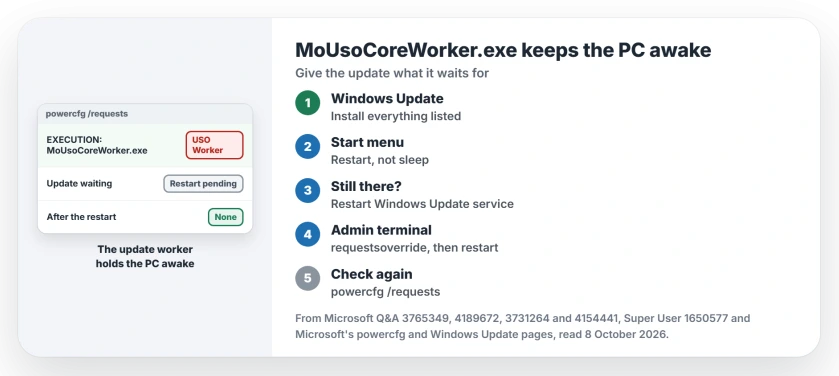
Status: checked 8 October 2026. MoUsoCoreWorker.exe is the Windows Update worker. Finish the waiting update and restart, restart the update service, or override its power request.
Ours: on build 26200 the file sits in C:\Windows\UUS\amd64, not in System32, with a valid Microsoft Windows signature. Its description reads MoUSO Core Worker Process, and the Update Orchestrator Service runs automatically.
1. Install what is waiting, then restart
Open Settings, then Windows Update, and install anything your PC lists, optional updates included. Then restart from the Start menu. Closing the lid only sleeps it.
Microsoft says the restart matters, since the device "might be insecure, or not fully updated, until it restarts".
The Super User asker found their memory-hungry worker sitting on exactly that, an update "awaiting a system restart". Another owner, whose wake timers trick had failed, wrote "Restarted the system; MoUsoCore was gone".
Then run powercfg /requests again as administrator. No USO Worker line means you are done.
2. Restart the Windows Update service
If your updates are all in and the worker still holds on, restart the service behind it. Open Services, right-click Windows Update, and choose Restart.
That is what one owner did in the 1800+ question: "I opened the Service Manager and restarted Windows Update service". They checked powercfg again, "and nothing was listed".
Their PC could sleep again, though they were not sure the issue was "completely gone". A Super User answer reported the same with the Update Orchestrator service, which shut the process down "cleanly".
3. Override the request, then restart once
If the worker keeps coming back, you can tell Windows to ignore its power request. Microsoft documents the switch, which "Sets a Power Request override for a particular process, service, or driver".
Run this from an administrator terminal:
powercfg /requestsoverride process MoUsoCoreWorker.exe executionOne detail did not add up.
Microsoft's reference and powercfg's own help on this laptop list only DISPLAY, SYSTEM and AWAYMODE as request types. The command owners share passes execution, the category powercfg /requests shows the worker under.
One owner tried it and saw no change, writing "It didn't affect the MoUsoCoreWorker process that was already executing". Another restarted first: "I rebooted mine and it took it out of the list".
That second owner's PC then slept again, "My computer will now sleep on its own again!" So restart your PC after adding the override, then check powercfg /requests once more.
To list your overrides later, run powercfg /requestsoverride with nothing after it.
Memory that grows for days
Its memory can climb with uptime. One Super User answer from an admin who manages machines saw a PC "up 25 days" where Windows Update was "using 9.9 GB of the 8 GB of physical RAM".
Their fix was a habit, not a setting: "I instruct my users to restart at least once a week which seems to stop the issue". A weekly restart also lets waiting updates finish.
If your update never completes, our Windows Update stuck page covers the stalls.
Is MoUsoCoreWorker.exe a virus?
Your genuine copy is signed by Microsoft. Right-click it in Task Manager, choose Open file location, then check Properties and the Digital Signatures tab.
Older Windows 10 builds kept it in System32, while this laptop's copy lives in the UUS folder. A poster in a 100+ Microsoft Q&A question pointed to the same UUS path.
What to leave alone
Ending the process only buys you minutes. One asker wrote "I kill the task and eventually it comes back".
Turning off every wake timer is blunt too. One owner called it risky, since "It may cause other jobs to fail to run as scheduled". A second saw MoUsoCoreWorker back after twenty minutes.
I would not use an update blocker either, because the waiting update is the actual fix.
If you see something other than the USO Worker in powercfg, our page on a PC that won't go to sleep walks through the other requests.
The Short Version
- MoUsoCoreWorker.exe is the Windows Update worker, and it files a request that blocks sleep.
- Install every waiting update, optional ones too, then restart.
- Still there? Restart Windows Update in Services.
- Last resort: the requests override for MoUsoCoreWorker.exe, then a restart.
- Leave Windows Update on, and do not keep ending the process.
Where to Next
Begin with Windows Update and a real restart, then run powercfg /requests once more to see what is left.
If the USO Worker still shows after all three steps, copy the powercfg lines into a comment. I will read them and reply.

Isaac Smith is the founder and editor of PC Glance, a website that covers computers, laptops, and technology. He is a tech enthusiast and a computer geek who loves to share his insights and help his readers make smart choices when buying tech gadgets or laptops. He is always curious and updated about the latest tech trends.