
You open Protection history, pick the file Defender took, click Restore and approve the prompt. Nothing happens. On some PCs the Restore button is not even there.
I would stop clicking and use Defender's own command-line tool. It lists the quarantine, restores by threat name and can use a new folder. One Microsoft Q&A thread about a failed restore counts 200+ people with the same question.
Why the button does nothing
Defender puts a file back where it came from. When that place no longer exists, your restore can fail without a single message.
An owner on Super User traced it to a renamed folder: "the file that Windows Defender quarantined was originally in a folder that I had later renamed". Defender then had nowhere to write.
In their words, "This caused restore to fail silently, since Defender didn't know where to restore the file (what a great program)".
The command line showed them the real error: "Error code: 0x80508014 Cannot restore a file". Someone storing files on a NAS found the same code in Event Viewer after a failed restore from a network share.
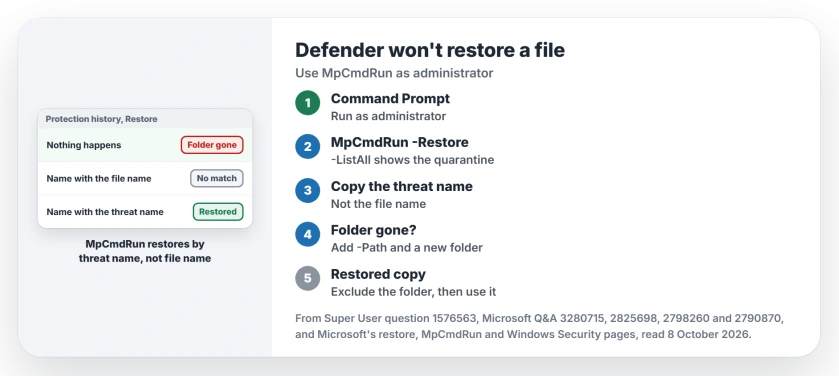
Status: checked 8 October 2026. When Restore does nothing, list the quarantine with MpCmdRun, restore by threat name rather than file name, and give it a new folder with Path.
Ours: Windows 11 Home 25H2, Defender platform 4.18.26090.9. Its help text describes Name as "Restores the most recently quarantined item based on threat name". Quarantine keeps items for 90 days on this laptop.
1. List what Defender is holding
Open Command Prompt as administrator. Owners on both threads worked from the Windows Defender folder in Program Files, so you can too:
cd "%ProgramFiles%\Windows Defender"
MpCmdRun.exe -Restore -ListAll
Microsoft's restore page prefers the newest copy under ProgramData\Microsoft\Windows Defender\Platform. It falls back to the Program Files one. Both read the same here.
ListAll prints every quarantined item. Find yours and copy its threat name exactly, such as the Trojan:Script/Wacatac.B!ml one an owner had.
2. Restore by threat name, not file name
This step trips people up. Microsoft's restore page tells you to put the file name after Name. The command's own reference disagrees.
There, Name "Restores the most recently quarantined item based on the specified threat name". An owner on Super User learned which one counts: "I had to enter the tread name instead of the file name".
Their working line used that Trojan name, "while the file name didn't". Yours would look like this:
MpCmdRun.exe -Restore -Name "Trojan:Script/Wacatac.B!ml"Add All when one threat name covers several files. Microsoft's reference warns that "A threat can map to multiple files".
3. Give it a new folder with Path
Did you rename the old folder, move it, or keep it on a network drive? Then hand Defender somewhere else to write. Make an empty folder first:
mkdir C:\DefenderRecovery
MpCmdRun.exe -Restore -Name "Trojan:Script/Wacatac.B!ml" -Path C:\DefenderRecovery
The accepted answer on that NAS thread used All with Path to bring every file back at once. 60+ people marked it helpful.
On Super User, Path "allowed me to restore a file that could not be restored to a network folder", one owner wrote.
Ours: Path changes one thing. The help text here says the item "will be restored to the specified path, but won't be removed from quarantine list". So Protection history keeps showing it, even after a good restore.
Check the new folder before you try again.
Restore button missing?
Check the full history, not just the quarantined list. One asker saw their file in the history but not under quarantined items. About two hours later it moved across, with the Restore option.
As they put it: "Something must be causing a delay in listing the quarantined file". That thread shows 100+ under Same question. Give it time before you reach for the command line.
Will Defender take it straight back?
It can, if real-time protection still flags the file. The NAS owner switched that off for the restore: "Before the recovery, I also (temporarily) disabled Windows Defender's real-time monitoring".
Ours: I would add an exclusion for the recovery folder instead. Microsoft's own Windows Security page says excluding a single file or folder "is safer than turning the entire antivirus protection off".
Only do either for a file you are sure of. Microsoft's condition is: "If you're certain a quarantined file isn't a threat, you can restore it on your Windows device".
Unsure? Run the offline scan first, the one that checks before Windows loads.
Installed another antivirus since? The NAS owner lost the history and quarantine options once they did. Our page on Defender saying it is turned off explains why.
And when Remove does nothing too?
You can leave the item where it is. Defender empties quarantine on a timer. Microsoft documents the setting as "Specifies the number of days to keep items in the Quarantine folder". Read yours in PowerShell:
(Get-MpPreference).QuarantinePurgeItemsAfterDelayIt printed 90 on this laptop, without administrator rights.
Is the Windows Security app itself broken?
Does Virus and threat protection show a cross, or refuse to open at all? That needs fixing first. Reset the Windows Security app, then come back to Protection history.
The Short Version
- Restore fails quietly when the original folder is gone, renamed or on a network share.
- Open Command Prompt as administrator in the Windows Defender folder.
- MpCmdRun.exe -Restore -ListAll shows what is held.
- Restore with Name and the threat name, not the file name.
- Add Path and an empty folder when the old place is gone.
- Restore only what you are sure is safe, into an excluded folder.
Where to Next
Did ListAll show your file? Leave the threat name and any error line from the restore in a comment, and I will point you to the switch it needs.

Isaac Smith is the founder and editor of PC Glance, a website that covers computers, laptops, and technology. He is a tech enthusiast and a computer geek who loves to share his insights and help his readers make smart choices when buying tech gadgets or laptops. He is always curious and updated about the latest tech trends.