
Windows Security marks Virus & threat protection with a red X. Yet the app's own pages say everything is fine, and your scans find nothing. That is unsettling.
Before you reinstall Windows over it, I would reset the Windows Security app itself, which takes a minute.
The reset cleared it for an owner on Microsoft Q&A in May 2026. Seven people marked that thread with Same question, and one more owner reported the red X coming back in August.
What the owners saw
The asker was on Windows 11 Pro, build 26200, and had just updated their Intel and Nvidia graphics drivers. The thread's title says it all: "Windows Virus & Threat Protection showing Red X, but Windows Security is showing things are fine".
A Quick Scan and a full scan both came back clean. The scans were right. A volunteer moderator had it too: "Been having the same issue since updating to 26200.8328".
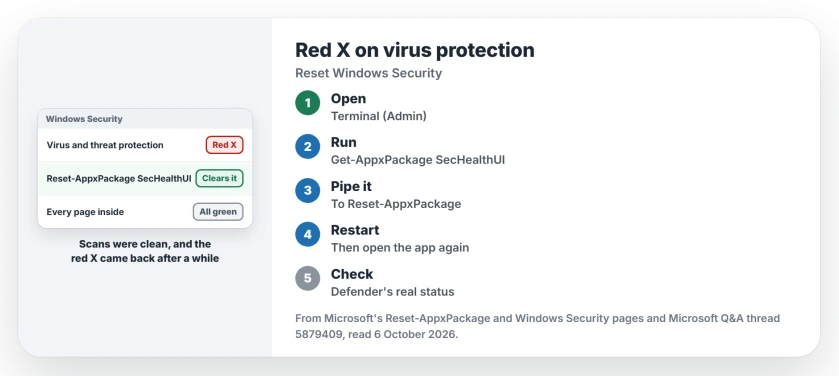
Status: checked 6 October 2026. A red X sat on Virus and threat protection while every page showed green. Resetting the Windows Security app in PowerShell cleared it for the owner.
The pattern they describe is odd. "It does go away after a reboot, but once running for a while, the red x returns while the program shows all green".
1. Reset the Windows Security app
An adviser on the thread posted the fix. Right-click Start, open Terminal (Admin) or Windows PowerShell (Admin), and run this line:
Get-AppxPackage Microsoft.SecHealthUI -AllUsers | Reset-AppxPackageThen restart your PC. Two days later the asker wrote back, in their words: "I'm happy to inform you that Estrella721's comment fixed the issue!" That was the whole fix.
Microsoft documents what the command does. Reset-AppxPackage "resets the app to its original settings, and the app will react as a freshly installed app".
Ours: the icon is not the engine. Microsoft.SecHealthUI is the Windows Security window you open, while Defender's scanning engine runs on its own. Resetting it does not switch your protection off, and I would run it before anything heavier.
2. If the red X comes back
The same adviser's second step was a repair install. Open Settings, System, Recovery, then choose Reinstall now in the section that repairs Windows through Windows Update. Your files and apps stay.
It did not hold for every owner. One owner wrote in August that it "fixes the problem for one or two reboots and i comes back". So I would try the reset first. Then check for the next Windows update.
A pop-up naming a Bonjour file is a different warning, about Apple software, and updating Bonjour stopped it for one owner.
Is your PC actually protected?
Check Defender itself rather than the icon. Our page on the false Defender turned off notice shows the PowerShell line that reads its real status, the same check that settled that false warning in 2026.
Then run a Quick scan from Virus & threat protection, which Microsoft's Windows Security page describes. If you want a deeper look, our page on scanning for viruses covers the offline scan as well.
A quarantined file that refuses to come back is a separate problem, and MpCmdRun from an administrator prompt is the way around the dead button.
The Short Version
- A red X on Virus and threat protection while every page is green points to the app's display.
- One owner traced it to Windows 11 build 26200.8328 in May 2026.
- Reset the app: Get-AppxPackage Microsoft.SecHealthUI -AllUsers piped to Reset-AppxPackage.
- Then restart your PC.
- A repair install through Windows Update lasted only a reboot or two for one owner.
- Check Defender's real status in PowerShell, not the icon.
Where to Next
Open Terminal (Admin), run the Reset-AppxPackage line, and restart your PC before you open Windows Security again.
Did the reset clear your red X for good, or has it returned since? Tell me in a comment, with your build number.

Isaac Smith is the founder and editor of PC Glance, a website that covers computers, laptops, and technology. He is a tech enthusiast and a computer geek who loves to share his insights and help his readers make smart choices when buying tech gadgets or laptops. He is always curious and updated about the latest tech trends.