
You watch a video with Bluetooth earbuds and the voices land a beat after the lips move. The same earbuds stay in sync on your phone.
I would switch off audio enhancements before anything else, because it fixed the lag for the person behind a Super User question with 40,478 views.
On Microsoft Q&A, a discussion asking whether Windows will ever fix this has 100+ under Same question.
Why Bluetooth sound runs late
Bluetooth audio always arrives late. One reply on Super User came from a developer of an audio app, who listed why: "encoding, transmission, buffering and decoding of the audio stream".
Good headphones tell the computer how late they are, and the player shifts the sound to match.
The developer added that some headphones "either report wrong number or nothing at all". When that report gets lost somewhere between the app and the headphones, you see the lag.
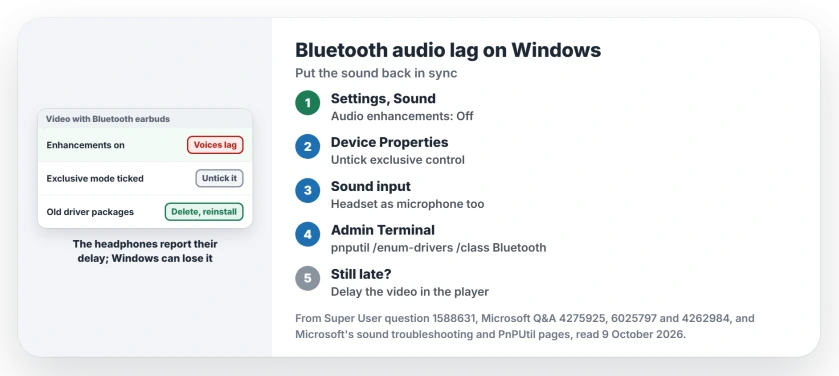
Status: owner fixes gathered and this laptop's driver store listed on 9 October 2026, Windows 11 25H2. Turning enhancements off, clearing exclusive mode or reinstalling the driver cured the lag.
Ours: this laptop's driver store holds three MediaTek Bluetooth filter packages, dated 2021, 2024 and 2026. Driver updates had left the two older ones behind.
1. Switch off audio enhancements
The asker found this fix themselves, writing that enhancements cause "a delay in the sound" on top of the Bluetooth delay. Then: "Your sound will cut out for 1 second and come back without lag".
On Windows 11, open Settings, System, Sound, and pick your headphones under Output. Scroll down to Advanced settings and set Audio enhancements to Off in its drop-down list. Replay the same video.
On Windows 10, open the Sound Control Panel, right-click the headphones on the Playback tab and choose Properties. Tick Disable all enhancements on the Enhancements tab.
Microsoft documents both routes on its sound troubleshooting page, where it offers them as a general fix for audio faults.
Why would that help? The developer thinks the enhanced path ignores the delay the headphones report. They called it "a bug in the audio driver".
It is not every case, though. A Windows 11 24H2 owner tried enhancements on and off in October 2026 and saw no change.
2. Clear the exclusive control boxes
A Windows 11 owner with TWS1 earbuds called their lag "Really bad lag like unwatchable" in 2023 on that Q&A discussion. Their fix sits one level deeper.
Open Settings, System, Sound, then More sound settings.
Right-click your headphones on the Playback tab, choose Properties, and open the Advanced tab. Under Exclusive Mode, untick the box that lets apps take exclusive control. Then click OK.
They wrote that "by default both check boxes were marked and I had really bad latency". Then: "once I unchecked latency was fixed". Clearing the first box grays out the second, so one click does both.
3. Use the headset as your microphone too
This one sounds backwards. On the same discussion, an owner who had tried alternative drivers wrote that "by setting the headphones also as microphone source it fixed my delay problem".
Open Settings, System, Sound, and under Input choose your headset as the device for speaking.
The owner with Bose QC35 II headphones had used the same trick since March 2025, until it stopped working for them in October 2026. They blame a Windows update.
One cost to know about. When an app opens that microphone, Windows moves the headset into call mode and music sounds flat. Our page on Bluetooth headphones sounding bad explains that switch and how to keep it from happening.
4. Remove old Bluetooth drivers, then reinstall
That Bose owner, on a Realtek adapter under Windows 11 24H2, removed every Realtek Bluetooth driver package with pnputil. Then they reinstalled the adapter's driver. The lag went.
They asked for it to be marked as the answer, "as it looks to have fixed the issue for now". Your own adapter may come from Intel, MediaTek or Realtek instead; the steps are the same for each.
From an administrator Terminal, this lists the packages:
pnputil /enum-drivers /class BluetoothNote the published names.
They look like oem24.inf. Microsoft documents the delete option on its PnPUtil page, and its /uninstall switch will "uninstall driver package from any devices using it". For each one:
pnputil /delete-driver oem24.inf /uninstallBluetooth stops until the driver is back. Get the adapter driver ready from the PC or board maker before you start.
That owner had done this once before, in February, so it may not last through the next round of updates. Our Bluetooth driver reinstall page covers the Device Manager side.
5. Or delay the video to match
Windows itself cannot hold video back. A Q&A adviser said so on a thread with 90+ marks, and pointed to VLC, which has its own audio track sync setting.
For YouTube, one owner used a browser extension that delays the picture: "I set it to 400ms". They were happy with it. VLC, by contrast, needs the adjustment each time you watch a video, the adviser noted.
Is it my earbuds?
Probably not, if they are fine elsewhere. The person who started that Q&A discussion wrote that installing Linux on that PC "completely fixes the delay/lag of up to 500ms".
The Bose owner saw no lag when they booted Bazzite, a Linux system, on their own PC. Your earbuds are likely fine.
What did not help
The Bose owner re-paired, installed a newer 2026 driver, checked the audio services were set to automatic, and tried the BluetoothAacEnable registry value. None of it changed the lag.
The discussion starter turned off Bluetooth personal area networking and talk mode, and restarted over and over. The lag stayed.
Sound on time but much too loud at the lowest step is a separate Windows behavior. Turning off absolute volume settles that one.
The Short Version
- Set Audio enhancements to Off for your headphones.
- Untick the exclusive control box on the Advanced tab.
- Try the headset as your input device too.
- Still lagging? List Bluetooth driver packages with pnputil, delete them, then reinstall.
- Or hold the video back in VLC or a browser extension.
Where to Next
Which step fixed yours, and which headphones and adapter do you use? Leave both in a comment, since the fix seems to depend on that pairing.

Isaac Smith is the founder and editor of PC Glance, a website that covers computers, laptops, and technology. He is a tech enthusiast and a computer geek who loves to share his insights and help his readers make smart choices when buying tech gadgets or laptops. He is always curious and updated about the latest tech trends.