
You open Settings, Accounts, Sign-in options, then PIN, and the Remove button is gray. You want your password back. Windows keeps steering you to the PIN.
I would flip one switch further down that same page before trying anything else. On Microsoft Q&A, 100+ people marked a 2019 question about this as their own, and a Super User question about dodging the PIN on a new laptop has 30,291 views.
Why Remove is gray
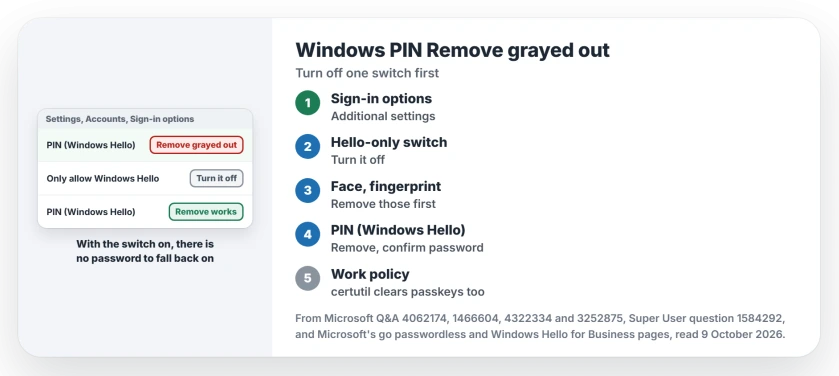
Further down Sign-in options sits a switch that tells Windows to accept only Windows Hello for your Microsoft account. With it on, your account password stops being a way in to this PC.
Microsoft says on its go passwordless page that with this on, "Only the Windows Hello face, fingerprint, or PIN gestures will be available". Remove the PIN and you would have no way in. So the button grays out.
Status: owner threads and Microsoft's pages checked on 9 October 2026, Windows 11 25H2. Turning off the Hello-only switch brought Remove back; certutil cleared one stray work policy.
Ours: an adviser on Microsoft Q&A ties a registry value, DevicePasswordLessBuildVersion, to that switch and says 0 turns it off. On this laptop it reads 2.
1. Turn off the Hello-only switch
Open Settings, Accounts, Sign-in options. Look under Additional settings. Turn off the switch that begins For improved security, only allow Windows Hello sign-in.
On Windows 10 the same switch is called Require Windows Hello sign-in for Microsoft accounts. A Super User commenter put the result simply: turn it off "and you will get the remove option".
Now go back to PIN (Windows Hello) and choose Remove. Confirm with your Microsoft account password. Using face or fingerprint too? Remove those first, because they rely on the PIN.
On a Microsoft Q&A thread with 20+ marks, an HP owner followed an adviser's steps, which start with this switch. They wrote: "PIN now removed from my HP laptop when HP told me it was not possible".
The adviser's later steps set up automatic sign-in with netplwiz, which I would skip on a laptop that leaves the house.
2. The switch itself is gray or missing
One owner upgraded from Windows 10 to 11 and found no such switch under Additional settings at all. No reply gave them a fix.
For a switch that is there but gray, a Q&A adviser pointed at the registry value from earlier, which sits at this key:
reg add "HKLM\SOFTWARE\Microsoft\Windows NT\CurrentVersion\PasswordLess\Device" /v DevicePasswordLessBuildVersion /t REG_DWORD /d 0 /fRun it in Terminal as administrator, then restart. Check Sign-in options again. The asker preferred that route but never said if it worked, so try it knowing that.
3. A work or school policy that demands it
Did you once add a work or school account to this PC? An adviser on another Q&A thread suggested opening Settings, Accounts, Access work or school. Disconnect any organization account still listed there.
Only a Manage button there, or no account listed at all? A stuck work or school join has its own fix, Microsoft's cleanup tool included.
A policy from work can also force Windows Hello for Business on a home PC. For that case, a Q&A answer with 50+ votes gives two commands, run as the affected user:
certutil.exe -DeleteHelloContainer
logoff.exe
An owner who had applied a work policy to a home PC by accident said it worked for them. After signing back in, you set up your sign-in methods afresh.
Microsoft warns about this one. Its Windows Hello for Business FAQ says it "clears not only Windows Hello for Business, but also any passkeys stored on that Windows device".
So set your passkeys up on another device first, since this PC loses its copies. Our page on Windows passkeys shows where you find them.
Ours: certutil here lists the option as Delete Hello Logon container. We did not run it.
Windows 10 Pro and the policy editor
Have Pro? The accepted Super User answer from 2020 sets the Use Windows Hello for Business policy to Disabled in gpedit.msc, under Windows Components. Your Home PC has no gpedit.msc. This Windows 11 Home laptop does not either.
Can I skip the PIN during setup?
The same accepted answer went offline at the PIN screen. Creating the PIN failed and setup moved on. That was Windows 10 in 2020. Today I would create the PIN, finish setup, then turn the switch off and remove it.
What did not help
On the 100+ thread, an adviser suggested leaving the PIN field blank, and the asker had already tried it: "when I restart my computer I am forced to create a PIN to log in".
A Super User commenter wrote in October 2020 that the Remove option was gone, and three years later another replied that turning off the switch brings it back. You may hit the same old advice.
Signing in to this PC remotely?
The same switch also stops your password working when you connect to this PC with Remote Desktop. Our page on RDP credentials and a PIN covers that side, and our Windows Hello guide covers face and fingerprint setup.
The Short Version
- Settings, Accounts, Sign-in options, Additional settings: turn off the Hello-only switch.
- Then remove face and fingerprint, then the PIN.
- Switch gray or missing: an adviser's registry value of 0, untested.
- Work policy: certutil -DeleteHelloContainer, but it also clears passkeys.
Where to Next
Did the switch bring Remove back, or was yours a work account? Say which in a comment, along with Home or Pro.

Isaac Smith is the founder and editor of PC Glance, a website that covers computers, laptops, and technology. He is a tech enthusiast and a computer geek who loves to share his insights and help his readers make smart choices when buying tech gadgets or laptops. He is always curious and updated about the latest tech trends.