
You type ssh and PowerShell says the term is not recognized as the name of a cmdlet. The OpenSSH Client is installed, and File Explorer shows the OpenSSH folder in System32.
I would check which PowerShell you opened before reinstalling anything. On this laptop the 32-bit one could not even see that folder, while the normal one ran ssh at once. The Super User question on this fault has 65,914 views.
Three reasons Windows cannot find ssh
The sneaky one is a 32-bit shell, which gets a different System32 from the one you see in File Explorer. The other two are the OpenSSH Client not being installed, or its folder missing from PATH.
Check them in that order, because the first one looks exactly like the other two.
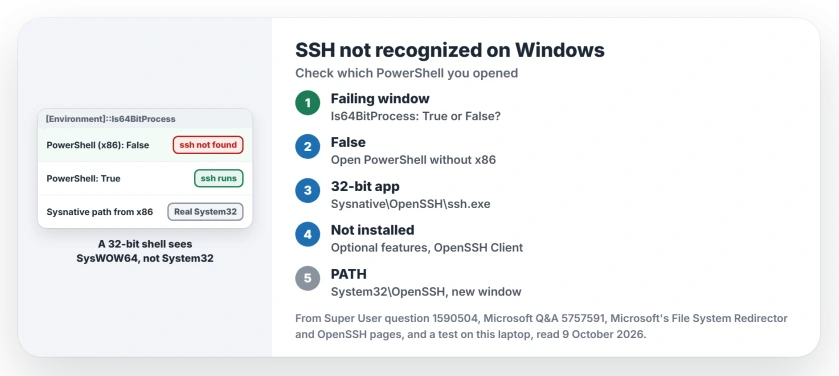
Status: reproduced on this laptop on 9 October 2026, Windows 11 25H2 with OpenSSH 9.5. Super User's accepted answer names the same cause: the x86 PowerShell.
Ours: the 32-bit Windows PowerShell here returned False for the OpenSSH folder and refused ssh. The 64-bit one printed OpenSSH_for_Windows_9.5p2, LibreSSL 3.8.2.
Is this PowerShell 32-bit?
Paste this into the window that fails:
[Environment]::Is64BitProcessFalse means you are in the 32-bit shell. The Start menu lists it as Windows PowerShell (x86), right next to the normal one. It is easy to open by mistake.
On Super User, the accepted answer puts it plainly: "I think the errors are caused by using Powershell(x86) instead of Powershell". The answerer added that in the normal one "everything is normal".
Command Prompt gives you the same split. The 32-bit cmd.exe in SysWOW64 refused ssh too, with its own not recognized message.
Why the folder disappears
Microsoft documents this on its File System Redirector page: "The %windir%\System32 directory is reserved for 64-bit applications on 64-bit Windows".
When a 32-bit program you run asks for System32, Windows quietly hands it SysWOW64 instead. That is by design. There is no OpenSSH folder in SysWOW64, so the 32-bit shell finds nothing, even with the right folder on your PATH.
A commenter on that Super User question tracked it down the same way, after finding it strange that the folder check depended on the shell at all.
Open the 64-bit shell
Pick Windows PowerShell without x86 in the name, or Windows Terminal. Then type ssh again. I would pin that one to the taskbar.
If an older 32-bit app opens the shell for you, you can reach the real folder through a special name. Microsoft says "32-bit applications can access the native system directory by substituting %windir%\Sysnative for %windir%\System32".
C:\Windows\Sysnative\OpenSSH\ssh.exe user@serverThat path only works when you are in a 32-bit shell. In the 64-bit one it does not exist. Our test showed that too.
Add the OpenSSH Client
Is it installed at all? On Microsoft's OpenSSH setup page the route is short: open Start, type Optional Features, then search for OpenSSH Client and add it.
You can use PowerShell as administrator instead. The first line shows whether it is there, and the second adds it:
Get-WindowsCapability -Online | Where-Object Name -like 'OpenSSH*'
Add-WindowsCapability -Online -Name OpenSSH.Client~~~~0.0.1.0
If your install fails with error 0x800f0954, our page on that error covers the update source fix.
Check PATH
Your client lives in C:\Windows\System32\OpenSSH. This lists the PATH entries that mention it:
$env:Path -split ';' | Select-String OpenSSHNo result? Search Start for environment variables, open Edit the system environment variables, then Environment Variables, and add that folder to Path. Open a new window afterwards, because old ones keep the old PATH.
A Super User answer from 2024 adds the folder to your own PATH with PowerShell instead. Our Python was not found page walks through how PATH order decides what runs.
Sudo behaves differently from ssh here, because Windows ships a 32-bit sudo.exe as well. If sudo is the command that fails, read its message for the cause instead.
Reinstalled it and still stuck?
On Microsoft Q&A, an owner reported in February 2026 that ssh was not recognized even in an administrator PowerShell on Windows 11 Pro. They had reinstalled the client and checked PATH. The thread has no fix yet.
Reinstalling never helps when the shell is 32-bit. So I would still run the Is64BitProcess check first. The Super User asker had removed and reinstalled the client too, and the x86 shell was the cause.
Runs, but the server says no?
That is a different fault. It lives on the other machine. Our page on SSH permission denied covers the account type and keys.
A run that ends in Host key verification failed is a third case: the server no longer matches the key your PC saved for it. Check that key, then remove the stale line.
The Short Version
- Run the Is64BitProcess check in the failing window.
- False: open Windows PowerShell without x86, or Windows Terminal.
- Stuck with a 32-bit app? Use the Sysnative path.
- Not installed: add OpenSSH Client in Optional features.
- Check that C:\Windows\System32\OpenSSH is on PATH, then open a new window.
Where to Next
Which app opened the 32-bit shell for you? Name it in a comment, so others hitting this know which tool to change.

Isaac Smith is the founder and editor of PC Glance, a website that covers computers, laptops, and technology. He is a tech enthusiast and a computer geek who loves to share his insights and help his readers make smart choices when buying tech gadgets or laptops. He is always curious and updated about the latest tech trends.